
How to Access Linux Partitions on Windows: A Step-by-step Guide
Are you a Windows user who has recently installed Linux on your computer and is facing issues accessing Linux files on Windows? You’re not alone! In this article, we’ll guide you through the process of accessing Linux partitions on Windows using various methods.
Installation Integrated: Accessing Linux Partitions on Windows
One of the most convenient ways to access Linux partitions on Windows is by installing Linux integrated with Windows. Microsoft has introduced a feature called the Subsystem for Linux (WSL) that allows you to run Linux natively on Windows. This means you can access Linux files directly from within Windows.
To do this, follow these steps:
- Open Powershell: Press the Windows key + R to open the Run dialog box, type “powershell,” and press Enter.
- Install Wsl: Type “wsl –install” and press Enter to install WSL on your system.
- Choose a Linux Distribution: Select a Linux distribution from the list of available options, such as Ubuntu or Debian.
- Access Linux Files: Once installed, you can access Linux files by navigating to File Explorer > This PC > Linux (the name of your chosen distribution).
Accessing Linux Partitions on Windows: Virtual Machine
If you’ve installed Linux on a virtual machine (VM), accessing Linux partitions on Windows is still possible. Here’s how:
- Open The VM: Launch the VM and log in to the Linux operating system.
- Share Folders: Open the Settings > Sharing menu within the VM, and select “Shared Folders” to share files between the host (Windows) and guest (Linux) OS.
- Drag And Drop Files: Drag and drop files from the VM to your Windows desktop or File Explorer.
Accessing Linux Partitions on Windows: Dual-boot
If you’ve installed both Linux and Windows on separate partitions, accessing Linux partitions on Windows is a bit more involved:
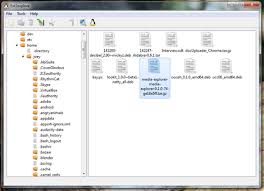
- Use Diskinternals Linux Reader: Download and install DiskInternals Linux Reader, a free utility that allows you to read Linux file systems.
- Open The Program: Launch DiskInternals Linux Reader and navigate to Volumes > Linux (the name of your chosen distribution).
- Access Files: Double-click on a partition or folder to access its contents.
Troubleshooting:
- If you’re experiencing issues accessing Linux partitions on Windows, try restarting your system.
- If the problem persists, check for any updates to WSL or DiskInternals Linux Reader.
- If you’ve installed a virtual machine, ensure it’s properly configured and shared folders are enabled.
Conclusion
Accessing Linux partitions on Windows is now more straightforward than ever. Whether you’re using WSL, a virtual machine, or dual-booting with Linux, we hope this article has provided the necessary guidance to access your Linux files from within Windows. Happy computing!
Frequently Asked Questions (FAQs)
- Q: How do I Enable Wsl on my System?
A: To enable WSL, type “wsl –install” in PowerShell and press Enter. - Q: Can I Share Folders Between Linux And Windows?
A: Yes, you can use the Sharing menu within your virtual machine to share files between host and guest OS. - Q: What is Diskinternals Linux Reader?
A: DiskInternals Linux Reader is a free utility that allows you to read Linux file systems on Windows. - Q: How do I Troubleshoot Issues Accessing Linux Partitions?
A: Restart your system, check for updates to WSL or DiskInternals Linux Reader, and ensure virtual machines are properly configured. - Q: Can I Use Multiple Linux Distributions on my System?
A: Yes, you can install multiple Linux distributions using WSL or VirtualBox. - Q: How do I Share Files Between Linux And Windows in a Dual-boot Setup?
A: Use DiskInternals Linux Reader to access Linux partitions from within Windows. - Q: What is The Difference Between Wsl1 And Wsl2?
A: WSL1 uses an older kernel, while WSL2 provides a more modern kernel and improved performance. - Q: Can I Run Graphical Applications on Linux Partitions Accessed Through Diskinternals Linux Reader?
A: Unfortunately, no. DiskInternals Linux Reader is designed for reading file systems only, not running graphical applications.
Additional Resources
For more information on WSL, virtual machines, and Linux file system management, consult the following resources:
- Microsoft’s official WSL documentation
- VirtualBox tutorials and guides
- DiskInternals Linux Reader user manual
We hope this article has provided a comprehensive guide to accessing Linux partitions on Windows. Happy computing!


