
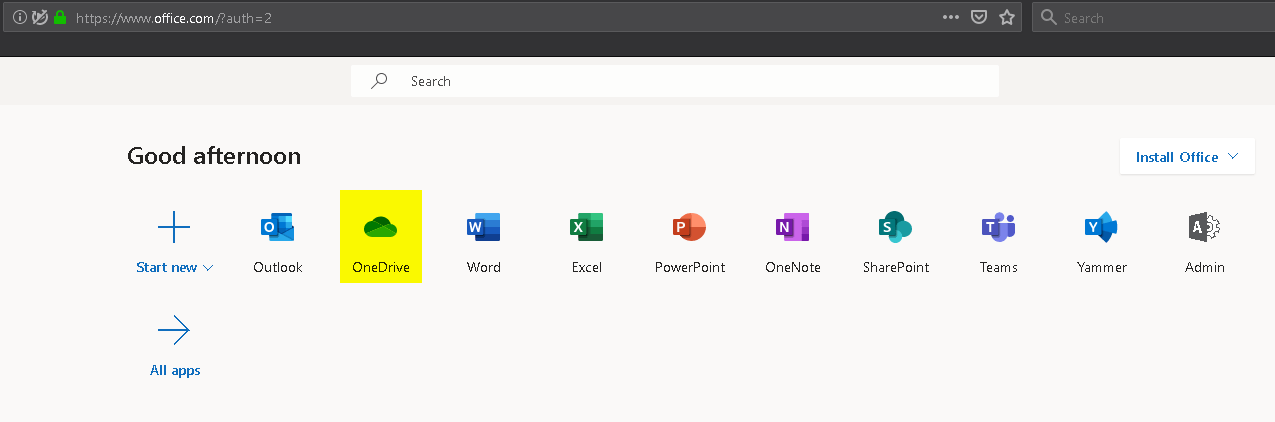
Accessing Onedrive: A Comprehensive Guide
As a user, you’re likely no stranger to the concept of cloud storage services like OneDrive. However, with so many options available, it can be overwhelming to determine which one is best for your needs. In this article, we’ll delve into the world of OneDrive, exploring its features, benefits, and various access methods.
What is Onedrive?
OneDrive is a cloud storage service provided by Microsoft that allows users to store and access files from anywhere, on any device. With OneDrive, you can upload, share, and collaborate on documents, photos, and videos with ease. The service offers a generous 5 GB of free storage space, making it an attractive option for individuals and businesses alike.
Benefits of Using Onedrive
Before we dive into the nitty-gritty of accessing OneDrive, let’s take a look at some of its benefits:
- Convenience: Access your files from anywhere, on any device, without worrying about storage space.
- Collaboration: Share and collaborate on documents with others in real-time.
- Security: Enjoy robust security features to protect your data.
- Cost-effective: Take advantage of affordable pricing plans that cater to individual and business needs.
Accessing Onedrive: A Step-by-step Guide
Now that we’ve explored the benefits, let’s move on to the main event – accessing OneDrive. Here are the steps to follow:
Accessing Onedrive From a Pc
- Sign up For a Microsoft Account: If you don’t already have one, create an account on the Microsoft website.
- Download And Install The Onedrive Client: Once signed in, download and install the OneDrive client on your PC.
- Configure Onedrive: Open the OneDrive client and follow the prompts to configure it.
Accessing Onedrive From a Mac
- Sign up For a Microsoft Account: If you don’t already have one, create an account on the Microsoft website.
- Download And Install The Onedrive Client: Once signed in, download and install the OneDrive client on your Mac.
- Configure Onedrive: Open the OneDrive client and follow the prompts to configure it.
Accessing Onedrive From a Smartphone or Tablet
- Sign up For a Microsoft Account: If you don’t already have one, create an account on the Microsoft website.
- Download And Install The Onedrive App: Once signed in, download and install the OneDrive app on your smartphone or tablet.
- Configure Onedrive: Open the OneDrive app and follow the prompts to configure it.
Accessing Onedrive From a Browser
- Sign up For a Microsoft Account: If you don’t already have one, create an account on the Microsoft website.
- Open The Onedrive Web Page: Once signed in, open the OneDrive web page and follow the prompts to access your files.
Onedrive For Business: A Subscription-based Service
OneDrive for Business is a subscription-based service that offers additional features and benefits for businesses. With this plan, you can enjoy:
- Advanced Security Features
- Increased Storage Space
- Collaboration Tools
- Integration With Microsoft Office 365
Conclusion
Accessing OneDrive is easier than you think! Whether you’re using a PC, Mac, smartphone, or tablet, the process is straightforward and user-friendly. By following these steps, you can take advantage of the benefits that OneDrive has to offer.
Frequently Asked Questions
Here are some frequently asked questions about accessing OneDrive:
Q: How do I access OneDrive from my PC?
A: To access OneDrive from your PC, sign up for a Microsoft account and download and install the OneDrive client. Then, configure it according to the prompts.
Q: Can I access OneDrive from my Mac?
A: Yes, you can access OneDrive from your Mac by signing up for a Microsoft account and downloading and installing the OneDrive client. Then, configure it according to the prompts.
Q: How do I access OneDrive from my smartphone or tablet?
A: To access OneDrive from your smartphone or tablet, sign up for a Microsoft account and download and install the OneDrive app. Then, configure it according to the prompts.
Q: Can I access OneDrive from a browser?
A: Yes, you can access OneDrive from a browser by signing up for a Microsoft account and opening the OneDrive web page. Then, follow the prompts to access your files.
Q: What is OneDrive for Business?
A: OneDrive for Business is a subscription-based service that offers additional features and benefits for businesses. With this plan, you can enjoy advanced security features, increased storage space, collaboration tools, and integration with Microsoft Office 365.
The Final Word
Accessing OneDrive is a breeze! By following these steps, you can take advantage of the benefits that OneDrive has to offer. Whether you’re using a PC, Mac, smartphone, or tablet, the process is straightforward and user-friendly. So, go ahead and give OneDrive a try – your files will thank you!


