
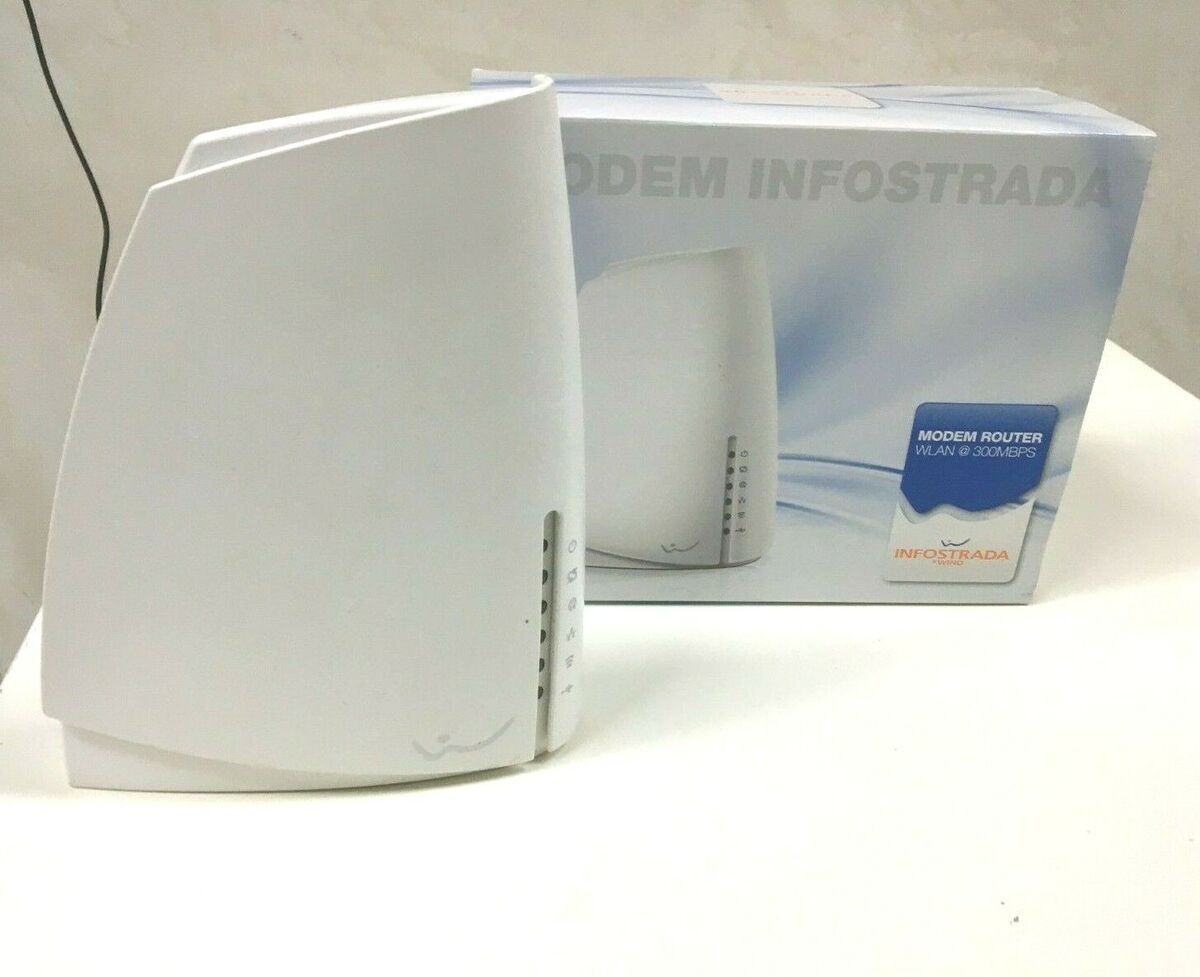
How to Access Your Windtre Router: A Step-by-step Guide
Are you struggling to access your WINDTRE router? Look no further! In this comprehensive guide, we’ll walk you through the simple steps to access your router and get the most out of your internet connection.
Understanding Your Windtre Router
Before we dive into the nitty-gritty, it’s essential to understand what a WINDTRE router is and how it works. A router is a device that connects multiple devices to a network, allowing them to share resources and communicate with each other. In this case, your WINDTRE router is provided by your internet service provider (ISP), which enables you to connect to the internet.
Step 1: Gather Your Device
To access your WINDTRE router, you’ll need a device that can connect to the internet. This could be a computer, smartphone, or tablet. Make sure it’s connected to the same network as your router.
Step 2: Open Your Web Browser
Open a web browser on your chosen device. You can use Google Chrome, Mozilla Firefox, Safari, or any other browser that you’re comfortable with.
Step 3: Type in The IP Address
In the address bar of your browser, type in the IP address of your WINDTRE router. The most common IP addresses are:
- 192.168.1.1
- 192.168.0.1
If you’re unsure which IP address to use, you can check your router’s manual or contact your ISP for assistance.
Step 4: Enter Your Username And Password
Once you’ve entered the IP address, a login page will appear. Enter your username and password, which are usually printed on the label of your router or provided by your ISP. If you’re still unsure, you can refer to our guide on how to find the default login credentials.
Step 5: Access Your Windtre Router
After entering the correct credentials, you’ll be taken to the dashboard of your WINDTRE router. From here, you can manage your network settings, check the status of your connection, and make changes as needed.
Configuring Your Windtre Router
Now that you’ve accessed your router, let’s talk about configuring it to get the most out of your internet connection. Here are some key settings to consider:
- Change The Admin Password: This will add an extra layer of security to prevent unauthorized access to your router.
- Update Your Firmware: Make sure your router is running the latest software to ensure optimal performance and security.
- Set up Guest Networks: Create a separate network for guests or devices that you don’t want to connect to your main network.
Troubleshooting Tips
If you’re experiencing issues accessing your WINDTRE router, here are some troubleshooting tips to try:
- Restart Your Router: Sometimes, simply restarting your router can resolve connectivity issues.
- Check Your Cables: Ensure that all cables are securely connected and not damaged.
- Contact Your Isp: Reach out to your internet service provider for assistance if you’re still experiencing problems.
Conclusion
Accessing your WINDTRE router is a straightforward process that requires some basic technical knowledge. By following these steps, you can manage your network settings, troubleshoot issues, and get the most out of your internet connection. Remember to keep your router’s firmware up-to-date, change your admin password regularly, and set up guest networks as needed.
Frequently Asked Questions (FAQs)
- What is my Windtre Router’s IP Address?
- The most common IP addresses are 192.168.1.1 Or 192.168.0.1.
- How do I Change The Admin Password on my Windtre Router?
- Log in to your router, navigate to the settings menu, and look for the “Change Admin Password” option.
- Why Can’t I Access my Windtre Router?
- Check that you’ve entered the correct IP address, username, and password. Restarting your router or contacting your ISP may also resolve the issue.
- How do I Update my Windtre Router’s Firmware?
- Log in to your router, navigate to the settings menu, and look for the “Firmware Update” option.
- Can I Set up a Guest Network on my Windtre Router?
- Yes, you can create a separate network for guests or devices that you don’t want to connect to your main network.
Useful Resources
- Windtre Router Manual: A comprehensive guide to your WINDTRE router’s features and settings.
- Windtre Customer Support: Contact your ISP for assistance with any issues related to your internet connection or WINDTRE router.


