
Accessing Your Modem: A Step-by-step Guide
Are you struggling to access your modem? Don’t worry, we’ve got you covered! In this comprehensive guide, we’ll walk you through the process of accessing your modem, whether it’s a TIM HUB, Fastweb, WINDTRE, Vodafone, or Linkem.
Understanding Your Modem
Before we dive into the step-by-step guide, let’s take a moment to understand what your modem is and how it works. Your modem is a device that connects your computer or other devices to the internet. It converts digital signals from your device into analog signals that can be transmitted over phone lines or fiber-optic cables.
Accessing Your Modem: A Step-by-step Guide
Here’s a step-by-step guide on how to access your modem:
Windows
- Press and hold the Shift key while clicking on an empty spot on the desktop.
- Select “Open in Terminal” or “Open PowerShell here” from the context menu.
- Type
ipconfigin the terminal window and press Enter. - Look for the IP address listed under “Default Gateway.”
- Open a web browser and enter the IP address you found in step 4.
Macos
- Open the Terminal app by searching for it in Spotlight or using the Command + Space shortcut.
- Type
netstat -nr | grep defaultand press Enter. - Look for the IP address listed next to “default.”
- Open a web browser and enter the IP address you found in step 3.
Android
- Go to Settings > Network & Internet > Wi-Fi.
- Tap on the gear icon next to your Wi-Fi network name.
- Select “Advanced” or “Wi-Fi settings.”
- Look for the IP address listed under “Router.”
Iphone/ipad
- Open the Settings app.
- Go to Wi-Fi.
- Tap on the blue arrow next to your Wi-Fi network name.
- Look for the IP address listed under “Router.”
Accessing Your Modem: Tim Hub
If you have a TIM HUB modem, follow these steps:
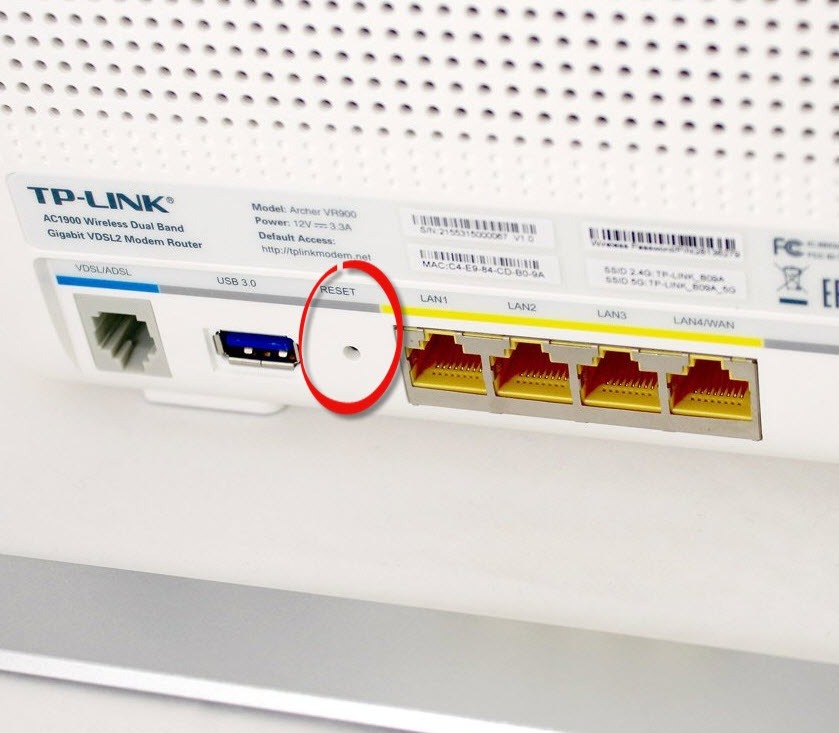
- Search for the password printed on the adhesive label on the back of the modem.
- Open a web browser and enter
192.168.1.1In the address bar. - Enter the default username and password (admin/admin).
- Select “Login” to access the modem’s interface.
Accessing Your Modem: Fastweb
If you have a Fastweb modem, follow these steps:
- Open a web browser and enter
http://Fastgateor192.168.1.254. - Enter your username and password.
- Select “Login” to access the modem’s interface.
Accessing Your Modem: Windtre
If you have a WINDTRE modem, follow these steps:
- Search for the IP address printed on the adhesive label on the back of the modem.
- Open a web browser and enter the IP address in the address bar.
- Enter your username and password (default is admin/admin).
- Select “Login” to access the modem’s interface.
Accessing Your Modem: Vodafone
If you have a Vodafone modem, follow these steps:
- Open a web browser and enter
http://Vodafone.Station. - Look for the page of management of your modem.
- Enter your username and password (default is admin/admin).
- Select “Login” to access the modem’s interface.
Accessing Your Modem: Linkem
If you have a Linkem modem, follow these steps:
- Open a web browser and enter
192.168.1.1. - Enter your username (guest) and password (linkem123).
- Select “Login” to access the modem’s interface.
Conclusion
Accessing your modem is a relatively straightforward process that requires some basic knowledge of your device and the internet. By following these step-by-step guides, you should be able to access your modem and make any necessary changes or adjustments.
Frequently Asked Questions (FAQs)
- Q: What is my modem’s IP address?
A: Your modem’s IP address can usually be found on the adhesive label on the back of the device. - Q: How do I access my modem’s interface?
A: To access your modem’s interface, open a web browser and enter the IP address listed in step 1. - Q: What is the default username and password for my modem?
A: The default username and password for most modems are admin/admin or guest/linkem123. - Q: How do I change my modem’s settings?
A: To change your modem’s settings, access its interface by following the steps outlined above and select the relevant options. - Q: Why can’t I access my modem?
A: If you’re having trouble accessing your modem, try restarting it or checking the power cord. Make sure you’ve entered the correct IP address and username/password combination. - Q: Can I use a different browser to access my modem?
A: Yes, you can use any web browser (Chrome, Firefox, Safari, etc.) To access your modem’s interface. - Q: How do I reset my modem to its factory settings?
A: To reset your modem to its factory settings, try pressing the reset button on the back of the device or check your modem’s manual for instructions. - Q: Can I use my smartphone to access my modem?
A: Yes, you can use your smartphone to access your modem’s interface using a mobile app (e.G., MyFastweb) or by following the steps outlined above.
We hope this guide has been helpful in accessing your modem and answering any questions you may have had. If you’re still having trouble, feel free to ask!


