
Accessing Mytim: A Step-by-step Guide
Are you looking to access your TIM account through the MyTIM app? Look no further! In this article, we will guide you through the process of downloading, installing, and accessing the MyTIM app on both Android and iOS devices. We will also cover how to use the app to manage your TIM accounts, check your data usage, and contact customer support.
What is Mytim?
MyTIM is a free app developed by TIM that allows you to manage your TIM accounts in one place. With MyTIM, you can view your account details, check your data usage, pay bills, and even contact customer support directly from the app.
System Requirements
Before we dive into the installation process, make sure your device meets the system requirements:
- Android: Requires Android 5.0 Or higher
- IOS: Requires iOS 12 or higher
Installing Mytim on Android Devices
To install MyTIM on an Android device, follow these steps:
- Open The Play Store: Tap on the Play Store icon on your home screen to open it.
- Search For Mytim: In the search bar at the top of the screen, type “MyTIM” and press Enter.
- Select The App: From the search results, select the MyTIM app developed by TIM.
- Install The App: Tap on the Install button to download and install the app.
- Launch The App: Once the installation is complete, tap on the Open button to launch the app.
Installing Mytim on Ios Devices
To install MyTIM on an iOS device, follow these steps:
- Open The App Store: Tap on the App Store icon on your home screen to open it.
- Search For Mytim: In the search bar at the top of the screen, type “MyTIM” and press Enter.
- Select The App: From the search results, select the MyTIM app developed by TIM.
- Install The App: Tap on the Get button to download and install the app.
- Launch The App: Once the installation is complete, tap on the Open button to launch the app.
Accessing Mytim on PC
In addition to mobile devices, you can also access MyTIM on your PC by visiting the official website. To do this:
- Visit The Website: Go to the MyTIM website and click on the Sign In button.
- Enter Your Credentials: Enter your email address and password in the designated fields.
- Access Your Account: Click on the Log In button to access your account.
Troubleshooting
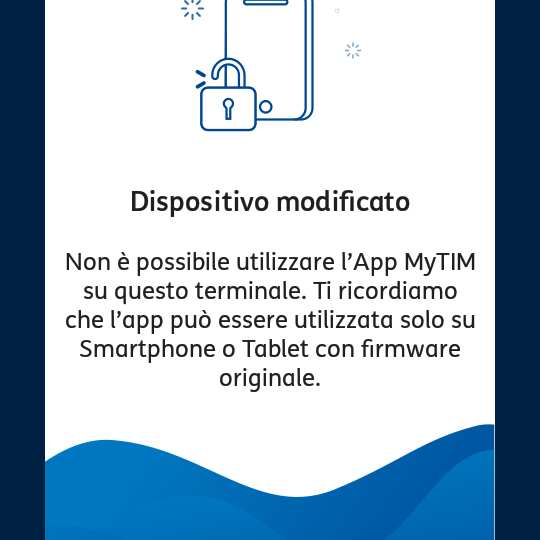
If you encounter any issues during the installation or login process, refer to our troubleshooting guide below:
Troubleshooting Issues
- If you receive an error message stating that your phone number is already registered, tap on the “Continue” button and follow the prompts.
- If you forget your password, click on the “Recover Password” link and follow the instructions.
- If you experience any issues with the app, contact our customer support team through one of the following channels:
- Call us at 187 for fixed-line phones or 119 for mobile phones
- Send a WhatsApp message to 335 123 7272
- Reach out to us on social media by sending a message on Facebook, Twitter, or Instagram.
Conclusion
In this article, we have walked you through the process of downloading, installing, and accessing the MyTIM app on both Android and iOS devices. We have also covered how to use the app to manage your TIM accounts, check your data usage, and contact customer support. If you encounter any issues during the installation or login process, refer to our troubleshooting guide above.
Faqs
Q: What is MyTIM?
A: MyTIM is a free app developed by TIM that allows you to manage your TIM accounts in one place.
Q: Which devices can I use to access MyTIM?
A: You can access MyTIM on Android and iOS devices, as well as on PC through the official website.
Q: How do I install MyTIM on my device?
A: To install MyTIM on an Android device, follow the steps outlined above. For iOS devices, refer to the installation guide for Apple devices.
Q: What features can I access with MyTIM?
A: With MyTIM, you can view your account details, check your data usage, pay bills, and even contact customer support directly from the app.
Q: How do I troubleshoot issues with MyTIM?
A: Refer to our troubleshooting guide above for assistance with common issues.
Q: Can I access MyTIM on multiple devices at once?
A: Yes, you can access MyTIM on multiple devices simultaneously by logging in using your unique credentials.
Q: What if I forget my password or username?
A: Click on the “Recover Password” link to reset your password, and refer to our troubleshooting guide for assistance with forgotten usernames.


