
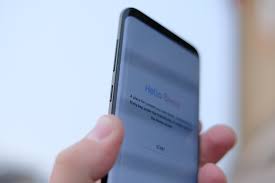
How to Actuate Bixby: A Comprehensive Guide
Are you a proud owner of a new Samsung smartphone? Have you been wondering how to unlock the full potential of your device by utilizing the incredible features of Bixby, Samsung’s intelligent assistant? Look no further! In this article, we will take you on a journey through the world of Bixby, exploring its various functionalities and providing you with step-by-step instructions on how to actuate it.
What is Bixby?
Bixby is an artificial intelligence-powered virtual assistant developed by Samsung. It’s designed to make your life easier by providing information, answering questions, sending messages, making calls, and even controlling other smart devices in your home. With Bixby, you can enjoy a seamless experience that integrates perfectly with your Samsung device.
Why Use Bixby?
There are numerous reasons why you should use Bixby on your Samsung smartphone:
- Convenience: Bixby allows you to perform various tasks hands-free, making it perfect for busy individuals.
- Accuracy: Bixby’s advanced algorithms ensure accurate responses to your queries, saving you time and effort.
- Integration: Bixby seamlessly integrates with other Samsung services, providing a cohesive experience across all devices.
How to Actuate Bixby on Your Samsung Smartphone
Actuating Bixby is an easy process that requires minimal effort. Here’s how:
- Enable Internet Connection: Make sure your smartphone has an active internet connection to access Bixby’s features.
- Create a Samsung Account: If you don’t have a Samsung account, create one to unlock all the benefits of Bixby.
- Access Bixby: To activate Bixby, hold down the dedicated Bixby button on your device (usually located on the right side). Alternatively, say “Hi, Bixby” to initiate the assistant.
How to Use Bixby Voice
Bixby Voice is the core functionality of Bixby, allowing you to interact with your smartphone using natural language. Here’s how to use it:
- Initiate Bixby: As mentioned earlier, hold down the Bixby button or say “Hi, Bixby” to activate the assistant.
- Give Voice Commands: Once initiated, give voice commands to perform various tasks, such as sending messages, making calls, or controlling other smart devices.
How to Use Bixby Vision
Bixby Vision is an innovative feature that utilizes your smartphone’s camera to provide information about objects and environments. Here’s how to use it:
- Initiate Bixby: Activate Bixby as described earlier.
- Access Bixby Vision: Open the Camera app and select the Bixby Vision mode (usually represented by a yellow icon).
- Point The Camera: Point your camera at an object or environment you’re interested in, and Bixby will provide relevant information.
How to Actuate Bixby on Your Galaxy Watch
If you own a Samsung Galaxy watch, you can also utilize Bixby’s features on your wearable device. Here’s how:
- Activate Bixby: On your smartphone, activate Bixby as described earlier.
- Access Bixby on Galaxy Watch: On your Galaxy watch, navigate to the app list and select the Bixby icon (usually represented by a blue “B” in cursive).
- Use Voice Commands: Once initiated, give voice commands to perform various tasks, such as sending messages or controlling other smart devices.
Conclusion
Actuating Bixby on your Samsung smartphone is an easy process that unlocks a world of convenience and innovation. By following the steps outlined above, you can experience the full potential of Bixby and enjoy a seamless interaction with your device. Whether it’s using Bixby Voice or Bixby Vision, this intelligent assistant is designed to make your life easier and more enjoyable.
Faqs
- What is Bixby?
- Bixby is an artificial intelligence-powered virtual assistant developed by Samsung.
- Why Use Bixby?
- Bixby offers convenience, accuracy, and integration with other Samsung services.
- How to Actuate Bixby on a Galaxy Watch?
- Activate Bixby on your smartphone, then access it on your Galaxy watch by navigating to the app list and selecting the Bixby icon.


