
How to Actuate Bluetooth on Ps4 Controller
Are you curious about how to connect your PS4 controller to a smartphone, tablet, or computer using Bluetooth? Well, you’re in the right place! In this article, we’ll guide you through the process of setting up Bluetooth on your PS4 controller and connecting it to various devices.
Connecting to PC
If you want to connect your DualShock 4 (PS4 controller) to a PC with Windows 10, follow these steps:
- Click on the Start button and access the Settings panel.
- Select “Devices” and then “Bluetooth & other devices.”
- If necessary, turn on Bluetooth by clicking on the toggle switch.
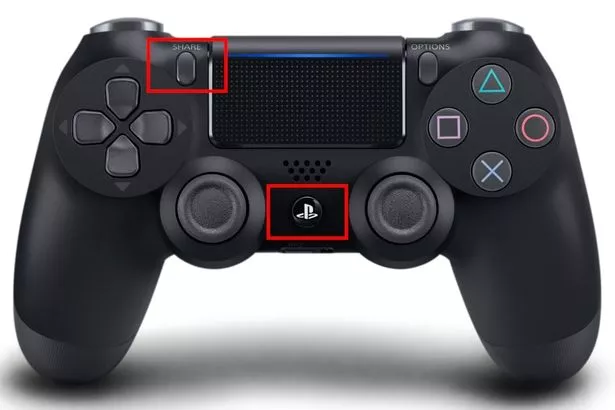
- Make sure your PS4 controller is in pairing mode (LED light flashing).
- Click on the “Add device” button and select “Bluetooth.”
- Wait for your PC to detect the controller, then click on its name to connect.
Connecting to Mac
If you’re using a Mac with macOS High Sierra or later, follow these steps:
- Open the System Preferences panel.
- Select “Bluetooth” and make sure it’s turned on.
- Put your PS4 controller in pairing mode (LED light flashing).
- Click on the “+” button at the bottom left of the Bluetooth window.
- Select “DUALSHOCK 4 Wireless Controller” from the list of available devices.
- Wait for your Mac to connect the controller.
Connecting to Android
If you’re using an Android device, follow these steps:
- Open the Settings app and select “Bluetooth.”
- Make sure Bluetooth is turned on.
- Put your PS4 controller in pairing mode (LED light flashing).
- Select “DUALSHOCK 4 Wireless Controller” from the list of available devices.
- Wait for your Android device to connect the controller.
Connecting to Iphone And Ipad
If you’re using an iOS device, follow these steps:
- Open the Settings app and select “Bluetooth.”
- Make sure Bluetooth is turned on.
- Put your PS4 controller in pairing mode (LED light flashing).
- Select “DUALSHOCK 4 Wireless Controller” from the list of available devices.
- Wait for your iPhone or iPad to connect the controller.
Connecting to Ps4
If you want to connect your DualShock 4 to a PS4, simply plug it in using a USB cable and turn on the console. The controller will be connected automatically.
Using Bluetooth With Headphones
Unfortunately, the PS4 does not support connecting Bluetooth headphones directly. However, you can use an adapter like the Avantree Leaf Adapter to connect your Bluetooth headphones to the PS4.
Tips And Tricks
- Make sure your PS4 controller is fully charged before attempting to connect it via Bluetooth.
- If you’re having trouble connecting, try restarting your device or the controller.
- Consider investing in a good pair of wireless headphones specifically designed for the PS4.
- Be aware that not all adapters are created equal, and some may cause issues with latency or microphone quality.
Conclusion
Connecting your PS4 controller to various devices using Bluetooth is a straightforward process. By following these steps, you’ll be able to enjoy seamless gaming experiences across multiple platforms. Remember to always check the compatibility of your device and adapter before attempting to connect via Bluetooth.
Frequently Asked Questions (FAQs)
- Q: Can I Connect my Ps4 Controller to a PC Using Bluetooth?
A: Yes, but make sure you have Windows 10 installed. - Q: How do I Connect my Ps4 Controller to an Iphone or Ipad?
A: Follow the steps outlined in the article for iOS devices. - Q: Can I Use my Ps4 Controller With Android Devices?
A: Yes, follow the steps outlined in the article for Android devices. - Q: Why Can’t I Connect my Bluetooth Headphones to my Ps4 Directly?
A: Unfortunately, the PS4 does not support direct Bluetooth connections with headphones. - Q: What Adapter Should I Use to Connect my Bluetooth Headphones to my Ps4?
A: Consider using a good quality adapter like the Avantree Leaf Adapter. - Q: Can I Use my Ps4 Controller Without a Usb Cable?
A: Yes, but only if you have a device that supports wireless connections via Bluetooth.


