
How to Actuate Cookies on Various Browsers
Are you tired of encountering difficulties while shopping on Amazon or eBay? Do you find that the sharing buttons on Facebook and Twitter no longer function? If so, it’s likely due to a cookie issue. In this article, we’ll explore how to actuate cookies on various browsers, including Chrome, Firefox, Microsoft Edge, Safari, and Google.
What Are Cookies?
Cookies are small files stored on your device by websites you visit. They help personalize your browsing experience by remembering your preferences, login information, and shopping cart contents. However, some users may find cookie-related issues frustrating. In this article, we’ll show you how to resolve these problems by actuating cookies on different browsers.
Actuating Cookies on Chrome
If you use Google Chrome as your primary browser, follow these steps:
- Computer: On your computer, open the Chrome browser and click on the three vertical dots in the top right corner. Select “Settings” from the dropdown menu.
- Privacy And Security: In the settings page, scroll down to the “Privacy and security” section and click on it.
- Cookies And Site Data: Under “Cookies and site data,” select the option that suits your needs:
- Consent cookies of third parties: This allows all cookies to be stored.
- Block cookies of third parties in incognito mode: This blocks cookies in normal mode but allows them in incognito mode.
- Block cookies of third parties: This blocks all cookies, including those from specific websites.
Actuating Cookies on Firefox
To actuate cookies on Firefox:
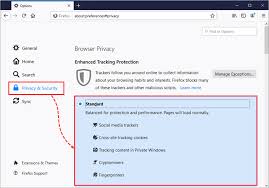
- Computer: Open the Firefox browser and click on the three horizontal lines in the top right corner. Select “Options” from the dropdown menu.
- Preferences: In the options page, scroll down to the “Privacy & Security” section and click on it.
- Cookies And Site Data: Under “Cookies and site data,” select the option that suits your needs:
- Normal: This unblocks most cookies.
- Personalized: This allows you to customize cookie settings.
- Block cookies from sites that are not visited recently: This blocks cookies from sites that haven’t been visited in a while.
Actuating Cookies on Microsoft Edge
If you use Microsoft Edge as your primary browser:
- Computer: Open the Microsoft Edge browser and click on the three dots in the top right corner. Select “Settings” from the dropdown menu.
- Cookie And Site Permissions: In the settings page, scroll down to the “Cookie and site permissions” section and click on it.
- Manage Cookies And Site Data: Under “Manage cookies and site data,” select the option that suits your needs:
- Allow sites to save and read cookie data: This allows all cookies.
- Block cookies from third-party sites: This blocks cookies from third-party sites.
Actuating Cookies on Safari
To actuate cookies on Safari:
- Mac: Open the Safari browser and click on the Safari menu in the top left corner. Select “Preferences” from the dropdown menu.
- Privacy: In the preferences page, select the “Privacy” tab.
- Block All Cookies: Check the box next to “Block all cookies” to block all cookies.
Actuating Cookies on Google
If you’re experiencing issues with Google cookies:
- Google Account: Sign in to your Google account and go to the Google settings page.
- Cookie Settings: Under “Cookie settings,” select the option that suits your needs:
- Allow cookies: This allows all cookies.
- Block cookies: This blocks all cookies.
Conclusion
Actuating cookies on various browsers can resolve issues related to shopping, social media, and advertising. By following these step-by-step guides, you’ll be able to personalize your browsing experience and enjoy a seamless online journey.
Here are 8 unique FAQs related to the topic:
-
Q: What Are Cookies?
- A: Cookies are small files stored on your device by websites you visit.
-
Q: Why do I Need to Actuate Cookies?
-
A: Actuating cookies helps resolve issues related to shopping, social media, and advertising.
-
Q: How Can I Enable Cookies on Chrome?
-
A: To enable cookies on Chrome, follow the steps outlined in this article.
-
Q: What Are The Different Types of Cookie Settings on Firefox?
-
A: The different types of cookie settings on Firefox include Normal, Personalized, and Block cookies from sites that are not visited recently.
-
Q: How Can I Block Cookies on Microsoft Edge?
-
A: To block cookies on Microsoft Edge, follow the steps outlined in this article.
-
Q: Why do I Need to Block Cookies on Safari?
-
A: Blocking cookies on Safari helps resolve issues related to privacy and security.
-
Q: Can I Customize Cookie Settings on Google?
-
A: Yes, you can customize cookie settings on Google by selecting the option that suits your needs.
-
Q: How do I Enable Cookies on Google?
-
A: To enable cookies on Google, follow the steps outlined in this article.


