
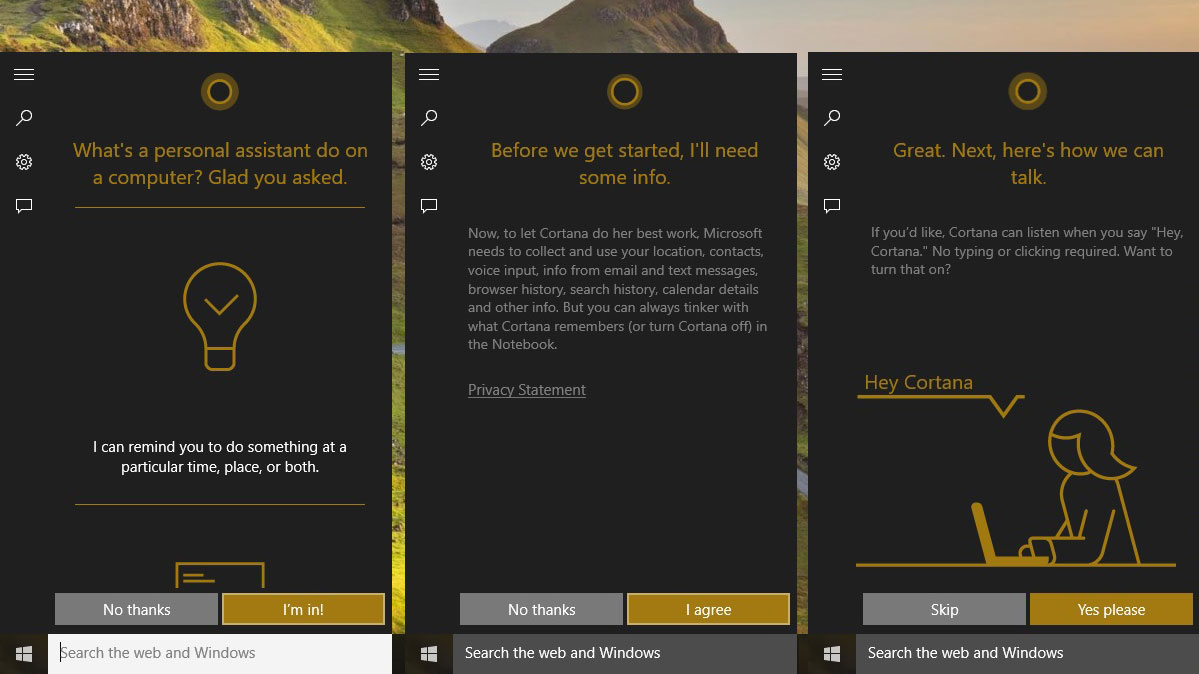
Windows 11: A Comprehensive Guide to Cortana
In this article, we will delve into the world of Windows 11 and explore one of its most powerful features – Cortana. As a digital assistant, Cortana has been a part of the Windows ecosystem for several years, providing users with an intuitive way to interact with their computers. In this guide, we will take you through the various ways to activate Cortana on Windows 11, as well as some troubleshooting tips in case things don’t go as planned.
What is Cortana?
Cortana is a virtual assistant developed by Microsoft that allows users to interact with their computers using voice commands. With Cortana, you can search for information online, send emails, set reminders, and even control other devices on your network. It’s an incredibly powerful tool that makes using your computer easier than ever.
Activating Cortana on Windows 11
To activate Cortana on Windows 11, follow these steps:
- Open the Start menu by clicking on the Windows logo in the bottom left corner of your screen.
- Type “Cortana” into the search bar and click on the result.
- Click on the “Settings” icon to access the Cortana settings.
- Select the option to “Use Cortana” and follow the prompts to set up your account.
Using Cortana With Voice Commands
To use Cortana with voice commands, you’ll need to enable microphone access for Cortana. To do this:
- Open the Start menu and type “Cortana” into the search bar.
- Click on the result and select the option to “Use Cortana.”
- In the Cortana settings, click on the “Microphone” tab and select the option to “Allow access.”
Troubleshooting Cortana Issues
If you’re experiencing issues with Cortana, here are some troubleshooting tips:
- Restart your computer and try using Cortana again.
- Check that Cortana is enabled in the Start menu and settings.
- Ensure that microphone access is enabled for Cortana.
Using Cortana on Windows 10
The process of activating Cortana on Windows 10 is slightly different than on Windows 11. To use Cortana on Windows 10:
- Open the Start menu by clicking on the Windows logo in the bottom left corner of your screen.
- Type “Cortana” into the search bar and click on the result.
- Click on the “Settings” icon to access the Cortana settings.
- Select the option to “Use Cortana” and follow the prompts to set up your account.
Common Issues With Cortana
Here are some common issues you may encounter when using Cortana:
- Cortana Not Responding: If Cortana is not responding, try restarting your computer and checking that it’s enabled in the Start menu and settings.
- Microphone Access Denied: If you’re unable to access the microphone for Cortana, check that microphone access is enabled in the Settings app.
Conclusion
In this guide, we’ve taken a comprehensive look at how to activate Cortana on Windows 11 and Windows 10. We’ve also covered some troubleshooting tips in case things don’t go as planned. With these steps, you should be able to use Cortana with ease and take advantage of its powerful features.
Frequently Asked Questions (FAQs)
Here are some frequently asked questions about Cortana:
- Q: What is Cortana?
A: Cortana is a virtual assistant developed by Microsoft that allows users to interact with their computers using voice commands. - Q: How do I Activate Cortana on Windows 11?
A: To activate Cortana on Windows 11, follow the steps outlined in this guide. - Q: Can I Use Cortana With Voice Commands on Windows 10?
A: Yes, you can use Cortana with voice commands on Windows 10 by following the steps outlined in this guide. - Q: What if I’m Experiencing Issues With Cortana?
A: If you’re experiencing issues with Cortana, try restarting your computer and checking that it’s enabled in the Start menu and settings.
Additional Resources
For more information about Cortana, check out these additional resources:
- Microsoft Support Website
- Windows 11 Official Documentation
- Windows 10 Official Documentation


