
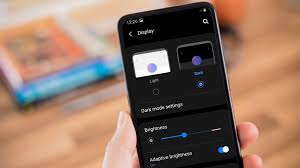
Actuating Dark Fashions on Android: A Step-by-step Guide
Are you tired of looking at a bright screen on your Android device, especially during those long hours when the battery is running low? Do you want to give your eyes some relief while still maintaining an elegant and sophisticated look? If so, actuating dark fashions on your Android device might be just what you need.
In this article, we will explore how to activate dark mode on various Android devices, including Samsung, Xiaomi, Huawei, OPPO, and more. We will also delve into the settings of popular apps like Instagram, WhatsApp, and YouTube, to show you how to enable or disable dark mode within each app.
Understanding Dark Mode
Before we dive into the step-by-step guide, let’s briefly discuss what dark mode is and its benefits. Dark mode refers to a display setting that inverts the colors on your screen, making it appear darker and less bright. This can be especially helpful during nighttime hours or when you’re trying to conserve battery life.
Dark mode has several benefits:
- Energy Efficiency: By reducing the amount of light emitted by your screen, dark mode can help prolong battery life.
- Eye Comfort: Dark mode is easier on the eyes, as it reduces the glare and reflections that can cause eye strain.
- Aesthetics: Dark mode can make your device’s interface look sleeker and more modern.
Actuating Dark Fashions on Android
To activate dark mode on your Android device, follow these steps:
- Open the Settings app on your device.
- Look for the Display or Screen section.
- Select the option to turn on Dark Mode or Night Mode.
- You may also have the option to customize the schedule and intensity of the dark mode.
Actuating Dark Fashions on Samsung
If you’re using a Samsung device, follow these steps:
- Open the Settings app.
- Go to Display > Theme.
- Select the Dark theme or Night Mode option.
- You can also customize the schedule and intensity of the dark mode.
Actuating Dark Fashions on Xiaomi
If you’re using an Xiaomi device, follow these steps:
- Open the Settings app.
- Go to Display > Theme.
- Select the Dark theme or Night Mode option.
- You can also customize the schedule and intensity of the dark mode.
Actuating Dark Fashions on Huawei
If you’re using a Huawei device, follow these steps:
- Open the Settings app.
- Go to Display > Screen settings.
- Select the Night mode option.
- You can also customize the schedule and intensity of the dark mode.
Actuating Dark Fashions on Oppo
If you’re using an OPPO device, follow these steps:
- Open the Settings app.
- Go to Display > Theme.
- Select the Dark theme or Night Mode option.
- You can also customize the schedule and intensity of the dark mode.
Actuating Dark Fashions in Apps
Some apps, like Instagram and WhatsApp, have their own settings for dark mode. Here’s how to enable or disable dark mode within each app:
- Instagram: Open the app, go to Settings > Display, and toggle on “Use system colors” or select a custom theme.
- Whatsapp: Open the app, go to Settings > Chat > Theme, and select Dark from the list.
Actuating Dark Fashions on Youtube
To enable dark mode on YouTube, follow these steps:
- Open the YouTube app.
- Go to Menu > Settings > Appearance.
- Select the Dark theme or Night Mode option.
By following these step-by-step guides, you should be able to activate dark mode on your Android device and within popular apps like Instagram, WhatsApp, and YouTube. This can help reduce eye strain, conserve battery life, and give your device a sleeker look.


