
Unlocking The Power of Android’s Developer Options
Are you an Android user looking to unlock advanced features on your device? Do you want to customize your smartphone experience like a pro? Look no further! In this article, we’ll guide you through the process of enabling Developer Options on your Android device.
What Are Developer Options?
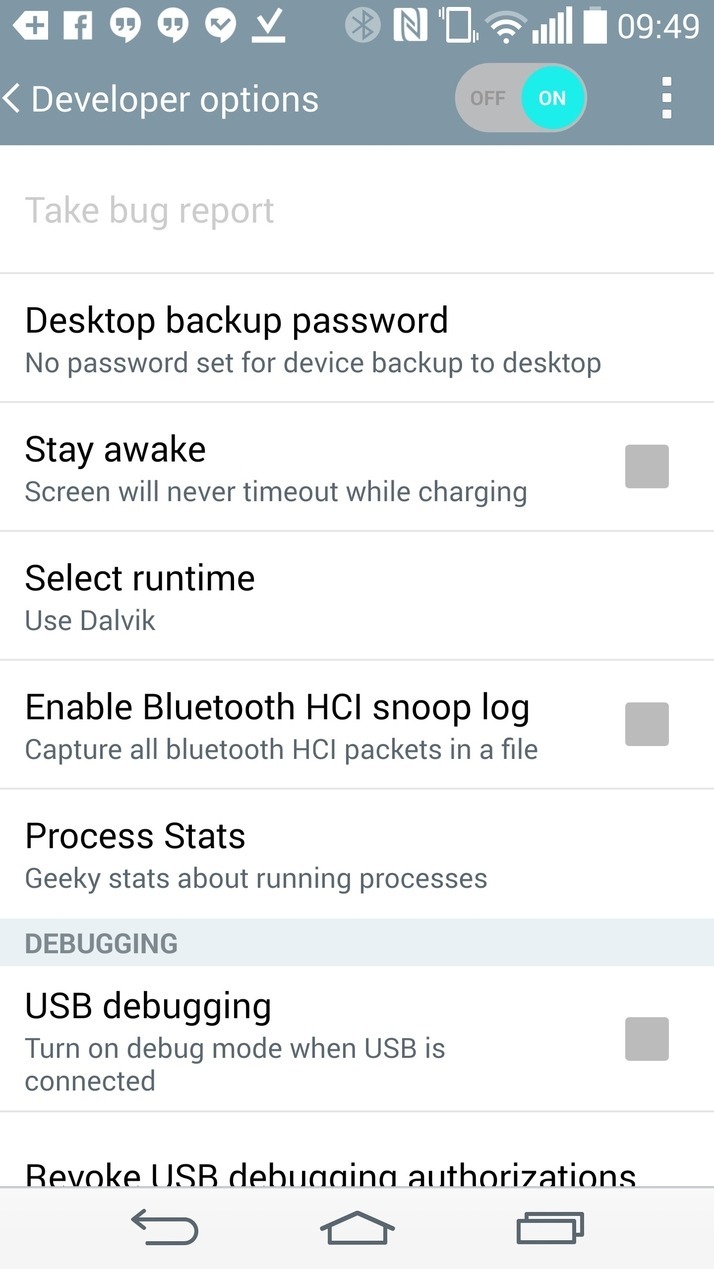
Developer Options is a hidden menu on Android devices that allows users to access advanced settings and features. This menu is not visible by default, but it can be enabled with a few simple steps. Once enabled, you’ll have access to a range of options that can help you customize your device, troubleshoot issues, and even root your phone.
Why Enable Developer Options?
Enabling Developer Options on your Android device can provide several benefits:
- Customization: With Developer Options enabled, you can personalize your device’s settings to suit your needs.
- Troubleshooting: This menu provides a range of tools that can help you diagnose and fix issues with your device.
- Rooting: If you’re interested in rooting your phone, Developer Options is an essential step.
How to Enable Developer Options on Android
To enable Developer Options on your Android device:
- Go to the Settings app on your device.
- Tap on the “About phone” option.
- Look for the “Build number” section and tap on it 7 times.
- A message will appear stating that you’re now a developer.
How to Access Developer Options
Once enabled, you can access Developer Options by:
- Going back to the Settings app.
- Tapping on the “About phone” option again.
- Looking for the “Developer options” section and tapping on it.
What’s Inside Developer Options?
Developer Options provides a range of settings and features that can be used to customize your device, troubleshoot issues, and even root your phone. Some of the key features include:
- Usb Debugging: Allows you to debug your device using a USB cable.
- Show Battery Percentage: Displays the battery percentage on your lock screen.
- Force 4x-3d Zoom: Forces the camera app to use the 4x-3D zoom feature.
How to Enable Developer Options on Samsung Devices
If you’re using a Samsung device, enabling Developer Options is slightly different. To do so:
- Go to the Settings app.
- Tap on the “About phone” option.
- Look for the “Version of MIUI” section and tap on it 7 times.
- A message will appear stating that you’re now a developer.
How to Enable Developer Options on Xiaomi Devices
If you’re using an Xiaomi device, enabling Developer Options is also slightly different. To do so:
- Go to the Settings app.
- Tap on the “About phone” option.
- Look for the “Version of MIUI” section and tap on it 7 times.
- A message will appear stating that you’re now a developer.
How to Enable Developer Options on Iphone Devices
If you’re using an iPhone device, enabling Developer Options is not possible directly from the device. However, you can use a third-party app or software to enable this feature.
How to Enable Developer Options in Browsers
Enabling Developer Options in browsers allows you to access advanced settings and features that can help with web development. To do so:
- Google Chrome: Press Ctrl + Shift + I (Windows) or Cmd + Opt + I (Mac) to open the Developer Tools.
- Microsoft Edge: Press Ctrl + Shift + I (Windows) or Cmd + Opt + I (Mac) to open the Developer Tools.
- Mozilla Firefox: Press Ctrl + Shift + I (Windows) or Cmd + Opt + I (Mac) to open the Developer Tools.
How to Enable Developer Options on Windows Devices
Enabling Developer Options on Windows devices allows you to access advanced settings and features that can help with debugging and troubleshooting. To do so:
- Go to Settings.
- Click on the “Update & Security” option.
- Look for the “For developers” section and toggle it on.
Conclusion
In conclusion, enabling Developer Options on your Android device can provide several benefits, including customization, troubleshooting, and rooting options. We’ve walked you through the steps to enable this feature on various devices, from Samsung and Xiaomi to iPhone and Windows. Remember to exercise caution when using these features, as they can potentially void your warranty or cause issues with your device.
Frequently Asked Questions
Q: What is Developer Options?
A: Developer Options is a hidden menu on Android devices that allows users to access advanced settings and features.
Q: Why enable Developer Options?
A: Enabling Developer Options provides several benefits, including customization, troubleshooting, and rooting options.
Q: How do I enable Developer Options on my Android device?
A: To enable Developer Options on your Android device, go to Settings > About phone and tap on the “Build number” section 7 times.
Q: What’s inside Developer Options?
A: Developer Options provides a range of settings and features that can be used to customize your device, troubleshoot issues, and even root your phone.
Q: How do I enable Developer Options on my Samsung device?
A: To enable Developer Options on your Samsung device, go to Settings > About phone and tap on the “Version of MIUI” section 7 times.
Q: How do I enable Developer Options in browsers?
A: Enabling Developer Options in browsers allows you to access advanced settings and features that can help with web development. To do so:
- Google Chrome: Press Ctrl + Shift + I (Windows) or Cmd + Opt + I (Mac)
- Microsoft Edge: Press Ctrl + Shift + I (Windows) or Cmd + Opt + I (Mac)
- Mozilla Firefox: Press Ctrl + Shift + I (Windows) or Cmd + Opt + I (Mac)
Q: How do I enable Developer Options on my Windows device?
A: To enable Developer Options on your Windows device, go to Settings > Update & Security and toggle the “For developers” section on.
Q: What are the risks of enabling Developer Options?
A: Enabling Developer Options can potentially void your warranty or cause issues with your device. Exercise caution when using these features!


