
Unlocking The Power of Google Assistant: A Comprehensive Guide
Introduction
In today’s digital age, having a personal assistant at your beck and call is no longer a luxury, but a necessity. Enter Google Assistant, a revolutionary AI-powered tool that can perform a wide range of tasks, from simple queries to complex interactions. In this article, we’ll delve into the world of Google Assistant, exploring its features, benefits, and how to activate it on various devices.
What is Google Assistant?
Google Assistant is an artificial intelligence (AI) driven virtual assistant developed by Google. It allows users to interact with their device using voice commands, making it easier to access information, perform tasks, and control smart home devices. With its advanced capabilities, Google Assistant has become a popular choice among smartphone users.
Requirements For Android Devices
To activate Google Assistant on an Android device, the following requirements must be met:
- Operating System: Android 6.0 Or successive
- Google App: Version 6.13 Or successive installed on the device (check and update if necessary)
- Google Play Services: Installed on the device (check and install if necessary)
- Ram: At least 1.5 GB of RAM
- Display Resolution: At least 720p resolution
Actuating Google Assistant on Android Devices
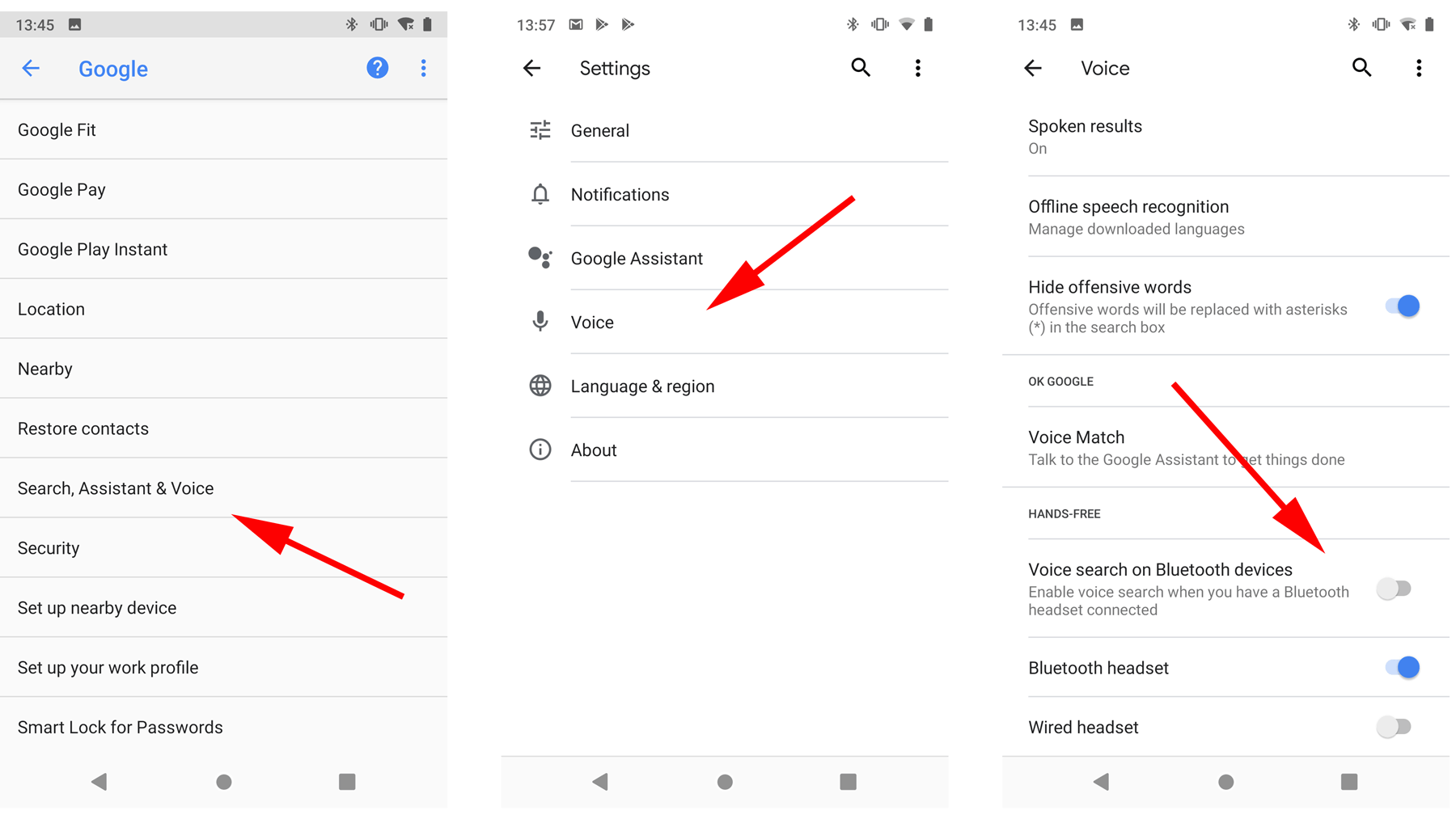
To activate Google Assistant on an Android device, follow these steps:
- Launch The Google App: Tap on the Google app icon in the home screen or drawer.
- Go to Settings: Tap on your photo profile in the top right corner and select “Settings.”
- Select Voice & Assistant: Tap on the voice assistant option.
- Turn On Google Assistant: Switch on the toggle next to “Hey Google” and confirm.
Setting Up a Vocal Footprint
To recognize you, Google Assistant requires a vocal footprint. To set it up:
- Tap on Hey Google: Select the option in the settings menu.
- Create Your Voice Pattern: Repeat phrases to create your voice pattern.
- Confirm Your Recognition: A checkmark will appear once your recognition is confirmed.
Using Google Assistant
With Google Assistant activated, you can:
- Use Voice Commands: Say “Ok Google” or hold the home button for 2 seconds to activate.
- Ask Questions: Ask questions like “What’s the weather?” or “What’s my schedule?”
- Control Smart Home Devices: Use voice commands to control lights, thermostats, and more.
Troubleshooting
If you’re experiencing issues activating Google Assistant on your Android device:
- Check For Software Updates: Ensure your device is running the latest software.
- Clear App Cache And Data: Clear the cache and data of the Google app.
- Reset to Factory Settings: If all else fails, consider resetting your device.
Google Assistant on Ios/ipados
To activate Google Assistant on an iOS or iPadOS device:
- Install The Google App: Get the Google app from the App Store (version 15 or later).
- Activate Voice & Assistant: Tap on the voice assistant option in settings.
- Turn On Google Assistant: Switch on the toggle next to “Hey Google” and confirm.
Using Google Assistant on Ios/ipados
With Google Assistant activated, you can:
- Use Voice Commands: Say “Ok Google” or hold the home button for 2 seconds to activate.
- Ask Questions: Ask questions like “What’s the weather?” or “What’s my schedule?”
- Control Smart Home Devices: Use voice commands to control lights, thermostats, and more.
Google Assistant on Android Wear
To activate Google Assistant on an Android Wear device:
- Match a Google Account: Match your Google account with your wearable device.
- Set The System Language: Set the system language to English (no Italian support currently).
- Say “Ok Google”: Say “Ok Google” to activate.
Google Assistant on Galaxy Watch
To activate Google Assistant on a Samsung Galaxy Watch:
- Match a Google Account: Match your Google account with your wearable device.
- Set The System Language: Set the system language to English (no Italian support currently).
- Say “Ok Google”: Say “Ok Google” to activate.
Conclusion
In conclusion, Google Assistant is a powerful tool that can revolutionize the way you interact with your device. By following these steps and meeting the requirements, you can unlock the full potential of Google Assistant on various devices.
Frequently Asked Questions (FAQs)
- Q: What is Google Assistant?
A: Google Assistant is a virtual assistant developed by Google. - Q: Which Devices Support Google Assistant?
A: Android devices, iOS/iPadOS devices, and some wearable devices like Android Wear and Galaxy Watch. - Q: How do I Activate Google Assistant on my Device?
A: Follow the steps outlined in this article for each type of device. - Q: What Can I Use Google Assistant For?
A: Use Google Assistant to ask questions, control smart home devices, and more. - Q: Why is Google Assistant Not Working on my Device?
A: Check your software updates, clear app cache and data, or reset your device if necessary.


