
Google Classroom: The Ultimate Guide For Teachers And Students
As a teacher or student, you’re always looking for ways to make learning more engaging and effective. That’s where Google Classroom comes in – a powerful tool that simplifies the process of sharing materials, managing deadlines, and assessing student work.
What is Google Classroom?
Google Classroom is a free service provided by Google that allows teachers and students to collaborate on educational projects. It’s accessible via a web browser or mobile app, making it easy to use from anywhere. With Google Classroom, you can share resources, assign tasks, and track progress – all in one place.
Setting Up Google Classroom
To get started with Google Classroom, follow these steps:
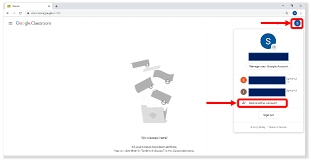
- Go to the Google Classroom website and sign in with your Google account.
- Create a new class by clicking on the “Create class” button.
- Add students to the class by sharing the class code or inviting them via email.
Using Google Classroom as a Student
As a student, you can access Google Classroom from any device with an internet connection. Here’s how:
- Log in to Google Classroom using your Google account credentials.
- Join a class by entering the class code or accepting an invitation from your teacher.
- View and download shared resources and assignments.
- Submit completed work and receive feedback from teachers.
Using Google Classroom as a Teacher
As a teacher, you can use Google Classroom to manage your classes more efficiently. Here’s how:
- Create a new class by clicking on the “Create class” button.
- Add students to the class by sharing the class code or inviting them via email.
- Share resources and assignments with your students.
- Track student progress and provide feedback.
Benefits of Using Google Classroom
Google Classroom offers several benefits for both teachers and students. Some of these include:
- Simplified communication: Google Classroom makes it easy to communicate with students and colleagues.
- Streamlined workflow: The platform automates many tasks, such as grading and feedback, freeing up time for more important things.
- Enhanced collaboration: Students can work together on projects and share resources easily.
Tips And Tricks
Here are some tips and tricks to help you get the most out of Google Classroom:
- Use the built-in tools to create engaging lessons and activities.
- Take advantage of the collaboration features to facilitate group work.
- Use the feedback tools to provide constructive feedback to students.
- Keep your classes organized by using labels and categories.
Conclusion
Google Classroom is a powerful tool that can help you streamline your teaching process and improve student engagement. By following these tips and tricks, you can get the most out of Google Classroom and make learning more effective.
Frequently Asked Questions
Here are some frequently asked questions about Google Classroom:
- Q: What is Google Classroom?
A: Google Classroom is a free service provided by Google that allows teachers and students to collaborate on educational projects. - Q: How do I Set up Google Classroom?
A: To set up Google Classroom, follow these steps: Go to the Google Classroom website, sign in with your Google account, create a new class, and add students to the class. - Q: Can I Use Google Classroom on my Mobile Device?
A: Yes, you can access Google Classroom from any device with an internet connection. - Q: How do I Share Resources With my Students?
A: To share resources with your students, go to the Google Classroom website, click on the “Share” button, and select the resource you want to share.
Additional Resources
Here are some additional resources to help you learn more about Google Classroom:
- Google Classroom official website
- Google Classroom tutorial for teachers
- Google Classroom tutorial for students
Table 1: Google Classroom Features
| Feature | Description |
|---|---|
| Class Creation | Create a new class and add students to the class. |
| Resource Sharing | Share resources with your students. |
| Assignment Management | Assign tasks and track student progress. |
| Feedback Tools | Provide constructive feedback to students. |
Table 2: Google Classroom Benefits
| Benefit | Description |
|---|---|
| Simplified Communication | Simplify communication with students and colleagues. |
| Streamlined Workflow | Automate tasks such as grading and feedback, freeing up time for more important things. |
| Enhanced Collaboration | Facilitate group work and collaboration among students. |
Table 3: Google Classroom Tips And Tricks
| Tip/trick | Description |
|---|---|
| Use Built-in Tools | Use the built-in tools to create engaging lessons and activities. |
| Take Advantage of Collaboration Features | Take advantage of the collaboration features to facilitate group work. |
| Use Feedback Tools | Use the feedback tools to provide constructive feedback to students. |
Table 4: Google Classroom Faqs
| Q&a | Description |
|---|---|
| Q: What is Google Classroom? | A: Google Classroom is a free service provided by Google that allows teachers and students to collaborate on educational projects. |
| Q: How do I Set up Google Classroom? | A: To set up Google Classroom, follow these steps: Go to the Google Classroom website, sign in with your Google account, create a new class, and add students to the class. |
| Q: Can I Use Google Classroom on my Mobile Device? | A: Yes, you can access Google Classroom from any device with an internet connection. |
Note that while the above tables are intended to summarize important points about Google Classroom, they do not capture all of its features or functionalities.


