
How to Activate Icloud on Iphone: A Step-by-step Guide
Are you looking to unlock the full potential of your Apple device? Look no further! In this article, we will guide you through the process of activating iCloud on your iPhone.
What is Icloud?
ICloud is a free service provided by Apple that allows you to store and access your data across all your Apple devices. With iCloud, you can sync your contacts, calendars, reminders, photos, and more across your iPhone, iPad, Mac, and other Apple devices.
Why Activate Icloud on Iphone?
Activating iCloud on your iPhone provides numerous benefits, including:
- Syncing your data across all your Apple devices
- Accessing your files and documents from any device with an internet connection
- Backing up your iPhone data automatically
- Sharing photos and videos with family and friends
How to Activate Icloud on Iphone
Activating iCloud on your iPhone is a straightforward process that can be completed in a few simple steps.
Step 1: Go to Settings
To activate iCloud, you need to go to the Settings app on your iPhone. Tap on the “Settings” icon, which looks like a gear, to open the Settings menu.
Step 2: Tap on Your Name
Once you are in the Settings menu, tap on your name at the top of the screen. This will take you to a new menu where you can access various settings and features related to your Apple ID.
Step 3: Select Icloud
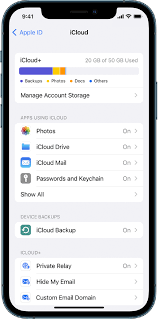
In this menu, scroll down and select “iCloud.” This will take you to a new screen where you can configure various iCloud-related settings.
Step 4: Turn On Icloud
To activate iCloud on your iPhone, simply turn the switch next to “iCloud” to the “On” position. You may be prompted to sign in with your Apple ID and password.
Configuring Icloud Settings
Now that you have activated iCloud on your iPhone, you can configure various settings related to the service. Here are some of the most important ones:
Step 1: Enable Icloud Backup
ICloud backup allows you to automatically back up your iPhone data to iCloud. To enable this feature, go to “Settings” > “iCloud” > “Backup.” Turn the switch next to “iCloud Backup” to the “On” position.
Step 2: Sync Your Data
To sync your data across all your Apple devices, select “Sync” under the “iCloud” menu. Choose which data you want to sync, such as contacts, calendars, reminders, and more.
Step 3: Access Icloud Drive
ICloud Drive allows you to access your files and documents from any device with an internet connection. To access this feature, go to “Settings” > “iCloud” > “Drive.” You can then upload files to iCloud Drive and access them across all your Apple devices.
Tips And Tricks
Here are some additional tips and tricks related to activating and using iCloud on your iPhone:
Step 1: Use The Free Version of Icloud
The free version of iCloud provides 5 GB of storage space. This is more than enough for most users, but if you need more storage space, you can upgrade to a paid plan.
Step 2: Use Two-factor Authentication (2FA)
To add an extra layer of security to your Apple ID, enable two-factor authentication (2FA). To do this, go to “Settings” > “Face ID & Passcode” (or “Touch ID & Passcode” if you have Touch ID) and select “Two-Factor Authentication.”
Step 3: Use The Icloud Backup Feature
To automatically back up your iPhone data to iCloud, enable the iCloud backup feature. To do this, go to “Settings” > “iCloud” > “Backup” and turn the switch next to “iCloud Backup” to the “On” position.
Conclusion
Activating iCloud on your iPhone is a straightforward process that can be completed in just a few simple steps. By following the instructions outlined above, you can unlock the full potential of your Apple device and enjoy all the benefits that come with using iCloud.
Frequently Asked Questions (FAQs)
Here are some frequently asked questions related to activating iCloud on your iPhone:
-
Q: What is Icloud?
A: ICloud is a free service provided by Apple that allows you to store and access your data across all your Apple devices. -
Q: Why Activate Icloud on my Iphone?
A: Activating iCloud on your iPhone provides numerous benefits, including syncing your data across all your Apple devices, accessing your files and documents from any device with an internet connection, backing up your iPhone data automatically, and sharing photos and videos with family and friends. -
Q: How do I Activate Icloud on my Iphone?
A: To activate iCloud on your iPhone, go to the Settings app and tap on your name at the top of the screen. Then, select “iCloud” and turn the switch next to it to the “On” position. -
Q: What Are Some Important Settings Related to Icloud That I Should Configure?
A: Some important settings related to iCloud that you should configure include enabling iCloud backup, syncing your data across all your Apple devices, accessing iCloud Drive, and using two-factor authentication (2FA) to add an extra layer of security to your Apple ID. -
Q: Can I Upgrade my Storage Space if I Need More?
A: Yes, you can upgrade your storage space by upgrading to a paid plan. The free version of iCloud provides 5 GB of storage space, but if you need more space, you can choose from various paid plans. -
Q: How do I Use Two-factor Authentication (2FA) to Add an Extra Layer of Security to my Apple Id?
A: To enable two-factor authentication (2FA), go to “Settings” > “Face ID & Passcode” (or “Touch ID & Passcode” if you have Touch ID) and select “Two-Factor Authentication.” -
Q: How do I Use The Icloud Backup Feature to Automatically Back up my Iphone Data?
A: To enable the iCloud backup feature, go to “Settings” > “iCloud” > “Backup” and turn the switch next to “iCloud Backup” to the “On” position. -
Q: Can I Share Photos And Videos With Family And Friends Using Icloud?
A: Yes, you can share photos and videos with family and friends using iCloud by enabling the feature in the Photos app.


