
How to Actuate Imap on Huawei: A Step-by-step Guide
Are you an avid user of your Huawei smartphone or tablet? Do you want to stay connected with your emails without any hassle? Look no further! In this article, we will guide you through the process of actuating IMAP (Internet Message Access Protocol) on your Huawei device.
Why Actuate Imap?
Before we dive into the steps, let’s understand why IMAP is essential. IMAP allows you to access and manage your emails from multiple devices without losing any data. Unlike POP3, which downloads emails to a single device and deletes them from the server, IMAP keeps all your emails on the server and synchronizes them across all your devices.
Preliminary Operations
Before we begin, ensure that:
- Your email service provider (e.G., Gmail, Outlook) allows IMAP.
- You have enabled IMAP in your email account settings.
- You have obtained the necessary parameters (IMAP/SMTP) for your email service provider.
Step 1: Gain The Parameters Imap/smtp of Your Email Service Provider
To configure IMAP on your Huawei device, you need to obtain the following parameters:
- IMAP server
- Port number
- SSL type (yes/no)
- Username
- Password
For Gmail, for example:
IMAP server: Imap.Gmail.Com
Port: 993
SSL type: Yes
Username: Your email address
Password: Your password
Step 2: Enter The Parameters in Your Huawei Device
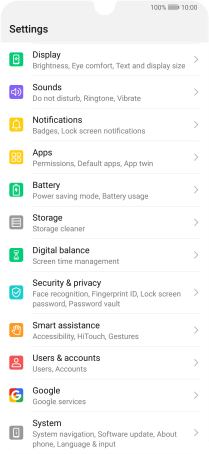
Now that you have the necessary parameters, it’s time to enter them into your Huawei device. Go to Settings > Account > Email and tap on the three dots at the top-right corner. Select “Manual” and fill in the IMAP and SMTP fields with the values obtained from your email service provider.
Step 3: Configure Your Email Account
Once you have entered the parameters, configure your email account by choosing the frequency of mail control (e.G., Every minute), deciding whether to use this account as a default for outgoing emails, and synchronizing emails across all devices connected to your Huawei device.
Step 4: Verify The Configuration
After completing these steps, verify that IMAP is working correctly on your Huawei device. Send an email from another device to test if it appears in your inbox on your Huawei device.
Parameters Imap/smtp For Leading Email Services
Here are some common parameters for popular email services:
- Gmail: Imap.Gmail.Com (993), smtp.Gmail.Com (465 or 587)
- Outlook: Imap-mail.Outlook.Com (993), imap-mail.Outlook.Com (587)
- Icloud Mail: Imap.Mail.Me.Com (993), smtp.Mail.Me.Com (587)
- Yahoo! Mail: Imap.Mail.Yahoo.Com (993), smtp.Mail.Yahoo.Com (465 or 587)
Troubleshooting Tips
If you encounter any issues while configuring IMAP on your Huawei device, try the following:
- Restart your device and reconfigure IMAP.
- Verify that IMAP is enabled in your email account settings.
- Check if there are any conflicts with other email accounts on your device.
Conclusion
Actuating IMAP on your Huawei device allows you to access and manage your emails seamlessly across all devices connected to your account. Follow these simple steps, and you’ll be enjoying hassle-free email management in no time!
Frequently Asked Questions (FAQs)
- What is Imap, And Why do I Need It?
IMAP stands for Internet Message Access Protocol. It allows you to access and manage your emails from multiple devices without losing any data.
- How do I Enable Imap on my Email Account?
Check with your email service provider (e.G., Gmail, Outlook) to see if they allow IMAP. If so, go to their website or contact their support team for instructions.
- What Are The Parameters I Need to Enter in my Huawei Device?
You’ll need the IMAP server, port number, SSL type (yes/no), username, and password provided by your email service provider.
- How do I Configure Imap on my Huawei Device?
Follow these steps: Gain the necessary parameters, enter them into your device, configure your email account, and verify that IMAP is working correctly.
- Why am I Having Trouble Configuring Imap on my Huawei Device?
Try restarting your device and reconfiguring IMAP. Verify that IMAP is enabled in your email account settings, and check for conflicts with other email accounts on your device.
- Can I Use Imap With Multiple Email Accounts on my Huawei Device?
Yes! You can configure IMAP for multiple email accounts on your device.
- Is Imap Secure?
IMAP uses encryption (SSL) to protect your emails from unauthorized access.
- How do I Troubleshoot Issues With Imap Configuration on my Huawei Device?
Restart your device, reconfigure IMAP, and verify that IMAP is enabled in your email account settings.
- Can I Use a Third-party Email Client on my Huawei Device Instead of The Default Email App?
Yes! You can download and install third-party email clients (e.G., K-9 Mail, Blue Mail) to manage your emails.
- How do I Update Imap Settings if I Change my Email Service Provider or Account Details?
Update your IMAP parameters in your Huawei device according to the new settings provided by your email service provider.
By following this guide and troubleshooting tips, you’ll be able to successfully configure IMAP on your Huawei device and enjoy seamless email management across all devices connected to your account.


