
How to Actuate a Hotspot on Your Iphone: A Step-by-step Guide
Are you tired of being unable to connect your devices to the internet when traveling or in areas with poor Wi-Fi coverage? Do you want to share your phone’s internet connection with your laptop, tablet, or other devices? Look no further! In this article, we will guide you through the process of actuating a hotspot on your iPhone.
Benefits of Using an Iphone as a Hotspot
Before we dive into the steps, let’s quickly discuss the benefits of using an iPhone as a hotspot. With an iPhone, you can share your internet connection with multiple devices, making it perfect for:
- Sharing data between family members or colleagues
- Connecting to the internet in areas with poor Wi-Fi coverage
- Using your phone’s internet connection on your laptop or tablet
Step 1: Check Your Iphone’s Settings
To start, make sure that your iPhone’s settings are correct. Go to Settings > Cellular > Date & Time and ensure that the date and time are set correctly.
Step 2: Enable Hotspot Mode
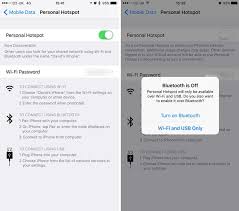
Next, go to Settings > Cellular > Personal Hotspot and toggle the switch to enable hotspot mode. If prompted, enter a password to secure your connection.
Step 3: Connect Your Devices
Now, it’s time to connect your devices to the internet using your iPhone as a hotspot. Here are the steps for each device:
- Windows PC: Go to Settings > Network & Internet > Wi-fi, select your iPhone’s network name (SSID), and enter the password you created in step 2.
- Mac: Click on the Wi-Fi icon in the top right corner, select your iPhone’s network name (SSID), and enter the password you created in step 2.
- Android Device: Go to Settings > Wireless & Networks > Wi-fi, select your iPhone’s network name (SSID), and enter the password you created in step 2.
Tips For Using Your Iphone as a Hotspot
Here are some additional tips to keep in mind:
- Make sure your iPhone has a stable internet connection before using it as a hotspot.
- Be mindful of data usage when sharing your phone’s internet connection with multiple devices.
- If you’re using an iPhone with Face ID, swipe down from the top right corner to access Control Center and enable hotspot mode.
Troubleshooting Common Issues
If you encounter any issues while trying to use your iPhone as a hotspot, don’t worry! Here are some common problems and their solutions:
- Connection Issues: Restart your iPhone and try connecting again.
- Slow Internet Speeds: Check your iPhone’s internet speed and adjust the settings accordingly.
- Multiple Device Connections: Use the Control Center on your iPhone to manage multiple device connections.
Conclusion
Using an iPhone as a hotspot is a simple and convenient way to share your phone’s internet connection with other devices. By following these steps and tips, you’ll be able to stay connected wherever you go!
Frequently Asked Questions (FAQs)
- Q: What is The Maximum Number of Devices That Can Connect to my Iphone’s Hotspot?
A: The maximum number of devices that can connect to your iPhone’s hotspot varies depending on the device and network conditions. - Q: How do I Secure my Iphone’s Hotspot With a Password?
A: To secure your iPhone’s hotspot, go to Settings > Cellular > Personal Hotspot and toggle the switch to enable hotspot mode. Then, enter a password to secure your connection. - Q: Can I Use my Iphone as a Hotspot if it Doesn’t Have a Stable Internet Connection?
A: No, you’ll need a stable internet connection on your iPhone before using it as a hotspot. - Q: How do I Disconnect Devices From my Iphone’s Hotspot?
A: To disconnect devices from your iPhone’s hotspot, go to Settings > Cellular > Personal Hotspot and toggle the switch to disable hotspot mode. - Q: Can I Use my Iphone’s Hotspot on a Windows PC or Mac?
A: Yes, you can connect your Windows PC or Mac to your iPhone’s hotspot using the steps outlined in this article. - Q: How do I Manage Multiple Device Connections on my Iphone?
A: To manage multiple device connections on your iPhone, swipe down from the top right corner to access Control Center and toggle the switch to enable hotspot mode for each device. - Q: Can I Use my Iphone’s Hotspot on an Android Device?
A: Yes, you can connect your Android device to your iPhone’s hotspot using the steps outlined in this article. - Q: How do I Troubleshoot Connection Issues With my Iphone’s Hotspot?
A: If you encounter any issues while trying to use your iPhone as a hotspot, try restarting your iPhone and attempting to connect again.
I hope this guide has been helpful!


