
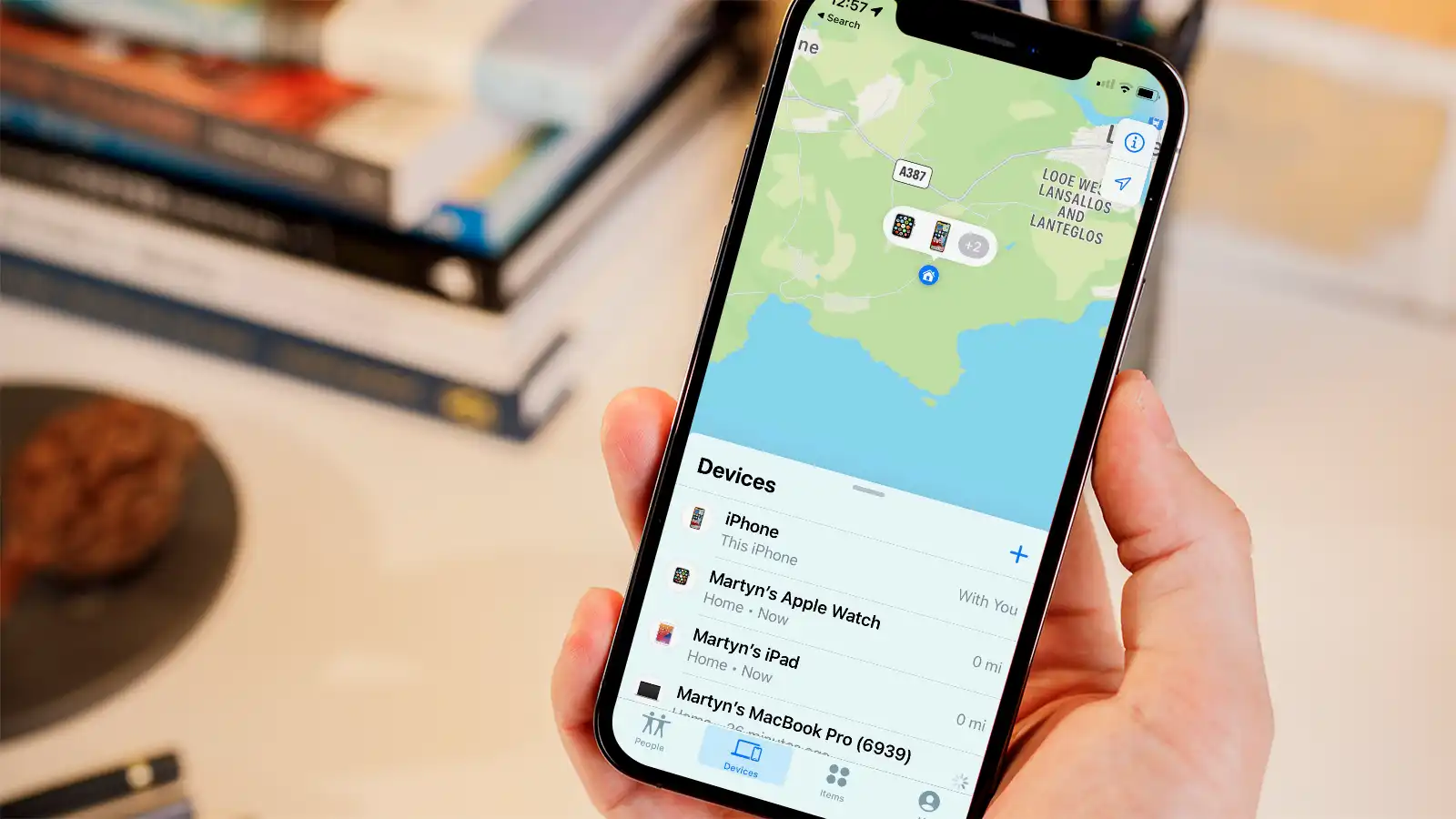
How to Activate Location on Iphone: A Step-by-step Guide
Are you struggling to get your favorite apps to work properly on your iPhone? Do you want to locate your device in case it gets lost or stolen? Look no further! This article will guide you through the process of activating location services on your iPhone, as well as how to use features like “Find My iPhone” and “Where Am I?”
Why Activate Location Services on Iphone?
Activating location services on your iPhone is essential for several reasons:
- Location-based Apps: Many popular apps, such as Maps, Weather, and traffic updates, rely on location services to provide you with accurate information.
- Safety And Security: If your device gets lost or stolen, activating “Find My iPhone” will allow you to locate it remotely and even wipe its data if needed.
- Convenience: Location services enable features like automatic photo geotagging, which can be useful for keeping track of your photos.
Activating Location Services on Iphone
To activate location services on your iPhone:
- Open the Settings app.
- Tap on Privacy.
- Select Location Services.
- Choose an option from the list:
- While using the app (only when the app is open).
- Always (even when the app is not in use).
- Never (disabling location services for that app).
Configuring Location Services For Specific Apps
Some apps require more specific configuration:
- Google Maps: To get accurate directions and traffic updates, enable “While using the app” or “Always”.
- Weather Apps: Enable “While using the app” to receive precise weather forecasts.
- Other Apps: Review each app’s settings in the Location Services menu to ensure they have access to location data.
Using “Find My Iphone”
To locate your iPhone remotely:
- Go to the Icloud Website on a computer or another device.
- Sign in with your Apple ID and password.
- Select Find My Iphone from the menu.
- Choose an option:
- Lost Mode (display a message on the lost device).
- Erase iPhone (wipe all data on the device).
Sharing Your Location With Friends or Family
To share your location with friends or family:
- Open the Where Am I? app.
- Tap on the Share My Position button.
- Choose a contact to share your location with.
Troubleshooting Tips
If you encounter issues with location services, try these troubleshooting steps:
- Check if Location Services is enabled for the specific app or service.
- Restart your iPhone and re-enable Location Services.
- Contact Apple Support for further assistance.
Conclusion
Activating location services on your iPhone is a simple process that can enhance your overall user experience. By following this guide, you should be able to troubleshoot any issues related to location-based apps and services. Remember to configure specific app settings as needed, and enjoy the benefits of “Find My iPhone” for peace of mind.
Frequently Asked Questions (FAQs)
- Q: Why is my Location Services Not Working?
A: Check if Location Services is enabled in Settings > Privacy > Location Services. - Q: Can I Use “Find My Iphone” Without Icloud?
A: No, you need an Apple ID and a device connected to iCloud to use “Find My iPhone”. - Q: How do I Disable Location Services For Specific Apps?
A: Go to Settings > Privacy > Location Services and select the app to adjust its settings. - Q: What is “Where Am I?” And How Does it Work?
A: Where Am I? is a feature that allows you to share your location with friends or family, and they can track you in real-time. - Q: Can I Erase All Data on my Iphone Remotely?
A: Yes, if you enable “Lost Mode” in Find My iPhone, you can display a message on the device, but erasing all data requires using “Erase iPhone”. - Q: Is it Safe to Share my Location With Others?
A: Yes, as long as you’re sharing your location with trusted contacts or family members, it’s generally safe. - Q: Can I Use Find My Iphone on Multiple Devices?
A: Yes, you can locate and manage all your Apple devices connected to the same iCloud account. - Q: How do I Stop Receiving Notifications From an App That’s Not Using my Location?
A: Check if Location Services is enabled for that app in Settings > Privacy > Location Services.
Additional Resources
- Apple Support: Www.Apple.Com/support
- ICloud Website: Www.Icloud.Com


