
How to Enable Javascript on Your Browser: A Step-by-step Guide
Are you tired of seeing “JavaScript is blocked” messages on your favorite websites? Do you want to enable JavaScript on your browser to access interactive content, social media, and web applications? Look no further! In this article, we’ll guide you through the process of enabling JavaScript on various browsers, including Chrome, Firefox, Edge, Safari, Internet Explorer, and Samsung Internet.
Why Enable Javascript?
JavaScript is a programming language used to create interactive and dynamic content on websites. It enables features like:
- Social media integration
- Webmail services
- Online banking and payment systems
- Interactive games and animations
- Real-time updates and notifications
Without JavaScript enabled, you might experience issues with website functionality, such as:
- Inability to log in or access account features
- Broken or incomplete content
- Difficulty with online transactions or payments
Enabling Javascript on Chrome
If you use Google Chrome as your default browser, follow these steps to enable JavaScript:
- Open Chrome: Launch the Chrome browser on your computer, smartphone, or tablet.
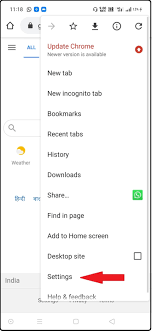
- Click on The Three Dots: In the top-right corner of the browser window, click on the three vertical dots (⋮).
- Select Settings: From the dropdown menu, select “Settings” from the list.
- Scroll Down to Privacy And Security: In the settings page, scroll down to the “Privacy and security” section.
- Click on Content Settings: Click on the “Content settings” button.
- Enable Javascript: In the content settings page, ensure that “JavaScript” is enabled by checking the box next to it.
Enabling Javascript on Firefox
If you prefer Mozilla Firefox as your browser, follow these steps to enable JavaScript:
- Open Firefox: Launch the Firefox browser on your computer, smartphone, or tablet.
- Type About:Config in The Address Bar: In the address bar, type “about:Config” and press Enter.
- Accept The Risk: Accept the risk by clicking on the “Accept the Risk and Proceed” button.
- Search For Javascript.Enabled: In the search bar, type “javascript.Enabled” and press Enter.
- Double-click to Enable Javascript: Double-click on the “javascript.Enabled” preference to enable it.
Enabling Javascript on Edge
If you use Microsoft Edge as your browser, follow these steps to enable JavaScript:
- Open Edge: Launch the Edge browser on your computer, smartphone, or tablet.
- Click on The Three Dots: In the top-right corner of the browser window, click on the three vertical dots (…).
- Select Settings: From the dropdown menu, select “Settings” from the list.
- Scroll Down to Cookies And Site Permissions: In the settings page, scroll down to the “Cookies and site permissions” section.
- Enable Javascript: Ensure that “JavaScript” is enabled by checking the box next to it.
Enabling Javascript on Safari
If you use Apple’s Safari browser on your Mac, iPhone, or iPad, follow these steps to enable JavaScript:
- Open Safari: Launch the Safari browser on your device.
- Click on Safari in The Top Menu Bar: In the top menu bar, click on “Safari” and select “Preferences”.
- Select Safety: From the preferences window, select the “Safety” tab.
- Enable Javascript: Ensure that “JavaScript” is enabled by checking the box next to it.
Enabling Javascript on Internet Explorer
If you use Microsoft’s Internet Explorer browser, follow these steps to enable JavaScript:
- Open Internet Explorer: Launch the Internet Explorer browser on your computer.
- Click on The Gear Icon: In the top-right corner of the browser window, click on the gear icon (…).
- Select Internet Options: From the dropdown menu, select “Internet options” from the list.
- Select The Security Tab: In the internet options window, select the “Security” tab.
- Enable Javascript: Ensure that “Active scripting” is enabled by checking the box next to it.
Enabling Javascript on Samsung Internet
If you use the Samsung Internet browser on your Android device, follow these steps to enable JavaScript:
- Open Samsung Internet: Launch the Samsung Internet browser on your device.
- Click on The Three Dots: In the top-right corner of the browser window, click on the three vertical dots (☰).
- Select Settings: From the dropdown menu, select “Settings” from the list.
- Scroll Down to Siti And Download: In the settings page, scroll down to the “Siti and download” section.
- Enable Javascript Consent: Ensure that “JavaScript consent” is enabled by checking the box next to it.
Conclusion
Enabling JavaScript on your browser is a straightforward process. By following these step-by-step guides for Chrome, Firefox, Edge, Safari, Internet Explorer, and Samsung Internet, you’ll be able to access interactive content, social media, and web applications without any issues. Remember to always ensure that your browser settings are up-to-date and configured correctly to prevent security risks.


