
How to Activate Office 365: A Step-by-step Guide
Are you tired of juggling multiple versions of Microsoft Office on your devices? Do you want to access all the applications in one suite without buying separate licenses for each program? Look no further than Office 365! In this article, we’ll guide you through the process of activating Office 365 and explore its various subscription plans.
What is Office 365?
Office 365 is a cloud-based service that offers a range of productivity applications, including Word, Excel, PowerPoint, OneNote, and Outlook. With Office 365, you can access all these programs from any device with an internet connection, making it ideal for individuals and businesses alike.
Benefits of Using Office 365
Using Office 365 offers several benefits, including:
- Access to All Microsoft Office Applications: With Office 365, you get access to all the productivity applications in one suite.
- Cloud-based Storage: You get a certain amount of cloud storage on OneDrive, which allows you to store and share files across devices.
- Automatic Updates: Your Office apps are always up-to-date, so you don’t have to worry about updating each program individually.
- Collaboration Features: Office 365 makes it easy to collaborate with others in real-time, whether you’re working on a document or presentation.
Subscription Plans
Office 365 offers several subscription plans to suit different needs and budgets. Here are the main plans:
H2: Personal Plan
- Cost: €7/Month or €69/year
- Features:
- Access to all Office applications (Word, Excel, PowerPoint, OneNote, and Outlook)
- 1TB of cloud storage on OneDrive
- Collaboration features
H2: Family Plan
- Cost: €10/Month or €99/year
- Features:
- Access to all Office applications (Word, Excel, PowerPoint, OneNote, and Outlook)
- 1TB of cloud storage on OneDrive
- Collaboration features
- Installation on up to 6 devices (computers or mobile devices)
H2: Business Plan
- Cost: Varies depending on the plan chosen
- Features:
- Access to all Office applications (Word, Excel, PowerPoint, OneNote, and Outlook)
- Cloud storage and collaboration features
- Additional tools for businesses, such as Exchange email and SharePoint
How to Activate Office 365
Activating Office 365 is a straightforward process. Here’s how to do it:
- Choose Your Subscription Plan: Select the plan that best suits your needs.
- Sign up on Microsoft’s Website: Go to the Microsoft website and sign up for an account if you don’t already have one.
- Download Office Apps: Download the Office apps on your device(s) of choice.
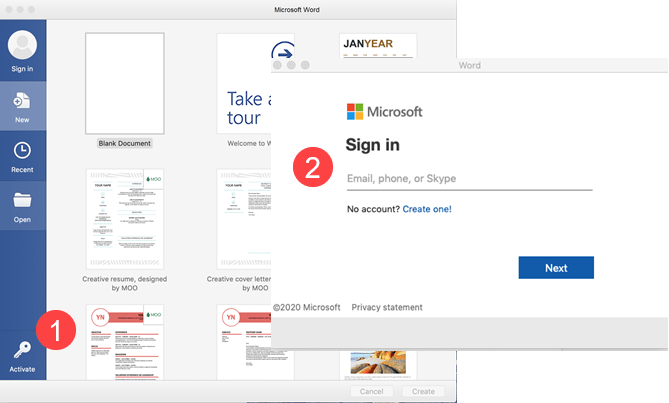
- Install The Apps: Install the apps and follow the prompts to activate Office 365.
Activating Office 365 on Macos
If you’re using a Mac, activating Office 365 is slightly different:
- Go to Microsoft’s Website: Go to the Microsoft website and select your subscription plan.
- Choose The “For The Home” Option: Select the “For the home” option and follow the prompts to download the Office apps.
- Install The Apps: Install the apps and follow the prompts to activate Office 365.
Activating Office 365 on Android And Ios
If you’re using a mobile device, activating Office 365 is even simpler:
- Download The Office App: Download the Office app from the Google Play Store (for Android) or App Store (for iOS).
- Sign in With Your Microsoft Account: Sign in with your Microsoft account to activate the app.
- Access Your Subscription Features: Access your subscription features, such as cloud storage and collaboration tools.
Tips And Tricks
- Make sure you have a valid Microsoft account before activating Office 365.
- Use the same account on all devices to access your subscription features across multiple platforms.
- Explore the various collaboration features available in Office 365, such as real-time co-authoring and commenting.
Conclusion
Office 365 offers a range of benefits for individuals and businesses alike. With its cloud-based storage, automatic updates, and collaboration features, it’s an ideal solution for those who want to access all Microsoft Office applications in one suite. By following the steps outlined above, you can easily activate Office 365 on your device(s) and start using its powerful productivity tools.
Faqs
- Q: What is Office 365?
A: Office 365 is a cloud-based service that offers a range of productivity applications, including Word, Excel, PowerPoint, OneNote, and Outlook. - Q: Which Subscription Plan Should I Choose?
A: The choice of subscription plan depends on your needs and budget. For individuals, the Personal Plan is ideal. For businesses, the Business Plan offers additional features and support. - Q: Can I Access Office 365 on Multiple Devices?
A: Yes! With a valid Microsoft account, you can access Office 365 on multiple devices, including computers, mobile devices, and tablets. - Q: Do I Need to Have an Internet Connection to Use Office 365?
A: While it’s recommended to have an internet connection to access some features, you can still use the apps offline. - Q: How do I Activate Office 365 on my Device(s)?
A: Follow the steps outlined above to activate Office 365 on your device(s) of choice.
Affiliations
This article was realized in collaboration with Mr. Key Shop and Keycense, both of which are affiliated with Amazon.


