
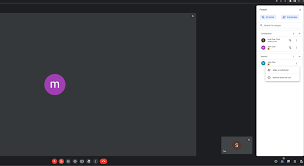
How to Actuate The Audio of a Presentation on Google Meet
Are you tired of not being able to share your audio during presentations on Google Meet? Look no further! In this article, we will guide you through the steps to actuate the audio of a presentation on Google Meet, whether you’re using a computer or a smartphone.
Getting Started
Before we dive into the nitty-gritty details, let’s cover some preliminary information. To share your audio during presentations on Google Meet, you’ll need to be logged in with your Google account and have access to the Google Meet platform. If you haven’t already, download the Google Meet app on your computer or smartphone.
Actuating The Audio of a Presentation on Computer
To actuate the audio of a presentation on Google Meet using a computer:
- Log in to Google Meet: Open Google Meet and sign in with your Google account.
- Create a New Meeting or Join an Existing One: Click on the “Take” button to create a new meeting or join an existing one.
- Click on The “Present” Button: In the menu that appears, click on the “Present” button.
- Select The Option to Share Audio: Select the option to share audio by clicking on the checkmark next to it.
- Confirm The Operation: Confirm the operation by clicking on the “Share” button.
Actuating The Audio of a Presentation on Smartphone
To actuate the audio of a presentation on Google Meet using a smartphone:
- Open The Google Meet App: Open the Google Meet app on your smartphone.
- Create a New Meeting or Join an Existing One: Tap on the “New meeting” button to create a new meeting or join an existing one.
- Tap on The “Share Monitor” Option: Tap on the “Share monitor” option.
- Select The Option to Share Audio: Select the option to share audio by tapping on it.
- Confirm The Operation: Confirm the operation by tapping on the “Share” button.
Troubleshooting Tips
If you’re experiencing issues with the audio during your presentation, try reactivating the audio of your computer or smartphone. If that doesn’t work, refer to our guide on how to reactivate the microphone on Google Meet.
How to Go Out of a Google Account on Chrome
Do you want to remove your Google account from Chrome? No problem! To go out of your Google account on Chrome:
- Open Google Chrome: Open Google Chrome on your computer or smartphone.
- Click on Your Profile Picture: Click on your profile picture in the top right corner of the browser window.
- Select The Option to Go Out: Select the option to go out from the menu that appears.
How to Go Out of a Google Account on Gmail
Want to remove your Google account from Gmail? No worries! To go out of your Google account on Gmail:
- Open Gmail: Open Gmail in your browser.
- Click on Your Profile Picture: Click on your profile picture in the top right corner of the window.
- Select The Option to Go Out: Select the option to go out from the menu that appears.
How to Go Out of a Google Account on Drive
Want to remove your Google account from Drive? Easy peasy! To go out of your Google account on Drive:
- Open Google Drive: Open Google Drive on your computer or smartphone.
- Click on The Icon of Drive: Click on the icon of Drive in the bottom right corner of the window (on Windows) or top right corner (on macOS).
- Select The Option to Go Out: Select the option to go out from the menu that appears.
How to Go Out of a Google Account on Photos
Want to remove your Google account from Google Photos? No problem! To go out of your Google account on Google Photos:
- Open Google Photos: Open Google Photos on your computer or smartphone.
- Click on Your Profile Picture: Click on your profile picture in the top right corner of the window.
- Select The Option to Go Out: Select the option to go out from the menu that appears.
How to Go Out of a Google Account on Maps
Want to remove your Google account from Google Maps? Easy! To go out of your Google account on Google Maps:
- Open Google Maps: Open Google Maps on your computer or smartphone.
- Click on Your Profile Picture: Click on your profile picture in the top right corner of the window.
- Select The Option to Go Out: Select the option to go out from the menu that appears.
Conclusion
Actuating the audio of a presentation on Google Meet is easier than you think! By following these simple steps, you can ensure that your audio comes through clearly during presentations. Remember to troubleshoot any issues with the audio by reactivating your computer or smartphone’s audio. And if you want to remove your Google account from various services, just follow our easy-to-follow guides.
Frequently Asked Questions
- Q: How do I Actuate The Audio of a Presentation on Google Meet?
A: To actuate the audio of a presentation on Google Meet, log in to your Google account and click on the “Present” button. - Q: Can I Share my Audio During Presentations on Google Meet Using a Smartphone?
A: Yes! You can share your audio during presentations on Google Meet using a smartphone by tapping on the “Share monitor” option. - Q: How do I go Out of a Google Account on Chrome?
A: To go out of a Google account on Chrome, click on your profile picture and select the option to go out from the menu that appears. - Q: Can I Remove my Google Account From Various Services Like Gmail, Drive, Photos, And Maps?
A: Yes! You can remove your Google account from these services by following our easy-to-follow guides. - Q: What if I’m Experiencing Issues With The Audio During Presentations on Google Meet?
A: Try reactivating the audio of your computer or smartphone by following our troubleshooting guide.
We hope this article has been helpful in guiding you through the process of actuating the audio of a presentation on Google Meet and removing your Google account from various services. Happy presenting!


