
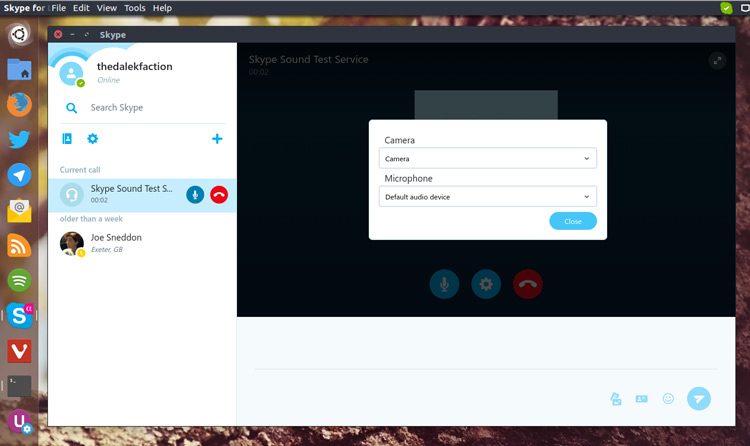
How to Use Skype: A Step-by-step Guide
Are you looking for a way to connect with friends, family, or colleagues from all over the world? Look no further than Skype! In this article, we will guide you through the process of setting up and using Skype on various platforms.
What is Skype?
Skype is a communication platform that allows users to make voice and video calls, send text messages, and share files. It’s free to use, and you can download it on your computer, smartphone, or tablet.
How to Use Skype on PC
To use Skype on your PC, follow these steps:
- Download And Install Skype: Go to the Skype website and click on the “Download” button. Follow the installation instructions to install Skype on your computer.
- Sign In or Create an Account: If you already have a Microsoft account, sign in with your credentials. Otherwise, create a new account by clicking on the “Create an account” button.
- Set Up Your Profile: Fill out your profile information, including your name, email address, and password.
- Add Contacts: Add friends, family, or colleagues to your contact list by searching for their names or email addresses.
- Make Calls And Send Messages: Use Skype to make voice and video calls, send text messages, and share files with your contacts.
How to Use Skype on Windows
To use Skype on Windows, follow these steps:
- Download And Install Skype: Go to the Skype website and click on the “Download” button. Follow the installation instructions to install Skype on your computer.
- Sign In or Create an Account: If you already have a Microsoft account, sign in with your credentials. Otherwise, create a new account by clicking on the “Create an account” button.
- Set Up Your Profile: Fill out your profile information, including your name, email address, and password.
- Add Contacts: Add friends, family, or colleagues to your contact list by searching for their names or email addresses.
- Make Calls And Send Messages: Use Skype to make voice and video calls, send text messages, and share files with your contacts.
How to Use Skype on Mac
To use Skype on Mac, follow these steps:
- Download And Install Skype: Go to the Skype website and click on the “Download” button. Follow the installation instructions to install Skype on your computer.
- Sign In or Create an Account: If you already have a Microsoft account, sign in with your credentials. Otherwise, create a new account by clicking on the “Create an account” button.
- Set Up Your Profile: Fill out your profile information, including your name, email address, and password.
- Add Contacts: Add friends, family, or colleagues to your contact list by searching for their names or email addresses.
- Make Calls And Send Messages: Use Skype to make voice and video calls, send text messages, and share files with your contacts.
How to Use Skype on Android
To use Skype on Android, follow these steps:
- Download The Skype App: Go to the Google Play Store and search for the Skype app. Download and install it on your device.
- Sign In or Create an Account: If you already have a Microsoft account, sign in with your credentials. Otherwise, create a new account by clicking on the “Create an account” button.
- Set Up Your Profile: Fill out your profile information, including your name, email address, and password.
- Add Contacts: Add friends, family, or colleagues to your contact list by searching for their names or email addresses.
- Make Calls And Send Messages: Use Skype to make voice and video calls, send text messages, and share files with your contacts.
How to Use Skype on Iphone
To use Skype on iPhone, follow these steps:
- Download The Skype App: Go to the App Store and search for the Skype app. Download and install it on your device.
- Sign In or Create an Account: If you already have a Microsoft account, sign in with your credentials. Otherwise, create a new account by clicking on the “Create an account” button.
- Set Up Your Profile: Fill out your profile information, including your name, email address, and password.
- Add Contacts: Add friends, family, or colleagues to your contact list by searching for their names or email addresses.
- Make Calls And Send Messages: Use Skype to make voice and video calls, send text messages, and share files with your contacts.
How to Use Skype For Business
To use Skype for business, follow these steps:
- Sign In or Create an Account: If you already have a Microsoft account, sign in with your credentials. Otherwise, create a new account by clicking on the “Create an account” button.
- Add Contacts: Add colleagues and friends to your contact list by searching for their names or email addresses.
- Make Calls And Send Messages: Use Skype to make voice and video calls, send text messages, and share files with your contacts.
- Organize Meetings: Use Skype to organize meetings with colleagues and friends.
How to Use Skype Translator
To use Skype Translator, follow these steps:
- Sign In or Create an Account: If you already have a Microsoft account, sign in with your credentials. Otherwise, create a new account by clicking on the “Create an account” button.
- Add Contacts: Add friends or colleagues to your contact list by searching for their names or email addresses.
- Start a Conversation: Start a conversation with your contact and click on the “Translate conversation” option.
- Choose a Language: Choose the language you want to translate the conversation into.
Conclusion
In this article, we have guided you through the process of setting up and using Skype on various platforms. Whether you’re looking to connect with friends, family, or colleagues from all over the world, Skype is a great communication platform to use. With its easy-to-use interface and features such as video calling, messaging, and file sharing, Skype makes it easy to stay connected with others.
Frequently Asked Questions
- What is Skype?
Skype is a communication platform that allows users to make voice and video calls, send text messages, and share files. - How do I Download And Install Skype on my Computer?
Go to the Skype website and click on the “Download” button. Follow the installation instructions to install Skype on your computer. - Can I Use Skype For Business Purposes?
Yes, you can use Skype for business purposes. Sign in or create an account and add colleagues and friends to your contact list. - How do I Use Skype Translator?
Sign in or create an account, add a friend or colleague to your contact list, start a conversation, and click on the “Translate conversation” option.


