
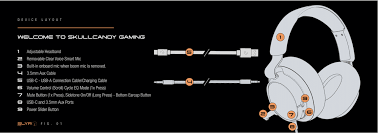
Actuating The Microphone of The Bonnets: A Step-by-step Guide
Are you experiencing problems with your microphone not functioning correctly on your computer, smartphone, or gaming console? Look no further! In this article, we will guide you through the steps to actuate the microphone of the bonnets on various devices, including Windows, Mac, Chrome, Android, iOS/iPadOS, PS4, and Nintendo Switch.
Understanding The Basics
Before diving into the specific instructions for each device, it’s essential to understand the basics of how microphones work. Microphones are an external component that connects to your computer or mobile device using a cable or wirelessly via Bluetooth or Wi-Fi. They capture sound waves and convert them into digital signals, which can then be used for various purposes such as gaming, video conferencing, or voice commands.
Preliminary Operations
Before attempting to actuate the microphone of the bonnets on your device, there are some preliminary operations that need to be accomplished to ensure proper functioning. These include:
- Checking Cables And Connections: Ensure that all cables and connections are secure and properly plugged in.
- Installing Drivers And Software: Some devices may require specific drivers or software to function correctly.
- Updating Device Firmware: Make sure your device’s firmware is up-to-date, as this can affect microphone performance.
Actuating The Microphone on Windows
If you’re using a Windows PC, follow these steps:
- Open Device Manager: Press the Windows key + X and select Device Manager.
- Find Audio Inputs: Expand the “Sound, video and game controllers” section and look for audio inputs, such as microphones or speakers.
- Enable Microphone: Right-click on the microphone device and select “Enable device.”
- Configure Microphone Settings: Go to the Sound settings (Windows key + I) and click on the “Recording” tab. Select your microphone from the list of available devices.
Actuating The Microphone on Mac
If you’re using a Mac, follow these steps:
- Open System Preferences: Click on the Apple menu and select System Preferences.
- Select Sound: Click on the Sound icon.
- Enable Input: Select your microphone from the list of available devices and click on the “Use this device for sound input” checkbox.
Actuating The Microphone in Chrome
If you’re using Google Chrome, follow these steps:
- Open Chrome Settings: Click on the three dots at the top right corner of the browser window and select Settings.
- Scroll Down to Privacy And Security: Click on “Site settings” under the “Privacy and security” section.
- Enable Microphone Access: Scroll down to the “Microphone” section and toggle the switch to enable microphone access.
Actuating The Microphone in Games
If you’re experiencing issues with your microphone not functioning correctly in a game, follow these steps:
- Open Game Settings: Go to the game’s settings menu.
- Select Audio Input: Choose your microphone from the list of available devices.
- Configure Audio Settings: Adjust audio settings as needed.
Actuating The Microphone on Android
If you’re using an Android device, follow these steps:
- Open Settings: Go to the Settings app.
- Select Apps: Choose the app that’s not allowing microphone access.
- Enable Microphone Access: Toggle the switch next to “Microphone” to enable access.
Actuating The Microphone on Ios/ipados
If you’re using an Apple device, follow these steps:
- Open Settings: Go to the Settings app.
- Select Privacy And Security: Tap on “Privacy and security”.
- Enable Microphone Access: Toggle the switch next to “Microphone” to enable access.
Actuating The Microphone on Ps4
If you’re using a PS4, follow these steps:
- Open Settings: Go to the Settings menu.
- Select Devices: Choose your microphone from the list of available devices.
- Configure Audio Settings: Adjust audio settings as needed.
Actuating The Microphone on Nintendo Switch
If you’re using a Nintendo Switch, follow these steps:
- Open Settings: Go to the Settings menu.
- Select Audio Input: Choose your microphone from the list of available devices.
- Configure Audio Settings: Adjust audio settings as needed.
Conclusion
Actuating the microphone of the bonnets on various devices requires a basic understanding of how microphones work and some specific steps for each device. By following these guides, you should be able to resolve issues with your microphone not functioning correctly.
Faqs
- Q: How do I Enable Microphone Access in Chrome?
A: To enable microphone access in Chrome, follow the instructions provided earlier. - Q: Why is my Microphone Not Working on Android?
A: Ensure that you have enabled microphone access for the app in question. - Q: Can I Use a Bluetooth Microphone With my Nintendo Switch?
A: Unfortunately, the Nintendo Switch does not support Bluetooth microphones. - Q: How do I Configure Audio Settings on Ps4?
A: Follow the steps provided earlier to configure audio settings on your PS4. - Q: Why is my Microphone Not Working on Ios/ipados?
A: Ensure that you have enabled microphone access for the app in question. - Q: Can I Use a Wired Microphone With my Nintendo Switch?
A: Yes, you can use a wired microphone with your Nintendo Switch by connecting it to the console’s audio input port. - Q: How do I Troubleshoot Issues With my Microphone Not Working on Windows?
A: Follow the steps provided earlier to troubleshoot issues with your microphone not working on Windows.
I hope this article has been helpful in resolving your microphone-related issues!


