
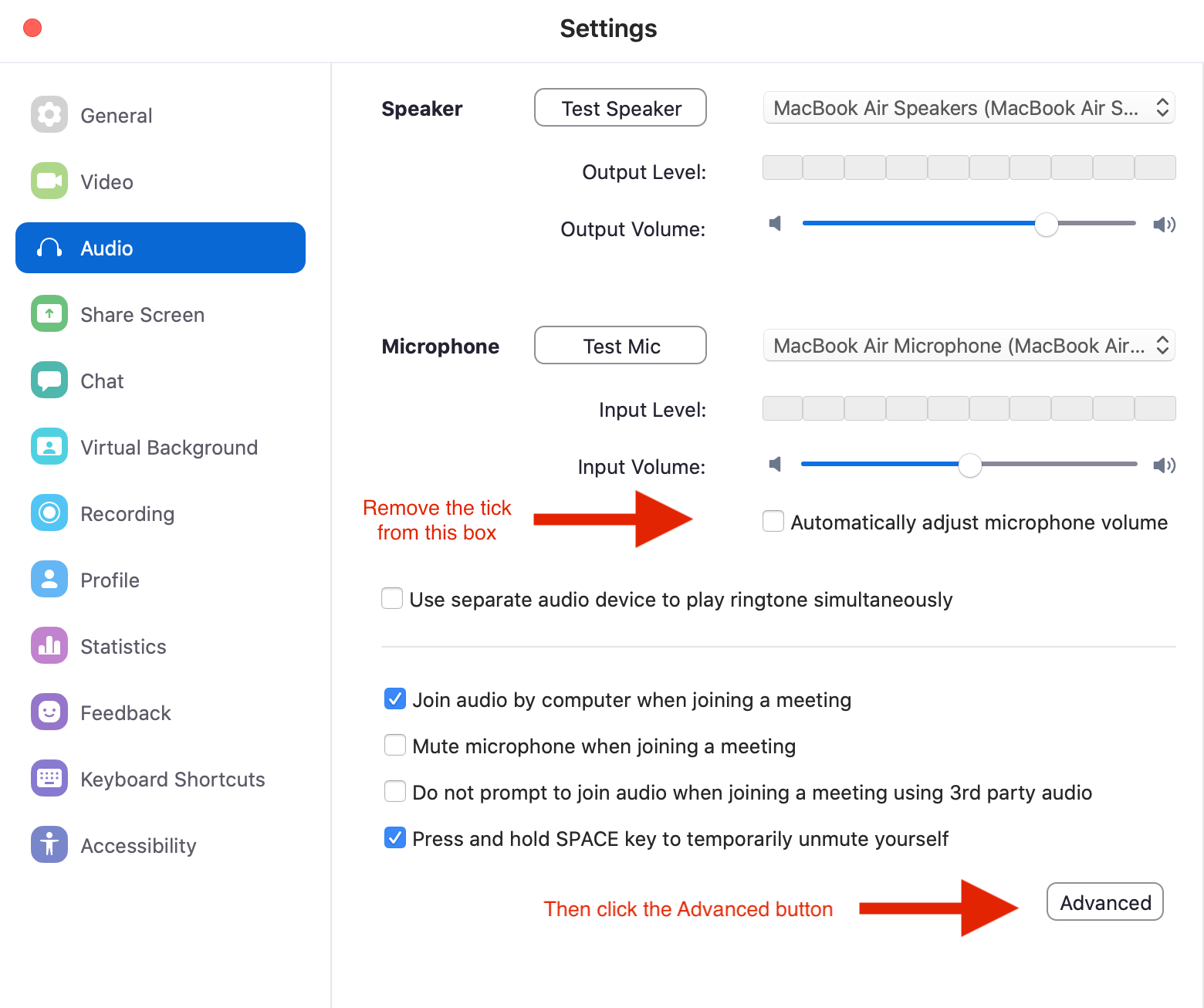
How to Actuate The Microphone on Zoom
Are you ready to take part in a videoconference on Zoom, but unsure how to actuate the microphone? Don’t worry! We’ve got you covered.
In this guide, we’ll show you how to actuate the microphone on Zoom using different devices, including computer, smartphone, and tablet. By following these simple steps, you’ll be able to participate fully in your videoconference without any technical issues.
Actuating The Microphone on Computer
If you’re using the Zoom client or Web version on your computer, follow these steps:
- Open the Zoom app or go to the Zoom website.
- Sign in to your account or create a new one if you haven’t already.
- Click on the “New Meeting” button and initiate a conference.
- Allow Zoom to access your webcam and microphone by clicking on the “Connect to Audio” button.
- Confirm that you want to connect to audio using your computer’s microphone.
That’s it! You should now be able to participate in your videoconference with ease.
Actuating The Microphone on Mobile Devices
If you’re using a smartphone or tablet, follow these steps:
Android
- Open the Zoom app and sign in to your account.
- Initiate a new meeting by clicking on the “New Meeting” button.
- Allow the app to access your camera and microphone by tapping on the “Allow” button.
- Tap on the “Join Audio” button to actuate your microphone.
Ios/ipados
- Open the Zoom app and sign in to your account.
- Initiate a new meeting by clicking on the “New Meeting” button.
- Allow the app to access your camera and microphone by tapping on the “Allow” button.
- Tap on the “Join Audio” button to actuate your microphone.
Actuating The Microphone as a Host
If you’re hosting a videoconference, you’ll need to actuate the microphones of all participants. Follow these steps:
- Click on the “Participants” button and select the participant whose microphone you want to actuate.
- Click on the “Ask to Activate Audio” button to send a request to the participant to activate their microphone.
Actuating The Microphone as a Participant
If you’re participating in a videoconference, follow these steps:
- Sign in to your account and join the conference.
- Click on the “Join Audio” button to actuate your microphone.
- You can also mute or unmute your microphone by clicking on the “Mute/Unmute” button.
Troubleshooting
If you’re having trouble actuating your microphone, try the following:
- Make sure that you’ve allowed Zoom to access your webcam and microphone.
- Check that your internet connection is stable and strong.
- Try restarting the app or re-initiating the meeting.
Conclusion
Actuating the microphone on Zoom is a straightforward process that can be completed using different devices. By following these simple steps, you’ll be able to participate fully in your videoconference without any technical issues. Remember to always allow Zoom to access your webcam and microphone, and troubleshoot any problems that may arise.
Frequently Asked Questions
- How do I Actuate my Microphone on Zoom?
- Open the Zoom app or go to the Zoom website, sign in to your account, initiate a new meeting, and click on the “Join Audio” button.
- Can I Actuate The Microphones of All Participants in a Conference?
- Yes, as a host, you can select all participants and ask them to activate their microphones by clicking on the “Ask to Activate Audio” button.
- How do I Mute or Unmute my Microphone During a Conference?
- Click on the “Mute/Unmute” button in the bottom left corner of the screen.
- What if I’m Having Trouble Actuating my Microphone?
- Try restarting the app, re-initiating the meeting, and checking that your internet connection is stable and strong.
- Can I Participate in a Videoconference Without a Microphone?
- Yes, but you won’t be able to speak during the conference. You can still participate by typing messages or using other communication methods.
- How do I Join a Videoconference on Zoom as a Participant?
- Sign in to your account, click on the “Join Audio” button, and follow the prompts to join the conference.
- Can I Actuate my Microphone on Mobile Devices?
- Yes, you can use the Zoom app on Android or iOS devices to actuate your microphone during a videoconference.
We hope this guide has been helpful in actuating your microphone on Zoom! If you have any further questions or need assistance, please don’t hesitate to contact us.


