
Activating The Webcam on Your Windows 10 Pc: A Step-by-step Guide
Are you tired of not knowing how to use your webcam on your Windows 10 PC? Do you want to take photos or record videos with your computer’s built-in camera, but don’t know where to start? Look no further! This article will guide you through the process of activating your webcam on your Windows 10 PC.
Before You Begin
Before we dive into the steps, there are a few things you should know. First, most laptops come with a webcam pre-installed, while desktop computers may require an external webcam to be purchased and connected. If you’re using an external webcam, make sure it’s properly connected to your computer via USB.
Activating The Webcam
Now that we’ve covered the basics, let’s move on to activating your webcam. To do this, follow these steps:
Step 1: Ensure Your Webcam is Recognized by Windows
First, ensure that your webcam is recognized by Windows. You can do this by opening the “Device Manager” application.
How to Open Device Manager
To open Device Manager, press the Windows key + X and select Device Manager from the menu.
Locating Your Webcam in Device Manager
Once you’re in Device Manager, locate your webcam under the “Imaging Devices” section. If it’s not listed, ensure that it’s properly connected and powered on.
Step 2: Configure Your Webcam in Device Manager
If your webcam is recognized by Windows but not functioning properly, configure it in Device Manager.
How to Configure Your Webcam in Device Manager
To configure your webcam in Device Manager:
- Open Device Manager.
- Locate your webcam under the “Imaging Devices” section.
- Right-click on your webcam and select “Properties.”
- In the Properties window, ensure that the “Use this device” checkbox is selected.
Step 3: Configure Your Webcam in Settings
Next, configure your webcam in the Windows Settings app.
How to Open Settings
To open Settings:
- Click on the Start menu.
- Select the “Settings” icon.
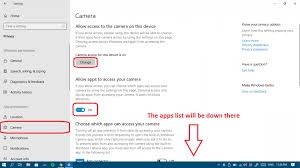
Configuring Your Webcam in Settings
Once you’re in Settings, follow these steps:
- Click on the “Privacy” tab.
- Scroll down to the “Camera” section.
- Ensure that the “Allow apps to access your camera” toggle switch is turned on.
- If prompted, select which apps are allowed to use your webcam.
Activating Your Webcam
Now that you’ve configured your webcam in Device Manager and Settings, it’s time to activate it.
Step 1: Launch a Camera App
Launch a camera app, such as the built-in “Camera” app on Windows 10.
How to Open Camera
To open Camera:
- Click on the Start menu.
- Select the “Camera” icon.
Using Your Webcam
Once you’ve launched Camera, you can start using your webcam to take photos or record videos.
Additional Tips And Tricks
Here are some additional tips and tricks for getting the most out of your webcam:
- Ensure that your webcam is properly connected and powered on.
- Configure your webcam in Device Manager and Settings before attempting to use it.
- Experiment with different camera apps to find one that works best for you.
Common Faqs
Here are some common questions and answers about using a webcam on Windows 10:
Q: Why won’t my webcam turn on?
A: Ensure that your webcam is properly connected and powered on. If still not working, configure it in Device Manager and Settings.
Q: How do I troubleshoot issues with my webcam?
A: Check that your webcam is properly connected and powered on. Configure it in Device Manager and Settings if necessary.
Conclusion
Activating your webcam on Windows 10 PC is a straightforward process. By following the steps outlined above, you should be able to get your webcam up and running in no time. Remember to configure your webcam in Device Manager and Settings before attempting to use it. If you encounter any issues, troubleshoot them by checking your webcam’s connection and power.
Frequently Asked Questions (FAQs)
- Q: What is the best camera app for Windows 10?
A: The built-in “Camera” app on Windows 10 is a great option. - Q: How do I take high-quality photos with my webcam?
A: Ensure that your webcam is properly configured in Device Manager and Settings. - Q: Can I use my webcam to record videos?
A: Yes, you can use your webcam to record videos using the built-in “Camera” app on Windows 10. - Q: Why won’t my webcam turn on?
A: Ensure that your webcam is properly connected and powered on. - Q: How do I troubleshoot issues with my webcam?
A: Check that your webcam is properly connected and powered on. Configure it in Device Manager and Settings if necessary. - Q: Can I use my webcam for video conferencing?
A: Yes, you can use your webcam for video conferencing using the built-in “Camera” app on Windows 10. - Q: How do I take screenshots with my webcam?
A: You can use the built-in “Snipping Tool” to capture screenshots using your webcam. - Q: Can I use my webcam with other software applications?
A: Yes, you can use your webcam with other software applications that support video and audio input.


