
How to Actuate Wi-fi on Your Router And Devices: A Comprehensive Guide
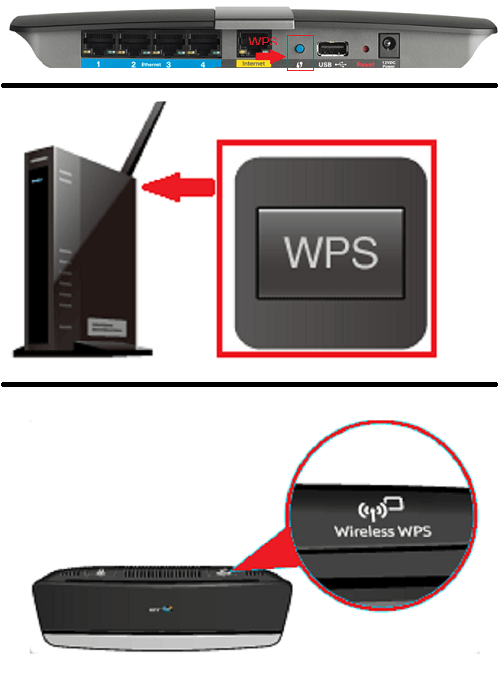
Are you struggling to understand how to actuate Wi-Fi on your router and devices? Look no further! In this article, we will guide you through the process of setting up a wireless connection on your router and various devices, including computers, smartphones, and printers.
What is Wi-fi?
Wi-Fi is a type of wireless networking technology that allows devices to connect to the internet or communicate with each other without the use of cables. It uses radio waves to transmit data between devices, making it a convenient and flexible option for users.
Setting Up Wi-fi on Your Router
To set up Wi-Fi on your router, follow these steps:
- Check if Your Router is Pre-configured: Most routers provided by internet service providers (ISPs) are already configured for wireless networking.
- Find The Ssid And Password: Check the label on the router or consult the user manual to find the network name (SSID) and password.
- Access The Router’s Configuration Page: Use a computer connected directly to the router via Ethernet cable or access the router’s configuration page using a wireless device.
- Set up The Wi-fi Network: Select the language, time zone, and other settings as required.
- Configure The Wi-fi Settings: Set up the SSID, password, and other Wi-Fi settings according to your preferences.
How to Use Wi-fi on Your Devices
Now that you have set up Wi-Fi on your router, let’s move on to using it on your devices:
PC (Windows)
- Click on The Network Icon: Click on the network icon in the system tray.
- Select Wi-fi: Select “Wi-Fi” from the list of available networks.
- Enter The Password: Enter the password you set up on your router.
- Connect to The Network: Click “Connect” to establish a connection.
Mac
- Click on The Wi-fi Icon: Click on the Wi-Fi icon in the menu bar.
- Select The Network: Select the name of your Wi-Fi network from the list.
- Enter The Password: Enter the password you set up on your router.
- Connect to The Network: Click “Join” to establish a connection.
Android
- Access The Settings App: Access the Settings app on your device.
- Select Wi-fi: Select “Wi-Fi” from the list of available settings.
- Turn on Wi-fi: Toggle the switch next to “Wi-Fi” to turn it on.
- Select The Network: Select the name of your Wi-Fi network from the list.
- Enter The Password: Enter the password you set up on your router.
- Connect to The Network: Click “Connect” to establish a connection.
Iphone/ipad
- Access The Settings App: Access the Settings app on your device.
- Select Wi-fi: Select “Wi-Fi” from the list of available settings.
- Turn on Wi-fi: Toggle the switch next to “Wi-Fi” to turn it on.
- Select The Network: Select the name of your Wi-Fi network from the list.
- Enter The Password: Enter the password you set up on your router.
- Connect to The Network: Tap “Join” to establish a connection.
How to Actuate Wi-fi Direct
Wi-Fi Direct is a technology that allows devices to connect directly to each other without the need for a router or access point. Here’s how to actuate it:
On a Printer
- Check if Your Printer Supports Wi-fi Direct: Check the user manual or manufacturer’s website to see if your printer supports Wi-Fi Direct.
- Connect to The Printer: Connect to the printer using a cable or wireless connection.
- Configure The Wi-fi Settings: Configure the Wi-Fi settings on the printer according to the instructions provided.
On a PC For Screen Mirroring
- Check if Your Device Supports Screen Mirroring: Check the user manual or manufacturer’s website to see if your device supports screen mirroring using Wi-Fi Direct.
- Connect to The Device: Connect to the device using a cable or wireless connection.
- Configure The Wi-fi Settings: Configure the Wi-Fi settings on the device according to the instructions provided.
How to Actuate Wi-fi Calling
Wi-Fi calling is a feature that allows you to make and receive calls over a Wi-Fi network, even when there is no cellular coverage. Here’s how to actuate it:
On an Android Device
- Check if Your Carrier Supports Wi-fi Calling: Check with your carrier to see if they support Wi-Fi calling.
- Update Your Device Software: Update your device software to the latest version.
- Access The Settings App: Access the Settings app on your device.
- Select Wi-fi Calling: Select “Wi-Fi calling” from the list of available settings.
- Turn on Wi-fi Calling: Toggle the switch next to “Wi-Fi calling” to turn it on.
On an Iphone
- Check if Your Carrier Supports Wi-fi Calling: Check with your carrier to see if they support Wi-Fi calling.
- Update Your Device Software: Update your device software to the latest version.
- Access The Settings App: Access the Settings app on your device.
- Select Phone: Select “Phone” from the list of available settings.
- Turn on Wi-fi Calling: Toggle the switch next to “Wi-Fi calling” to turn it on.
Conclusion
Setting up and using Wi-Fi on your router and devices is a straightforward process. By following the steps outlined in this article, you should be able to establish a stable wireless connection and enjoy the benefits of Wi-Fi technology. Remember to check with your carrier or manufacturer’s website for specific instructions on how to actuate Wi-Fi calling and other advanced features.
Frequently Asked Questions (FAQs)
- Q: What is Wi-fi?
A: Wi-Fi is a type of wireless networking technology that allows devices to connect to the internet or communicate with each other without the use of cables. - Q: How do I Set up Wi-fi on my Router?
A: Check if your router is pre-configured, find the SSID and password, access the router’s configuration page, and configure the Wi-Fi settings according to your preferences. - Q: How do I Use Wi-fi on my Devices?
A: The steps for using Wi-Fi on devices vary depending on the device type (PC, Mac, Android, iPhone/iPad). Refer to the specific instructions provided in this article. - Q: What is Wi-fi Direct?
A: Wi-Fi Direct is a technology that allows devices to connect directly to each other without the need for a router or access point. - Q: How do I Actuate Wi-fi Direct on my Printer?
A: Check if your printer supports Wi-Fi Direct, connect to the printer, and configure the Wi-Fi settings according to the instructions provided. - Q: What is Wi-fi Calling?
A: Wi-Fi calling is a feature that allows you to make and receive calls over a Wi-Fi network, even when there is no cellular coverage. - Q: How do I Actuate Wi-fi Calling on my Device?
A: Check if your carrier supports Wi-Fi calling, update your device software, access the Settings app, select Wi-Fi calling, and turn it on according to the instructions provided. - Q: What Are The Benefits of Using Wi-fi Technology?
A: The benefits of using Wi-Fi technology include convenience, flexibility, and improved performance compared to wired connections.
We hope this comprehensive guide has helped you understand how to actuate Wi-Fi on your router and devices. If you have any further questions or concerns, please don’t hesitate to reach out!


