
How to Activate Windows 10: A Step-by-step Guide
Are you struggling to activate your Windows 10 operating system? Don’t worry, I’m here to help! In this article, we’ll take a step-by-step approach to activating Windows 10, and I’ll also provide some common errors that might occur during the process.
What You Need to Know Before Activating Windows 10
Before we dive into the activation process, there are a few things you need to know:
- Product Key: To activate Windows 10, you’ll need a valid product key. If you’ve purchased a new computer or upgraded from an earlier version of Windows, your product key should be included in the packaging.
- Digital Licence: Alternatively, you can use a digital licence to activate Windows 10. This is a free way to activate your operating system, and it’s associated with your Microsoft account.
How to Activate Windows 10 During Installation
If this is the first time you’re installing Windows 10 on your computer, or if you’ve reinstalled the operating system, you can follow these steps to activate it:
- Start the installation process for Windows 10.
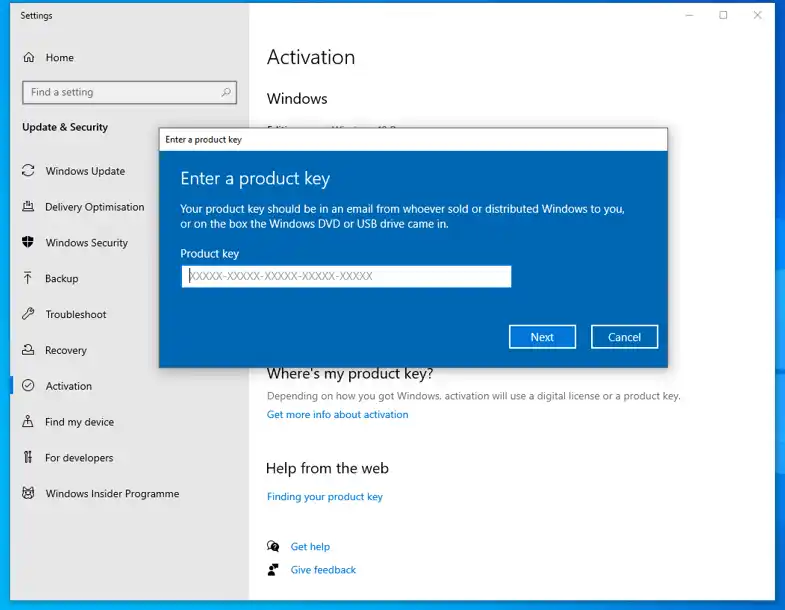
- When prompted, enter your product key in the corresponding field.
- Click Next and follow the on-screen instructions to complete the activation process.
How to Activate Windows 10 After Installation
If you’ve already installed Windows 10 but haven’t activated it yet, here’s what you can do:
- Click on the Start button (represented by a window logo) located in the bottom left corner of your screen.
- Select the Settings icon (a gear-shaped icon) from the menu.
- In the Settings window, click on Update & Security.
- On the right side of the window, you’ll see an option labeled Activation. Click on it.
How to Activate Windows 10 With a Product Key
If you don’t have a digital licence but have a product key, here’s how to activate your operating system:
- Go to Settings > Update & Security.
- In the Activation section, click on the link that says “Don’t have a product key?”
- Click Next and follow the on-screen instructions to complete the activation process.
How to Activate Windows 10 With a Digital Licence
If you’re using a digital licence to activate your operating system, here’s what you need to do:
- Go to Settings > Update & Security.
- In the Activation section, click on the link that says “Activate Windows”.
- Follow the on-screen instructions to complete the activation process.
Common Errors During Activation
Here are some common errors you might encounter during the activation process:
- Error 0xC004F211: This error occurs when your hardware has been significantly modified and Windows can’t find a corresponding licence.
- Solution: Enter a new product key or purchase a new one.
- Error 0xC004F213: This error occurs when you haven’t found any product key.
- Solution: Insert the correct product key for the system used.
- Error 0x803F7001: This error occurs when Windows can’t find a valid licence for your computer.
- Solution: Enter the correct product key for the system in use.
- Error 0xC004FC03: This error occurs when your computer is not connected to the Internet or programs like antivirus and firewall are blocking access.
- Solution: Verify that your connection is stable, then disable any security software that might be causing issues.
Conclusion
Activating Windows 10 can seem daunting, but it’s a straightforward process once you know what to do. Remember to have your product key or digital licence ready before starting the activation process. If you encounter any errors during activation, try troubleshooting by checking your internet connection and disabling any security software that might be causing issues.
Faqs
Here are some frequently asked questions about activating Windows 10:
- Q: What is a Product Key?
A: A product key is a unique code used to activate your Windows operating system. - Q: How do I Find my Product Key?
A: Your product key can be found on the packaging of your computer or in the confirmation email sent by Microsoft after purchase. - Q: Can I Use a Digital Licence Instead of a Product Key?
A: Yes, you can use a digital licence to activate Windows 10 without needing a product key. - Q: Why do I Need to Connect my Computer to The Internet During Activation?
A: Your computer needs to be connected to the internet to verify your product key or digital licence with Microsoft’s servers. - Q: What Should I do if I Encounter Errors During Activation?
A: Try troubleshooting by checking your internet connection and disabling any security software that might be causing issues.
I hope this article has helped you understand how to activate Windows 10! If you have any further questions or concerns, please feel free to ask.


