
How to Activate Wlan on Windows 7: A Step-by-step Guide
Are you experiencing problems connecting to a wireless network on your Windows 7 device? Don’t panic! In this article, we’ll walk you through the steps to activate WLAN on Windows 7 and resolve common connectivity issues.
Why is my Wi-fi Not Working?
Before we dive into the solutions, let’s first identify some of the possible causes of the problem. It could be due to a faulty wireless adapter, incorrect network settings, or outdated drivers. In this guide, we’ll cover all these scenarios and provide you with detailed instructions on how to troubleshoot and resolve the issue.
Check if Wi-fi Was Disabled
Before attempting any advanced troubleshooting steps, make sure that Wi-Fi was not accidentally disabled in Windows 7. To check:
- Click on the Start button (usually located at the bottom left corner of the screen).
- Select “Control Panel” from the menu.
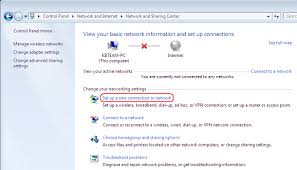
- Go to “Network and Internet.”
- Click on “Change adapter settings.”
- Look for the Wi-Fi icon, which resembles a wireless antenna. If it’s grayed out or disabled, click on it to enable it.
Installing Wireless Driver
If enabling Wi-Fi doesn’t resolve the issue, you might need to install or update your wireless driver. Here are the steps:
- Click on the Start button and select “Computer” (or “My Computer”).
- Right-click on the computer icon and select “Properties.”
- Go to “Device Manager” from the left panel.
- Expand the “Network Adapters” section.
- Right-click on the wireless adapter (usually listed as “Wireless LAN Adapter”) and select “Update Driver Software.”
- Follow the prompts to search for and install updated drivers.
Automatic Driver Installation
If you’re not comfortable with manual driver installation, Windows 7 has an automatic update feature:
- Go to Start > Computer.
- Right-click on the computer icon and select “Properties.”
- Click on “Device Manager” from the left panel.
- Expand the “Network Adapters” section.
- Right-click on the wireless adapter and select “Update Driver Software.”
- Follow the prompts to let Windows 7 search for and install updated drivers.
Manual Driver Installation
If automatic driver installation fails, you can manually download and install drivers from the manufacturer’s website:
- Download Speccy (free system information tool) to identify your wireless adapter.
- Use Google to search for the exact pattern of your wireless adapter along with “driver” and “Windows 7.”
- Follow the prompts to download and install the correct driver.
Configuring Wlan on Windows 7
Once you’ve installed or updated your wireless driver, it’s time to configure WLAN on Windows 7:
- Go to Start > Control Panel > Network and Internet.
- Click on “Change adapter settings.”
- Right-click on the Wi-Fi icon (usually listed as “Wireless Network”) and select “Properties.”
- Configure your home cluster according to our tutorial on sharing a folder in net.
- To connect to the Internet via Wi-Fi, click on the network icon next to the clock and select the desired network.
Troubleshooting Tips
Still experiencing issues? Don’t worry! Here are some additional troubleshooting tips:
- Restart your device to see if the issue resolves itself.
- Try resetting your router or modem.
- Check for firmware updates on your wireless adapter.
- Consult our tutorial on resolving issues with Wi-Fi connections.
Conclusion
Activating WLAN on Windows 7 can be a breeze with these step-by-step instructions. Remember to check for faulty drivers, incorrect network settings, and outdated software before diving into advanced troubleshooting steps. If you’re still experiencing issues, don’t hesitate to reach out to a technician or try our additional troubleshooting tips.
Frequently Asked Questions (FAQs)
- What Are The Possible Causes of Wi-fi Not Working?
Possible causes include faulty wireless adapters, incorrect network settings, outdated drivers, or hardware issues.
2. How do I Enable Wi-fi on Windows 7?
To enable Wi-Fi, go to Start > Control Panel > Network and Internet > Change adapter settings and look for the Wi-Fi icon. If it’s grayed out or disabled, click on it to enable it.
3. What Are The Steps to Install a Wireless Driver?
The steps include downloading Speccy, identifying your wireless adapter, searching for drivers online, and manually installing them.
4. How do I Configure Wlan on Windows 7?
To configure WLAN, go to Start > Control Panel > Network and Internet > Change adapter settings, right-click on the Wi-Fi icon, and select “Properties.”
5. What Are Some Additional Troubleshooting Tips?
Additional troubleshooting tips include restarting your device, resetting your router or modem, checking for firmware updates on your wireless adapter, and consulting our tutorials on resolving issues with Wi-Fi connections.
We hope this guide has helped you resolve any connectivity issues with WLAN on Windows 7! If you have further questions or concerns, feel free to ask.


