
How to Actuate Word: A Step-by-step Guide
Are you interested in learning how to actuate Word on your computer, but don’t have much experience with computer science and technology? You’ve come to the right place! In this guide, we’ll walk you through the steps to download and activate Word on Windows and macOS.
Understanding Word And Its Variants
Before we dive into the step-by-step instructions, it’s essential to understand the different variants of Word available. Microsoft offers various versions of Word, including:
- Microsoft 365: A subscription-based service that includes all Office applications, including Word.
- Office Home & Student: The classic version of Office with a one-time payment option.
- Word For Windows 10: A standalone application for Windows 10 users.
- Word For Macos: A standalone application for macOS users.
Actuating Word on Windows
To actuate Word on Windows, follow these steps:
- Initiate The Microsoft Store: Open the browser you usually use to browse the internet and navigate to the Microsoft website.
- Choose a Subscription Plan: Select the Microsoft 365 subscription plan that suits your needs, and click on the “Acquire” button.
- Download And Install Office: Click on the “Install” button, and follow the prompts to download and install Office.
- Activate Word: Once installed, click on the Start menu and select Word to activate it.
Actuating Word With Microsoft 365
To actuate Word using the Microsoft 365 subscription plan:
- Initiate The Browser: Open your browser and navigate to the Microsoft website.
- Choose a Subscription Plan: Select the Microsoft 365 subscription plan that suits your needs, and click on the “Acquire” button.
- Login to Your Account: Log in to your Microsoft account or create a new one if you don’t have an existing account.
- Download And Install Office: Click on the “Install” button, and follow the prompts to download and install Office.
- Activate Word: Once installed, click on the Start menu and select Word to activate it.
Actuating Word With Microsoft Office
To actuate Word using the Microsoft Office subscription plan:
- Purchase a Subscription: Purchase a Microsoft Office subscription plan that suits your needs.
- Download And Install Office: Download and install Office from the Microsoft website or purchase a physical copy.
- Activate Word: Once installed, click on the Start menu and select Word to activate it.
Actuating Word on Mac
To actuate Word on Mac:
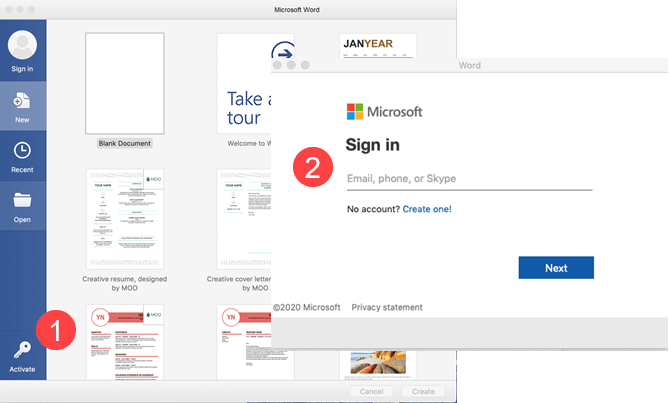
- Initiate The App Store: Open the App Store on your Mac.
- Choose a Subscription Plan: Select the Microsoft 365 subscription plan that suits your needs, and click on the “Get” button.
- Download And Install Office: Click on the “Install” button, and follow the prompts to download and install Office.
- Activate Word: Once installed, click on the Start menu and select Word to activate it.
Actuating Word on Smartphone And Tablet
To actuate Word on smartphone and tablet:
- Download The App: Download the Microsoft Word app from the Play Store (for Android devices) or the App Store (for iOS/iPadOS devices).
- Activate The App: Once installed, tap on the app to activate it.
- Login to Your Account: Log in to your Microsoft account to access all features.
Conclusion
Actuating Word is a straightforward process that requires some basic computer knowledge. By following these step-by-step instructions, you’ll be able to download and activate Word on Windows, macOS, smartphone, or tablet.
Faqs
- What is The Difference Between Microsoft 365 And Office Home & Student?
Microsoft 365 is a subscription-based service that includes all Office applications, while Office Home & Student is a one-time payment option for individual users. - Can I Use Word on my Smartphone And Tablet?
Yes, you can download and use Word on your smartphone and tablet from the Play Store (for Android devices) or the App Store (for iOS/iPadOS devices). - Do I Need to Have a Microsoft Account to Actuate Word?
Yes, you’ll need to log in to your Microsoft account to access all features of Word. - Can I Cancel my Subscription at Any Time?
Yes, you can cancel your subscription at any time by visiting the Microsoft website and following the instructions. - What Are The System Requirements For Running Word on Windows?
The system requirements for running Word on Windows include a 1 GHz or faster processor, 2 GB RAM (32-bit) or 4 GB RAM (64-bit), and a 2 GB hard disk space. - Can I Use Word on my Mac if I Don’t Have an Apple Id?
Yes, you can create an Apple ID to access all features of Word on your Mac. - What Are The Benefits of Using Microsoft 365 Over Office Home & Student?
Microsoft 365 offers additional benefits, including boundless updates for all Office applications, 1 TB online storage, and access to the complete versions of Office apps for smartphone and tablet devices.
I hope this guide has been helpful in understanding how to actuate Word on your computer. If you have any further questions or concerns, please don’t hesitate to reach out!


