
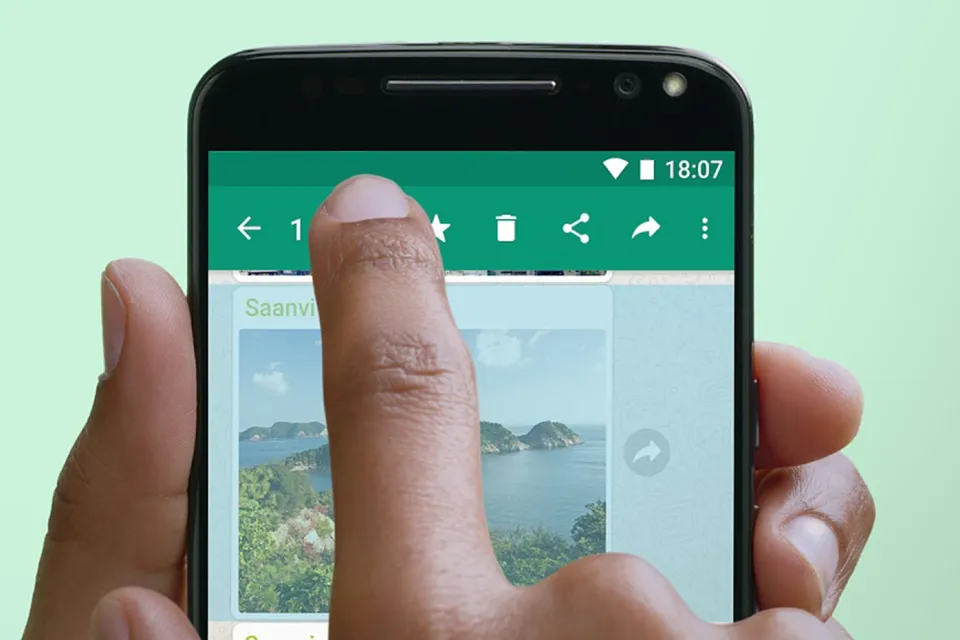
How to Add a Contact on Whatsapp: A Step-by-step Guide
Are you tired of manually typing phone numbers every time you want to send a message or make a call? Do you wish there was an easier way to add contacts on WhatsApp? Look no further! In this article, we will guide you through the simple process of adding a contact on WhatsApp, whether you’re using an Android or iOS device.
Why Add Contacts on Whatsapp?
Before we dive into the tutorial, let’s talk about why adding contacts on WhatsApp is essential. Having your contacts saved in WhatsApp allows for seamless communication and eliminates the need to manually type phone numbers every time. Plus, it’s convenient and saves you time!
Adding a Contact on Whatsapp on Android
To add a contact on WhatsApp using an Android device, follow these steps:
- Open Contacts App: Launch the Contacts app on your Android device.
- Tap on (+) Symbol: Tap on the “+” symbol located at the top right corner of the screen to create a new contact.
- Fill Out Contact Details: Fill out the contact details form with the person’s name, surname, phone number, email address, and any other relevant information.
- Confirm Rescue: Confirm the rescue by tapping on the “√” button.
Alternatively, you can save a contact directly in WhatsApp. To do this:
- Open Whatsapp App: Launch the WhatsApp app on your Android device.
- Tap on New Voice Contact: Tap on the new voice contact icon located at the bottom of the screen.
- Fill Out Contact Details: Fill out the contact details form with the person’s name, surname, and phone number.
- Confirm Rescue: Confirm the rescue by tapping on the “√” button.
Adding a Contact on Whatsapp on Ios
To add a contact on WhatsApp using an iOS device, follow these steps:
- Open Contacts App: Launch the Contacts app on your iOS device.
- Tap on (+) Symbol: Tap on the “+” symbol located at the top right corner of the screen to create a new contact.
- Fill Out Contact Details: Fill out the contact details form with the person’s name, surname, and phone number.
- Complete Operation: Complete the operation by tapping on the “Done” button.
Alternatively, you can save a contact directly in WhatsApp. To do this:
- Open Whatsapp App: Launch the WhatsApp app on your iOS device.
- Tap on Chat Icon: Tap on the chat icon located at the bottom of the screen.
- Tap on New Voice Contact: Tap on the new voice contact icon located at the top right corner of the screen.
- Fill Out Contact Details: Fill out the contact details form with the person’s name, surname, and phone number.
- Confirm Rescue: Confirm the rescue by tapping on the “Save” button.
Adding a Contact on Whatsapp Web
To add a contact on WhatsApp using a PC or laptop, follow these steps:
- Open Whatsapp Web: Launch the WhatsApp web version on your PC or laptop.
- Click on Contacts Tab: Click on the contacts tab located at the top of the screen.
- Click on New Contact: Click on the new contact icon located at the bottom of the screen.
- Fill Out Contact Details: Fill out the contact details form with the person’s name, surname, and phone number.
Adding a Contact on Whatsapp Without Having Their Number
Did you know that it’s possible to add a contact on WhatsApp without having their phone number? You can do this by scanning their QR code using the WhatsApp app. To do this:
- Open Whatsapp App: Launch the WhatsApp app on your device.
- Go to Settings: Go to settings and select the “QR Code” option.
- Scan QR Code: Scan the QR code associated with the person’s account.
- Add Contact: Add the contact to your WhatsApp contacts.
Adding a Contact in a Group
Do you want to add a contact to an existing group on WhatsApp? You can do this easily by following these steps:
- Open Whatsapp App: Launch the WhatsApp app on your device.
- Go to Chat Screen: Go to the chat screen of the group you want to add the contact to.
- Tap on Add Participants: Tap on the “Add participants” button located at the top right corner of the screen.
- Select Contact: Select the contact you want to add from your phonebook.
Typing a Number on Whatsapp Without Saving it in Contacts
Do you need to forward a message or make a call to someone without saving their number in your contacts? You can do this easily by typing their number directly into the messaging app. To do this:
- Open Whatsapp App: Launch the WhatsApp app on your device.
- Tap on New Chat: Tap on the new chat button located at the bottom of the screen.
- Type Number: Type the phone number you want to contact in the messaging bar.
- Start Chatting: Start chatting with the person by tapping on the “Chatta” button.
Conclusion
Adding contacts on WhatsApp is a simple process that can save you time and effort. Whether you’re using an Android or iOS device, following these steps will guide you through the process of adding contacts to your messaging app. Remember to also explore other features such as scanning QR codes and typing numbers directly into the messaging app.
Faqs
Q: Why should I add contacts on WhatsApp?
A: Adding contacts on WhatsApp allows for seamless communication and eliminates the need to manually type phone numbers every time.
Q: Can I add a contact on WhatsApp without having their number?
A: Yes, you can add a contact on WhatsApp without having their number by scanning their QR code using the WhatsApp app.
Q: How do I add a contact in a group on WhatsApp?
A: To add a contact to an existing group on WhatsApp, go to the chat screen of the group, tap on “Add participants,” and select the contact you want to add from your phonebook.


