
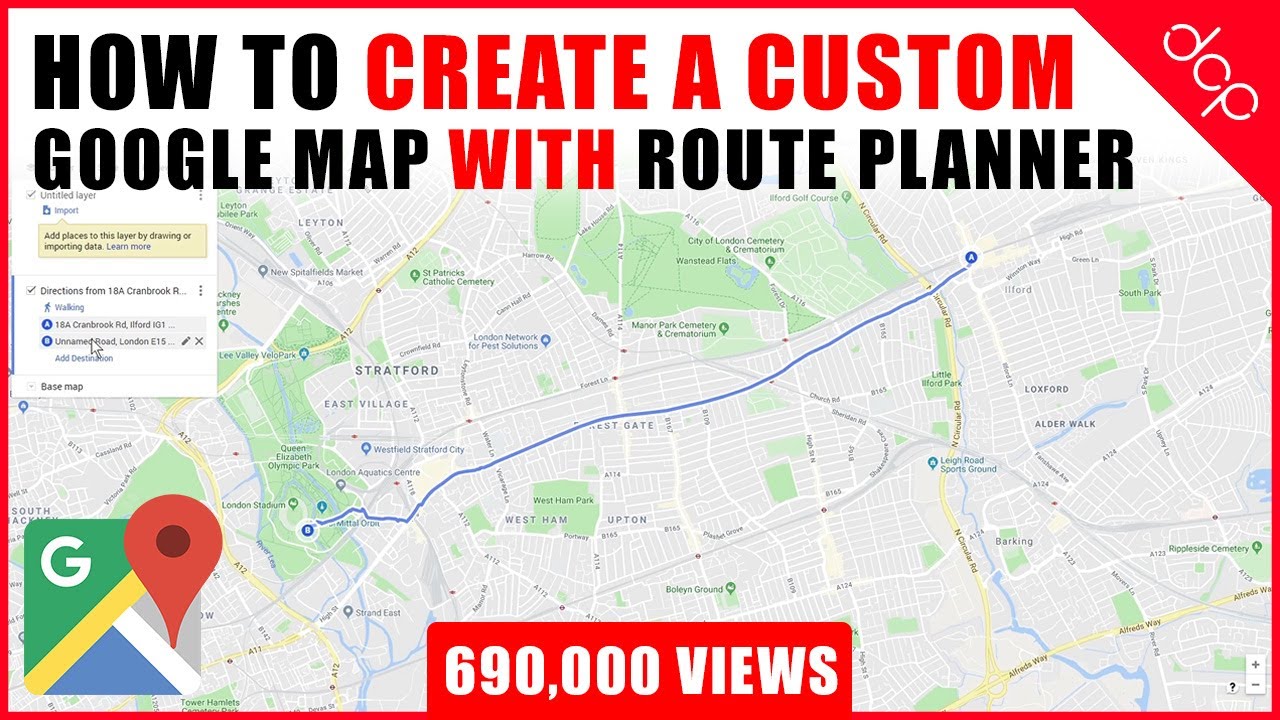
How to Add a Place on Google Maps: A Step-by-step Guide
Are you tired of not being able to find a specific place on Google Maps? Do you want to contribute to the service by adding a new location? Look no further! In this article, we will guide you through the process of adding a place on Google Maps using both the app and the website.
Why Add a Place on Google Maps?
Adding a place on Google Maps can be beneficial in several ways. Firstly, it allows you to contribute to the service by making important locations visible to other users. This can be especially helpful for small businesses or local landmarks that may not have an online presence.
Secondly, adding a place on Google Maps can improve your own navigation experience. By marking important locations, such as your home or office, you can easily find them using the app or website.
How to Add a Place on Google Maps Using The App
To add a place on Google Maps using the app, follow these steps:
- Open Google Maps: Tap the Google Maps icon on your smartphone or tablet.
- Search For The Location: Enter the address of the place you want to add in the search bar at the top of the screen.
- Select The Location: If the location is already listed, select it from the results. If not, tap on the “Add a missing place” option.
- Enter Information About The Place: Fill out the required fields with the name, category, and address of the place.
- Add Additional Details: You can also add other relevant information, such as phone numbers, schedules, or websites.
- Save The Changes: Tap on the “Save” button to save the changes.
How to Add a Place on Google Maps Using The Website
To add a place on Google Maps using the website, follow these steps:
- Open Google Maps: Go to the Google Maps website and sign in with your account.
- Search For The Location: Enter the address of the place you want to add in the search bar at the top of the page.
- Select The Location: If the location is already listed, select it from the results. If not, tap on the “Add a missing place” option.
- Enter Information About The Place: Fill out the required fields with the name, category, and address of the place.
- Save The Changes: Click on the “Save” button to save the changes.
What Happens After You Add a Place?
After you add a place on Google Maps, it will be visible to other users who search for that location. The service also reviews the information you provided to ensure its accuracy.
Benefits of Adding Places on Google Maps
Adding places on Google Maps has several benefits:
- Improved Navigation: By adding important locations, you can easily find them using the app or website.
- Increased Visibility: Your place will be visible to other users who search for that location.
- Contribution to The Community: You are contributing to the service by making it more accurate and helpful.
Conclusion
Adding a place on Google Maps is a simple process that can have significant benefits. By following these steps, you can contribute to the service, improve your navigation experience, and increase visibility for important locations.
Frequently Asked Questions (FAQs)
- Q: Why do I Need to Create an Account to Add a Place on Google Maps?
A: Creating an account allows you to save your changes and access them later. - Q: Can I Add Multiple Places at Once?
A: Yes, you can add multiple places in the same session. - Q: How Accurate Must my Information be When Adding a Place?
A: Try to provide as accurate information as possible, but minor errors will not significantly affect the overall experience. - Q: Will I Receive Any Notifications After Adding a Place?
A: Yes, you may receive notifications or emails about updates to your added places. - Q: Can I Edit my Information Later if Needed?
A: Yes, you can make changes to your added places at any time. - Q: How Often Does Google Update Its Maps Data?
A: Google continuously updates its maps data to ensure accuracy and relevance. - Q: Will Adding a Place on Google Maps Increase Traffic to my Location?
A: While it’s possible, there is no direct correlation between adding a place on Google Maps and increased traffic to your location. - Q: Can I Add Places For Friends or Family Who Don’t Have an Account?
A: Yes, you can add places for others even if they don’t have a Google account.
I hope this guide helps you understand the process of adding a place on Google Maps! If you have any further questions, feel free to ask.


