
How to Add Applications on Android Car: A Comprehensive Guide
Are you tired of using your smartphone while driving? Do you want to enhance your driving experience with the latest features and applications? Look no further! In this article, we will guide you through the process of adding applications on Android Car.
What is Android Car?
Android Car is a system that connects your compatible car to your smartphone, allowing you to use various applications directly on the dashboard. This system aims to reduce distractions while driving and provide a safer driving experience.
Compatible Applications
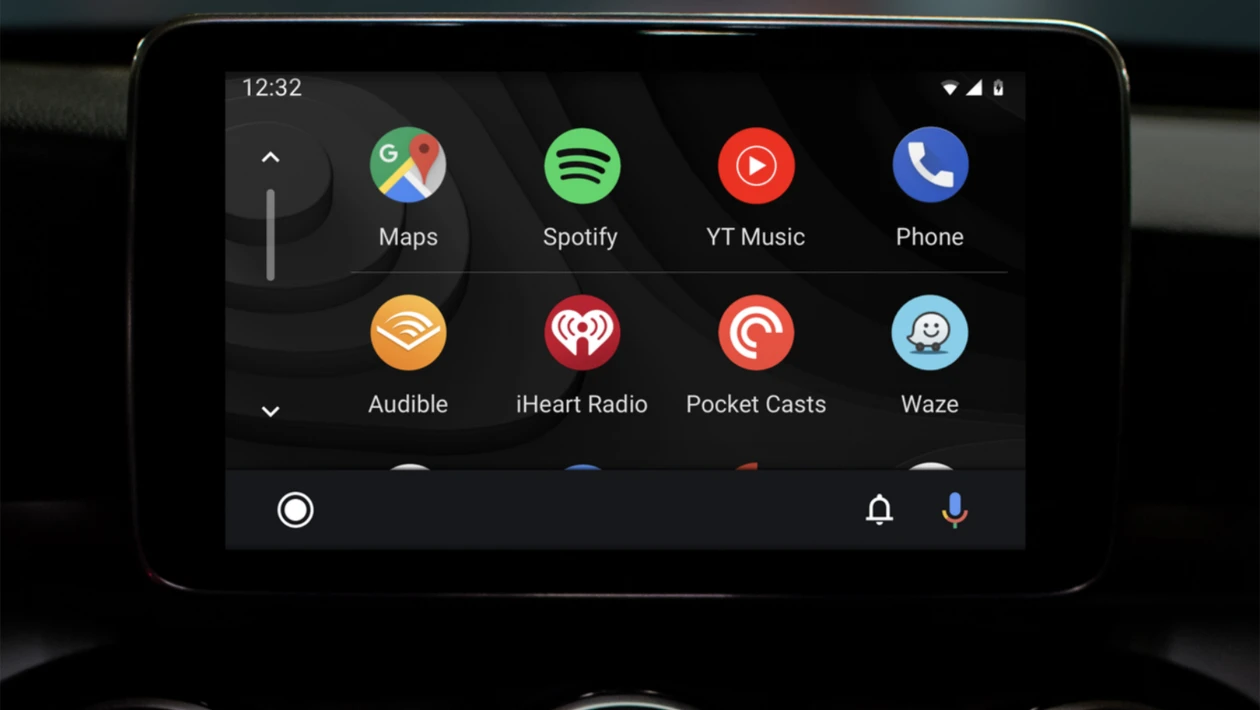
Before we dive into the process of adding applications, let’s take a look at some of the most popular and useful apps available for Android Car:
- Waze: A navigation app with maps, indications, vocal guide, and notices on accidents and traffic.
- Google Maps: An app that provides navigation, signaling on traffic, and vocal guide.
- Fuelio: An application to track fuel consumption.
- Spotify: A music streaming service with playlists, albums, and podcasts.
- Youtube Music: An app for streaming music from YouTube.
- Mytuner Radio Italia: An app for listening to radio stations.
- Amazon Music: A music streaming service with songs, albums, and playlists.
How to Add Applications on Android Car
Now that we’ve introduced some of the compatible applications, let’s see how to add them to your Android Car:
- Open Google Play Store: Access the Google Play Store on your smartphone.
- Search For Android Car: Type “Android Car” in the search bar and select the app from the results.
- Install The App: Click the “Install” button to download and install the app on your phone.
- Launch The App: Once installed, launch the app and configure your preferences.
- Connect Your Phone to Android Car: Connect your smartphone to your compatible car using a USB cable or via Wi-Fi.
Retrieving Installed Apps
What if you’ve already installed an app but it’s not visible on Android Car? Don’t worry! Here are some possible scenarios:
- The app is not available on the Android Car system.
- The app is disabled and needs to be reactivated.
- The app is compatible with Android Car, but its permissions have been suspended.
Reactivating Disabled Apps
To reactivate a disabled app, follow these steps:
- Open The Settings App: Access the settings app on your phone.
- Battery Section: Scroll down to the Battery section and select it.
- Limit Background Use: Disable the “Suspend apps not used” feature.
- Reactivate The App: Reactivate the app by opening it from the settings.
Conclusion
Adding applications on Android Car is a straightforward process that can enhance your driving experience. By following these steps, you’ll be able to access various features and services directly on your car’s dashboard, making your drives safer and more enjoyable.
Frequently Asked Questions (FAQs)
- Q: What Are The Compatible Apps For Android Car?
A: Some of the compatible apps include Waze, Google Maps, Fuelio, Spotify, YouTube Music, myTuner Radio Italia, Amazon Music, and more. - Q: How do I Add Applications on Android Car?
A: To add an app, open the Google Play Store, search for the app, install it, launch it, and connect your phone to your car using a USB cable or via Wi-Fi. - Q: What if my App is Not Visible on Android Car?
A: Check if the app is compatible with Android Car or if its permissions have been suspended. Reactivate the app by following the steps mentioned above. - Q: Can I Use Any App on Android Car?
A: No, only compatible apps can be used on Android Car for safety reasons. - Q: How do I Reactivate a Disabled App?
A: Follow the steps mentioned in the article to reactivate a disabled app.
By following these guidelines and FAQs, you’ll be able to make the most out of your Android Car experience and enjoy safer, more enjoyable drives.


