
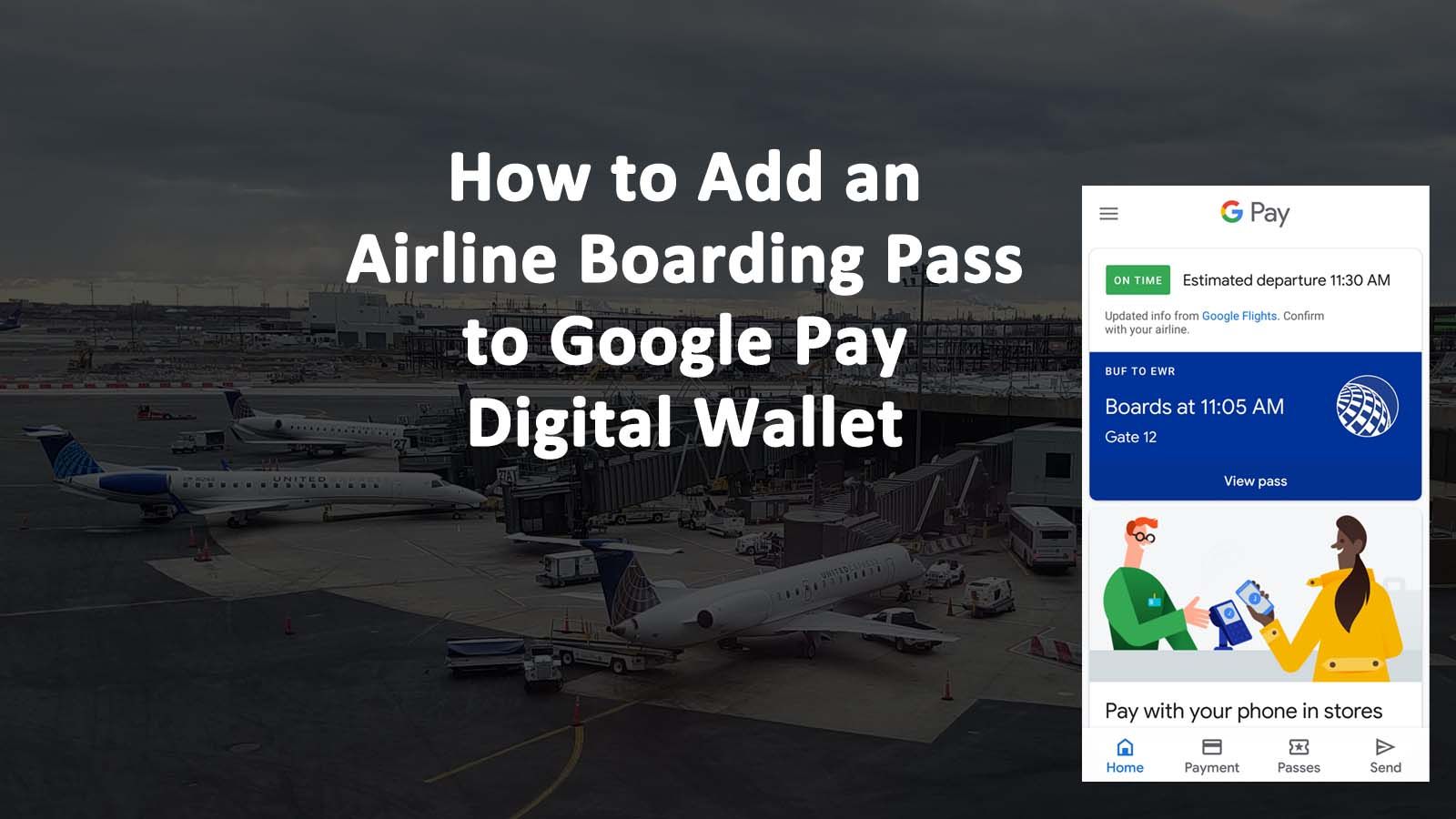
How to Add Boarding Cards to Google Pay: A Step-by-step Guide
Are you tired of searching for your boarding card every time you go through security or check-in for a flight? Do you want to make your travel experience more efficient and convenient? Look no further! In this article, we will show you how to add your boarding card to Google Pay, making it easily accessible on your smartphone.
The Benefits of Using Google Pay
Google Pay is an app that allows you to store digital versions of your credit cards, loyalty cards, and even boarding passes. By adding your boarding card to Google Pay, you can enjoy several benefits, including:
- No need to print or carry a physical boarding card
- Easy access to your boarding pass on your smartphone
- Reduced clutter in your wallet or bag
- A more efficient check-in process
The Requirements For Adding Boarding Cards to Google Pay
Before you can add your boarding card to Google Pay, make sure you meet the following requirements:
- You must have a digital ticket (no physical copy)
- The airline’s app must support adding cards to Google Pay
- Your device must be running Android 4.3 Or later
Step-by-step Instructions For Adding Boarding Cards to Google Pay
Adding your boarding card to Google Pay is easy and straightforward. Here are the steps you need to follow:
- Open the Google Pay app on your Android device.
- Tap the “+” icon at the bottom of the screen to add a new card.
- Select “Add a new card” from the menu.
- Choose the type of card you want to add (boarding pass, in this case).
- Scan the barcode or enter the code manually.
- Confirm that you have saved your boarding pass.
Alternative Methods For Adding Boarding Cards
If the airline’s app doesn’t support adding cards to Google Pay, don’t worry! There are other methods you can use:
- Use the Pass2Pay app (described below)
- Take a screenshot of your boarding card and add it to Google Pay using the “Add a new card” feature
Using The Pass2pay App
Pass2Pay is an app that allows you to save digital versions of your tickets, including boarding passes. Here’s how you can use it:
- Download and install the Pass2Pay app from the Play Store.
- Open the app and select “Add a new ticket”.
- Scan the barcode or enter the code manually.
- Confirm that you have saved your boarding pass.
Tips For Using Google Pay
- Make sure to save your digital tickets in Google Pay for easy access.
- Keep your device charged and easily accessible during travel.
- Use voice commands (e.G., “My flights”) to quickly open your boarding card on the Assistant app.
By following these steps, you can add your boarding card to Google Pay and make your travel experience more efficient and convenient. Happy travels!
Frequently Asked Questions
Here are some frequently asked questions about adding boarding cards to Google Pay:
Q: What if I Don’t Have a Digital Ticket?
A: If you don’t have a digital ticket, you can still add your boarding card to Google Pay by using the Pass2Pay app (as described above).
Q: Can I Use Google Pay on Any Android Device?
A: Yes, but make sure your device is running Android 4.3 Or later.
Q: Will Adding my Boarding Card to Google Pay Reduce Clutter in my Wallet or Bag?
A: Yes, it will! By saving your digital tickets in Google Pay, you can eliminate the need for physical copies.
Q: How do I Access my Boarding Pass on my Smartphone?
A: Simply open the Google Pay app and select the “My flights” voice command to quickly retrieve your boarding card.


