
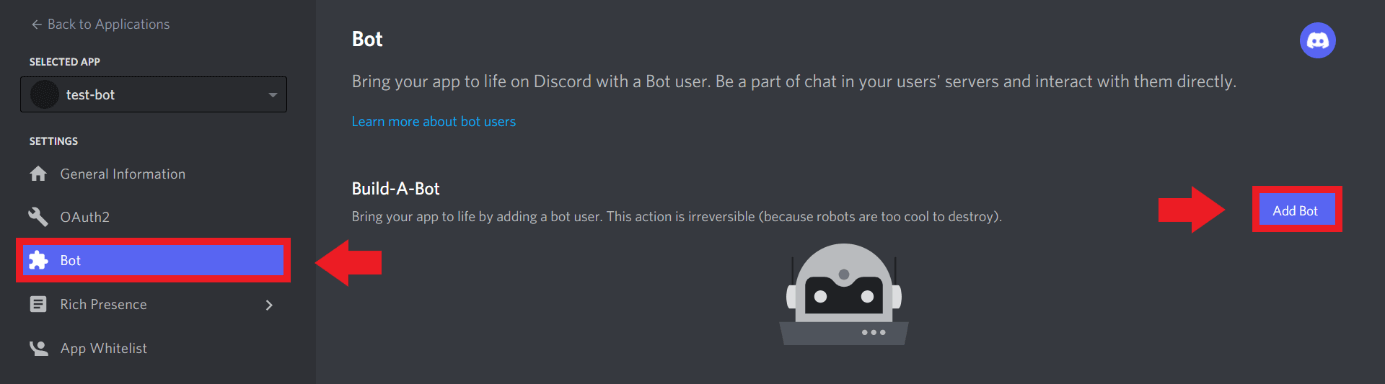
How to Add a Bot on Discord: A Step-by-step Guide
Are you looking to enhance your Discord experience by adding a bot? Look no further! In this article, we will guide you through the process of adding a bot on Discord for PC and mobile devices.
What is a Bot on Discord?
Before we dive into the process, let’s first understand what a bot is. A bot, short for robot, is an automated program that can perform various tasks on your behalf. In the context of Discord, bots are used to enhance the user experience by providing features such as music playback, moderation tools, and more.
Why Add a Bot on Discord?
Adding a bot on Discord can greatly enhance your experience on the platform. With bots, you can:
- Play music directly in chat
- Get assistance with moderation tasks
- Gain access to various features and plugins
How to Add a Bot on Discord For Pc: A Step-by-step Guide
To add a bot on Discord for PC, follow these steps:
1. Check Your Server Permissions
Before adding a bot, ensure that you have the necessary permissions to do so. If you are not the server owner, check with your administrator to see if they can add a bot.
2. Open The Discord Client
Launch the Discord client on your PC and navigate to your server.
3. Click on The Server Icon
Click on the server icon in the left-hand menu bar.
4. Select “List App”
From the dropdown menu, select “List App”.
5. Search For The Bot
Type the name of the bot you want to add in the search bar or browse through the list of available bots.
6. Add The Bot to Your Server
Click on the bot’s name and then click “Add to server”. Confirm that you want to add the bot by clicking “Authorize”.
How to Add a Bot on Discord For Mobile Devices: A Step-by-step Guide
To add a bot on Discord for mobile devices, follow these steps:
1. Open The Discord App
Launch the Discord app on your Android or iOS device and navigate to your server.
2. Tap on The Server Icon
Tap on the server icon in the left-hand menu bar.
3. Select “List App”
From the dropdown menu, select “List App”.
4. Search For The Bot
Type the name of the bot you want to add in the search bar or browse through the list of available bots.
5. Add The Bot to Your Server
Tap on the bot’s name and then tap “Add to server”. Confirm that you want to add the bot by tapping “Authorize”.
How to Use a Music Bot on Discord: A Step-by-step Guide
To use a music bot on Discord, follow these steps:
1. Open The Discord Client
Launch the Discord client on your PC or mobile device and navigate to your server.
2. Invite The Music Bot
Invite the music bot to your server by typing its name in the search bar or browsing through the list of available bots.
3. Use The /play Command
Once the music bot is added, use the /play command followed by the song you want to play.
4. Enjoy Your Music!
Sit back and enjoy your favorite tunes with your friends on Discord!
Tips And Tricks:
- Always check the permissions of your server before adding a bot.
- Use bots that are verified by Discord to ensure security and stability.
- Experiment with different bots to find one that suits your needs.
Conclusion:
Adding a bot on Discord can greatly enhance your experience on the platform. With this guide, you should be able to add a bot on Discord for PC and mobile devices. Remember to always follow proper procedures and use verified bots to ensure security and stability.
Frequently Asked Questions (FAQs):
Q: What is a bot on Discord?
A: A bot on Discord is an automated program that can perform various tasks on your behalf.
Q: Why add a bot on Discord?
A: Adding a bot on Discord can enhance the user experience by providing features such as music playback, moderation tools, and more.
Q: How do I add a bot on Discord for PC?
A: To add a bot on Discord for PC, follow the steps outlined in this guide.
Q: Can I add a bot on Discord for mobile devices?
A: Yes, you can add a bot on Discord for mobile devices by following the same steps as on PC.
Q: How do I use a music bot on Discord?
A: To use a music bot on Discord, follow the steps outlined in this guide.
Q: What are some popular bots to add on Discord?
A: Some popular bots to add on Discord include MEE6, ProBot, and Dyno for moderation tools and ServerStats for server statistics.
Q: Can I remove a bot from my server if I no longer need it?
A: Yes, you can remove a bot from your server by clicking on the bot’s name and selecting “Expel [bot name]”.
Q: What are some best practices for using bots on Discord?
A: Always check the permissions of your server before adding a bot, use verified bots to ensure security and stability, and experiment with different bots to find one that suits your needs.


