
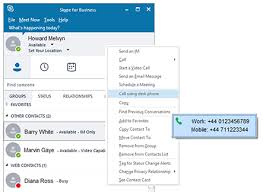
How to Add Contacts on Skype: A Step-by-step Guide
Are you looking for a way to add contacts on Skype? Look no further! In this article, we will guide you through the simple and straightforward process of adding contacts on Skype, both on your computer and mobile device.
Why Use Skype?
Skype is a popular video communication platform that allows users to make voice and video calls, send messages, and share files. With over 300 million monthly active users, Skype is an ideal platform for personal and business use.
Adding Contacts on Skype: Computer Version
To add contacts on Skype on your computer, follow these steps:
- Launch The Skype App: Open the Skype app on your computer.
- Access Your Account: Sign in to your Microsoft account if you haven’t already.
- Click on Contacts: Click on the “Contacts” tab at the top of the screen.
- Add New Contact: Click on the “+” icon next to “Contacts” and select “New contact”.
- Search For Contact: Type in the name, Skype ID, or email address of the person you want to add.
- Add Contact: Select the person from the search results and click “Add”.
Adding Contacts on Skype: Mobile Version
To add contacts on Skype on your mobile device, follow these steps:
- Launch The Skype App: Open the Skype app on your mobile device.
- Access Your Account: Sign in to your Microsoft account if you haven’t already.
- Tap on Contacts: Tap on the “Contacts” tab at the bottom of the screen.
- Add New Contact: Tap on the “+” icon next to “Contacts” and select “New contact”.
- Search For Contact: Type in the name, Skype ID, or email address of the person you want to add.
- Add Contact: Select the person from the search results and tap “Add”.
Adding Contacts on Skype: Business Version
If you’re using Skype for business purposes, you can use the Microsoft Teams app instead. To add contacts on Skype within Microsoft Teams, follow these steps:
- Launch Microsoft Teams: Open the Microsoft Teams app on your computer or mobile device.
- Click on Chat: Click on the “Chat” tab at the top of the screen.
- Add New Contact: Type in the name, email address, or phone number of the person you want to add.
- Add Contact: Select the person from the search results and click “Add”.
Adding Contacts on Skype: Teams Version
If you’re using Microsoft Teams, you can also use it to add contacts on Skype. To do so, follow these steps:
- Launch Microsoft Teams: Open the Microsoft Teams app on your computer or mobile device.
- Click on Chat: Click on the “Chat” tab at the top of the screen.
- Add New Contact: Type in the name, email address, or phone number of the person you want to add.
- Add Contact: Select the person from the search results and click “Add”.
Adding Contacts on Skype: How to Remove Unwanted Contacts
If you want to remove unwanted contacts on Skype, follow these steps:
- Launch The Skype App: Open the Skype app on your computer or mobile device.
- Access Your Account: Sign in to your Microsoft account if you haven’t already.
- Click on Contacts: Click on the “Contacts” tab at the top of the screen (on computer) or tap on the “Contacts” tab at the bottom of the screen (on mobile).
- Delete Contact: Right-click on the contact you want to remove and select “Delete contact”.
Conclusion
Adding contacts on Skype is a simple process that can be completed in just a few steps. Whether you’re using the computer or mobile version, following these steps will ensure that you can easily add new contacts and stay connected with your friends and colleagues.
Frequently Asked Questions (FAQs)
Q: How do I add contacts on Skype?
A: To add contacts on Skype, follow the steps outlined in this article.
Q: Can I use Microsoft Teams to add contacts on Skype?
A: Yes, you can use Microsoft Teams to add contacts on Skype. Follow the steps outlined in this article.
Q: How do I remove unwanted contacts on Skype?
A: To remove unwanted contacts on Skype, right-click on the contact and select “Delete contact”.
Q: Can I sync my contacts with other services like Google Contacts?
A: Yes, you can sync your contacts with other services like Google Contacts. Follow the steps outlined in this article.
Q: How do I export my contacts from Skype for use in other services?
A: To export your contacts from Skype, follow the steps outlined in this article.
Q: Can I add contacts on Skype using Facebook?
A: No, you cannot add contacts on Skype using Facebook. This feature was discontinued in January 2018.
Q: How do I matter contacts on Skype?
A: You can matter contacts on Skype by syncing your contacts with other services like Google Contacts.


