
How to Add a Server to Emule: A Step-by-step Guide
Are you tired of using outdated servers on your eMule program? Do you want to ensure that you have access to the latest files and connections on the eD2K network? Look no further! In this article, we will guide you through the process of adding a server to eMule, as well as updating existing servers and lists.
Understanding The Importance of Using Updated Servers
Before we dive into the step-by-step instructions, it’s essential to understand why using updated servers is crucial for your eMule experience. Outdated servers can lead to several issues, including:
- Spyware and viruses: Using outdated servers increases the risk of downloading malicious files that can harm your computer.
- Connection problems: Old servers may not be compatible with newer versions of eMule, leading to connectivity issues and frustration.
- Reduced file availability: With fewer users connected to outdated servers, you’ll have less access to new files and connections.
Adding a Server to Emule
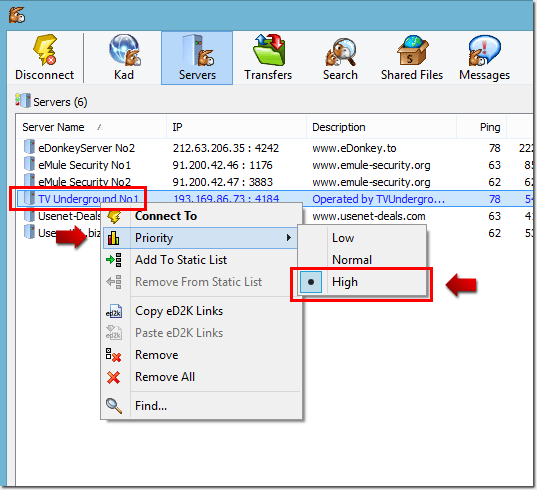
To add a server to your eMule program, follow these steps:
- Initiate The Emule Program: Launch the eMule program on your computer by clicking on its icon in the Start menu.
- Access The Server Settings: In the eMule window, click on the “Server” tab located at the top of the screen.
- Fill Out The Server Information Form: In the right-hand panel, you’ll see a form where you can enter the server’s IP address or domain name, port number, and server name. Fill out this information carefully.
- Add The Server: Click on the “Add” button to add the server to your eMule program.
Updating Existing Servers
If you’re already using servers in your eMule program, it’s essential to update them regularly. Here’s how:
- Access The Server List: In the eMule window, click on the “Server” tab and then select the server list from which you want to remove or update servers.
- Remove Existing Servers: If you want to replace the existing servers with new ones, delete them by clicking right-clicking on each server and selecting “Delete” and then “Yes”.
- Update Server List: Click on the “Update Server” button and enter the URL of the updated list.
Emule Adunanza
If you’re using eMule Adunanza, a mod dedicated to optical fiber connections, follow these steps:
- Initiate Emule Adunanza: Launch the eMule Adunanza program.
- Access The Ed2k Tab: Click on the “eD2K” tab located at the top of the screen.
- Fill Out Server Information Form: In the right-hand panel, enter the server’s IP address or domain name, port number, and server name.
Updating Server List For Emule Adunanza
To update the server list for eMule Adunanza:
- Access Update Server Link: Click on the “Update Server” button and enter the URL of the updated list.
- Select New Server List: Select the new server list from which you want to update existing servers.
Conclusion
Adding a server to your eMule program or updating existing ones is crucial for ensuring a smooth and secure experience. By following these step-by-step guides, you’ll be able to access updated servers and lists, reducing the risk of spyware, viruses, connection problems, and reduced file availability.
Frequently Asked Questions
Q: Why is it Essential to Use Updated Servers on Emule?
A: Using outdated servers can lead to several issues, including spyware and viruses, connection problems, and reduced file availability.
Q: How do I Add a Server to my Emule Program?
A: To add a server to your eMule program, initiate the program, access the Server tab, fill out the server information form, and click on the “Add” button.
Q: What is Emule Adunanza?
A: EMule Adunanza is a mod dedicated to optical fiber connections for the eMule program.


