
How to Add a New Administrator to Your Facebook Page: A Step-by-step Guide
Are you looking to add an administrator to your Facebook page? Maybe you want to share the responsibilities of managing your page with someone else, or perhaps you need help in moderating comments and messages. Whatever your reason, this guide will walk you through the process of adding a new administrator to your Facebook page.
What is an Administrator on Facebook?
Before we dive into the steps, it’s essential to understand what an administrator on Facebook is. An administrator is the highest role that can be assigned to a user on a Facebook page. They have full control over the page, including managing content, advertising, comments, and messages. Administrators can also delete the page, change its name, and appoint other administrators.
Why Do You Need an Administrator?
Having an administrator can help you manage your page more efficiently. With multiple people working together, you can share tasks such as:
- Creating and publishing content
- Moderating comments and messages
- Managing advertising and promotions
- Updating the page’s settings and roles
Adding an Administrator From a Smartphone or Tablet
If you’re using a smartphone or tablet to manage your Facebook page, follow these steps:
- Download And Install The Facebook App: Get the Facebook app for Android or iOS.
- Access Your Account: Log in to your Facebook account using the app.
- Tap on The Three Horizontal Lines ☰: This will take you to your page’s settings.
- Select “Modification Page, Settings, And Roles”: Choose this option from the menu.
- Add a Person to The Page: Tap on the “Add a person to the page” button.
- Enter The User’s Name or Email Address: Type in the person’s name or email address.
- Select Their Role: Choose the “Administrator” role and tap “Add.”
Adding an Administrator From a Computer
If you’re using a computer, follow these steps:
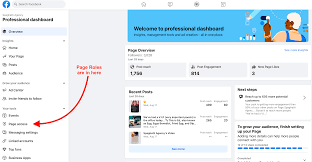
- Log in to Your Facebook Account: Access your Facebook account through the website.
- Click on Your Page’s Name: Select your page from the left-hand menu.
- Click on “Settings”: Choose this option from the drop-down menu.
- Select “Roles of The Visible Page”: Click on this option to access the roles section.
- Assign a New Role: Click on the “Assign a new role” button.
- Enter The User’s Name or Email Address: Type in the person’s name or email address.
- Select Their Role: Choose the “Administrator” role and click “Add.”
Adding an Administrator to a Facebook Group
If you’ve created a Facebook group, adding an administrator follows a similar process:
- Access Your Group’s Settings: Click on the three dots next to your group’s name and select “Settings.”
- Select “Roles of The Visible Page”: Choose this option from the menu.
- Assign a New Role: Click on the “Assign a new role” button.
- Enter The User’s Name or Email Address: Type in the person’s name or email address.
- Select Their Role: Choose the “Administrator” role and click “Add.”
Managing Roles And Permissions
As an administrator, you can also manage roles and permissions for other users on your page. To do this:
- Access Your Page’s Settings: Follow the same steps as above.
- Select “Roles of The Visible Page”: Choose this option from the menu.
- Manage Roles: Click on the three dots next to a user’s name and select “Edit role.”
Conclusion
Adding an administrator to your Facebook page can help you manage responsibilities, moderate comments and messages, and share tasks with others. By following these step-by-step guides, you can add a new administrator from either a smartphone or tablet or a computer.
Frequently Asked Questions (FAQs)
- Q: What is The Highest Role on Facebook?
A: The highest role on Facebook is that of an administrator. - Q: Can I Have Multiple Administrators on my Page?
A: Yes, you can have multiple administrators on your page. - Q: How do I Manage Roles And Permissions For Other Users on my Page?
A: To manage roles and permissions, follow the steps outlined in the “Managing Roles and Permissions” section above. - Q: Can I Change an Administrator’s Role or Remove Them From my Page?
A: Yes, you can change an administrator’s role or remove them from your page by following the same steps as adding a new administrator. - Q: How do I Notify Someone That I’ve Made Them an Administrator on my Page?
A: When you add someone as an administrator, they will receive a notification through Facebook.


