
How to Add Friends on Nintendo Switch: A Step-by-step Guide
Are you tired of playing alone on your Nintendo Switch? Do you want to add friends to your list and play together with them? Look no further! In this article, we will guide you through the process of adding friends on Nintendo Switch.
Before You Begin
Before you start, make sure you have a Nintendo account. If you don’t have one, follow these steps:
- Go to the official Nintendo website.
- Click on the “Access” button in the top right corner.
- Select the option to create a new account.
- Follow the instructions to complete the registration process.
Step 1: Connect Your Account
Once you have created your Nintendo account, connect it to an existing user on your Switch console. To do this:
- Turn on your Switch console.
- Go to the profile icon in the top left corner of the screen.
- Select the option to “Colleague a Nintendo account”.
- Enter the required information (email address or ID) and password for your Nintendo account.
Step 2: Forward a Friend Request
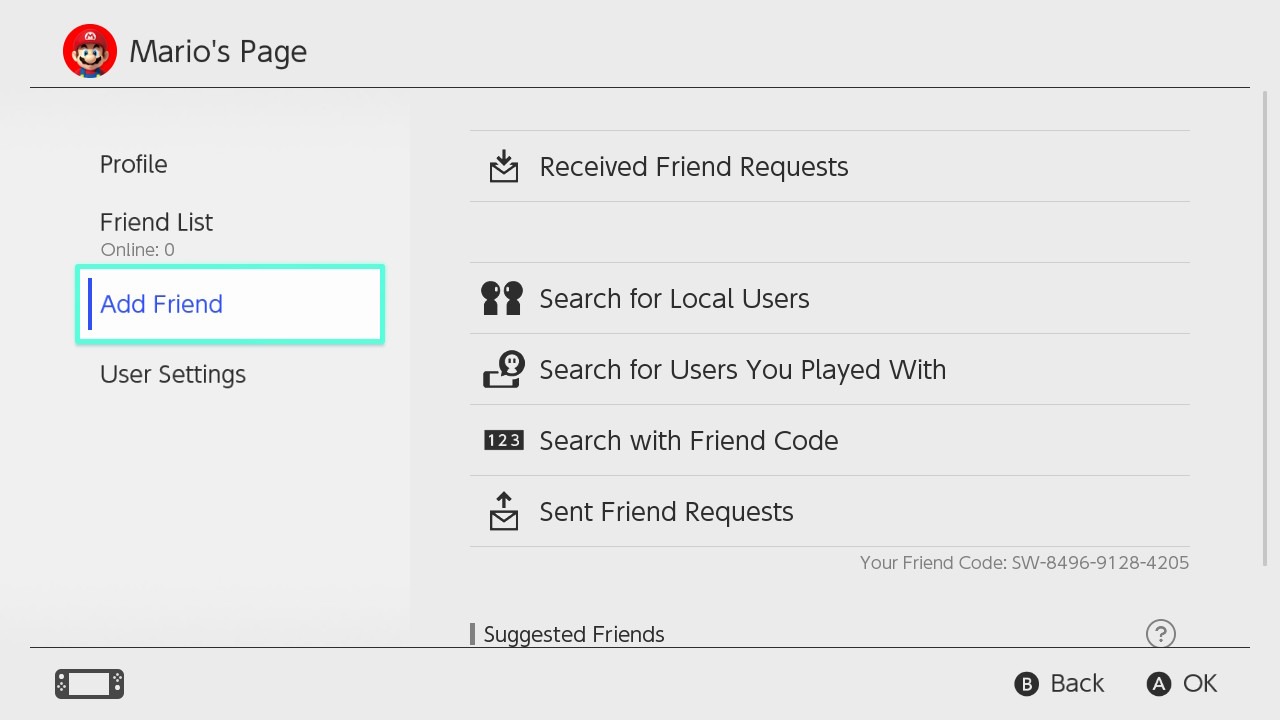
To add friends on Nintendo Switch, follow these steps:
- Access the “Add a friend” section.
- Choose one of the available options:
- Search local users: This option allows you to exchange friendship requests with players in your vicinity.
- Search users with whom you have played: If you’ve played online with someone before, choose this option to view their profile and send them a friend request.
- Suggestions of friendship: View profiles of friends suggested by Nintendo based on your gaming history.
Step 3: Accept Friend Requests
If someone has sent you a friend request, follow these steps:
- Go to the “Add a friend” section.
- Select the “Have got [number] requested friendships!” option.
- Choose the user’s profile from the list of pending requests.
- Accept or reject their friendship request.
Adding Friends on Fortnite And Rocket League
If you want to add friends on specific games like Fortnite and Rocket League, follow these steps:
- Open the game and go to the “Add friend” section.
- Enter the user’s Epic Games account ID or email address.
- Send a friendship request.
- If the user accepts your request, you’ll be able to play together in-game.
Tips And Tricks
- Make sure you have a stable internet connection when sending or receiving friend requests.
- You can only add up to 300 friends on Nintendo Switch.
- Use the “Enhance friend” feature to make certain friends appear at the top of your list.
Conclusion
Adding friends on Nintendo Switch is a straightforward process that allows you to connect with other players and enjoy multiplayer gaming experiences. By following these steps, you’ll be able to add new friends and enhance your gaming experience.
Frequently Asked Questions (FAQs)
- Q: How do I Add Friends on Nintendo Switch?
A: To add friends on Nintendo Switch, follow the steps outlined in this article. - Q: What is The Maximum Number of Friends I Can Have on Nintendo Switch?
A: You can only add up to 300 friends on Nintendo Switch. - Q: How do I Connect my Nintendo Account to an Existing User?
A: To connect your Nintendo account, go to the profile icon and select the option to “Colleague a Nintendo account”. - Q: Can I Block or Remove Friends From my List?
A: Yes, you can use the “Options” feature to block or erase unwanted friendships. - Q: How do I Add Friends on Fortnite And Rocket League?
A: Follow the steps outlined in this article for adding friends on specific games. - Q: What Happens if Someone Sends me a Friend Request But I Don’t Accept It?
A: The user’s request will remain pending until you accept or reject it. - Q: Can I Add Friends Without Internet Access?
A: No, you need an active internet connection to send and receive friend requests on Nintendo Switch.
We hope this article has helped you understand the process of adding friends on Nintendo Switch. If you have any further questions, feel free to ask in the comments section below!


