
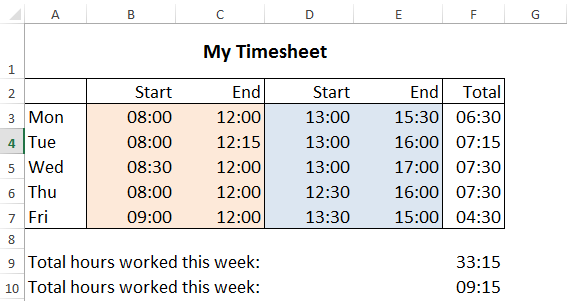
How to Sum Hours in Excel: A Step-by-step Guide
Are you tired of manually adding up hours and minutes spent on tasks or projects? Look no further than Microsoft Excel, the ultimate tool for data analysis and calculation. In this article, we’ll show you how to sum hours in Excel with ease.
Why Use Excel to Sum Hours?
Excel is an ideal choice for summing hours because it allows you to:
- Easily add up multiple schedules
- Automatically calculate total hours spent on tasks
- Format your data in a clear and concise manner
Step 1: Create a Blank Spreadsheet
To start, open Excel and create a new spreadsheet. You can choose from various templates or start with a blank sheet.
Step 2: Format Your Cells
Format your cells to display the correct time format (e.G., Hh:Mm:Ss). To do this:
- Select the cell(s) where you want to enter your schedule(s)
- Right-click on the selected cell(s) and choose “Format Cells”
- In the “Number” tab, select “Time” as the category
- Choose the desired format (e.G., Hh:Mm:Ss)
Step 3: Enter Your Schedules
Enter your schedules in separate cells, using the correct time format. For example:
| Day | Start Time | End Time |
|---|---|---|
| Monday | 08:00:00 | 12:00:00 |
| Tuesday | 09:00:00 | 13:00:00 |
Step 4: Sum Your Schedules
To sum your schedules, follow these steps:
- Select the cell where you want to display the total hours
- Type the formula
=SUM(B2:B7)(assuming your schedule is in cells B2:B7) - Press Enter to calculate the sum
Tips And Variations
Here are some additional tips and variations to keep in mind:
- Scheduling Beyond 24 Hours: If you need to schedule tasks that exceed 24 hours, use the
=SUM(B2:B7)+24*INT(...)Formula. This will automatically add 24-hour increments. - Negative And Positive Hours: Excel won’t display negative hours by default. To fix this, use the
=IF(A1<B1;“-” & TEXT(ABS(A1-B1);"*HH:*MM"); A1-B1)formula to convert the result to a text format. - Calculating Differences Between Schedules: To calculate the difference between two or more schedules, follow the same steps as above. You can use the
=SUM(C2:C7)-SUM(B2:B7)formula to find the total hours spent.
Conclusion
Summing hours in Excel is a straightforward process that requires minimal setup and calculation. By following these steps and tips, you’ll be able to efficiently manage your schedules and tasks with ease.
Frequently Asked Questions (FAQs)
Here are some frequently asked questions and answers related to summing hours in Excel:
Q: How do I format my cells to display the correct time format?
A: To format your cells, select the cell(s) where you want to enter your schedule(s), right-click on the selected cell(s), and choose “Format Cells.” In the “Number” tab, select “Time” as the category.
Q: How do I sum multiple schedules in Excel?
A: Select the cell where you want to display the total hours, type the formula =SUM(B2:B7) (assuming your schedule is in cells B2:B7), and press Enter to calculate the sum.
Q: Can I use Excel to calculate differences between schedules?
A: Yes, you can use Excel to calculate differences between schedules. Follow the same steps as above and use the =SUM(C2:C7)-SUM(B2:B7) formula to find the total hours spent.
Q: How do I handle negative hours in Excel?
A: Excel won’t display negative hours by default. To fix this, use the =IF(A1<B1;“-” & TEXT(ABS(A1-B1);"*HH:*MM"); A1-B1) formula to convert the result to a text format.
Q: Can I use Excel on mobile devices?
A: Yes, you can use Excel on mobile devices. The formulas used in this guide are compatible with both desktop and mobile versions of Excel.


