
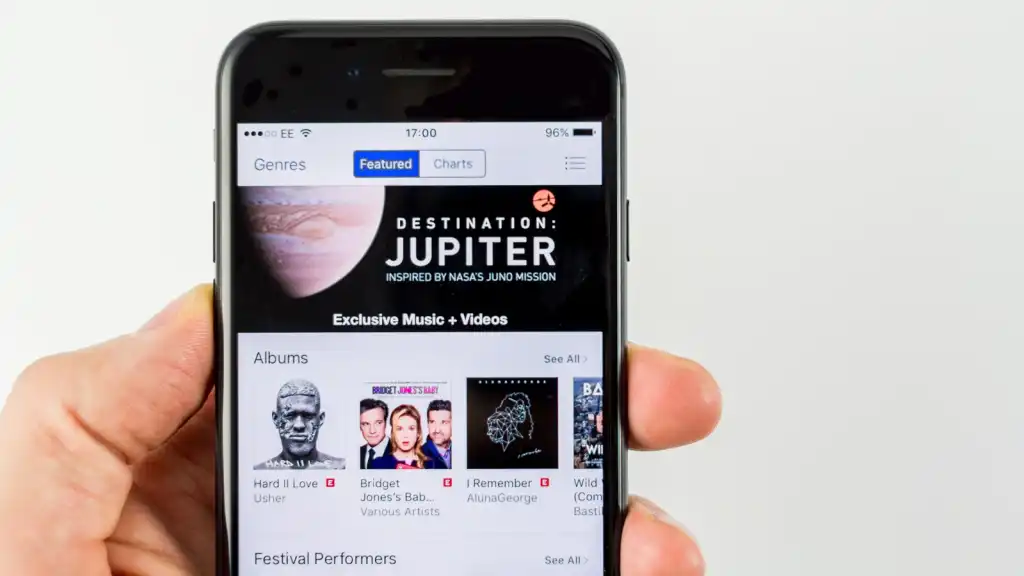
Adding Music on Iphone: A Step-by-step Guide
Are you tired of not knowing how to add music on your iPhone? Look no further! This article will guide you through the process of adding music on your iPhone, whether you’re using an iPhone with a PC or Mac.
Understanding Your Options
When it comes to adding music on your iPhone, you have several options. You can use iTunes, which is Apple’s official software for managing and syncing media files between your computer and iPhone. Alternatively, you can use the Music app on your iPhone, which allows you to listen to your favorite songs and purchase new ones directly from the store.
Using Itunes With PC
If you’re using an iPhone with a PC running Windows, you’ll need to use iTunes to add music to your device. Here’s how:
- Download And Install Itunes: If you don’t already have iTunes installed on your PC, download it from the official Apple website.
- Connect Your Iphone to Your PC: Use the provided cable to connect your iPhone to your PC.
- Launch Itunes: Open iTunes and select your iPhone from the top left corner of the screen.
- Select Music: Click on the “Music” tab at the top of the iTunes window.
- Synchronize Music: Select the music you want to sync by checking the box next to each song, artist, or album. You can also create a playlist by clicking on the “+” button in the top right corner of the screen.
Using Itunes With Mac
If you’re using an iPhone with a Mac running macOS Catalina 10.15 Or later, you’ll need to use the Music app and Finder to add music to your device. Here’s how:
- Launch The Music App: Open the Music app on your Mac.
- Connect Your Iphone to Your Mac: Use the provided cable to connect your iPhone to your Mac.
- Select Devices: Click on the “Devices” tab in the top left corner of the screen and select your iPhone from the list.
- Synchronize Music: Select the music you want to sync by checking the box next to each song, artist, or album.
Adding Music Without Synchronizing
If you don’t want to synchronize all of your music at once, you can add individual songs or albums directly to your iPhone using iTunes or the Music app. Here’s how:
- Select Music: Click on the “Music” tab in iTunes or select the Music app on your Mac.
- Add Individual Songs: Click on the “+” button next to each song, artist, or album you want to add.
Adding Music Through The Itunes Store
If you prefer to add music directly from the iTunes store, here’s how:
- Launch The Itunes Store: Open the iTunes store on your iPhone or PC.
- Search For Music: Search for the music you want to purchase using the search bar at the top of the screen.
- Buy And Download Music: Click on the “Buy” button next to each song, artist, or album to purchase it directly from the store.
Alternative Methods
If iTunes isn’t your thing, there are alternative methods to add music to your iPhone. Here are a few options:
- Imazing: IMazing is a third-party software that allows you to transfer music and other files between your computer and iPhone.
- Music App on Iphone: The Music app on your iPhone allows you to listen to your favorite songs, purchase new ones directly from the store, and download music for offline listening.
Conclusion
Adding music on your iPhone is a straightforward process that can be completed using iTunes or the Music app on your device. Whether you’re looking to sync all of your music at once or add individual songs and albums, these steps will guide you through the process. Don’t forget to explore alternative methods, such as iMazing and the Music app on your iPhone, if you’re not a fan of iTunes.
Frequently Asked Questions
- Q: How do I Add Music to my Iphone?
A: You can use iTunes or the Music app on your device to add music. - Q: Can I Sync All of my Music at Once?
A: Yes, you can sync all of your music using iTunes or Finder on a Mac. - Q: How do I Add Individual Songs And Albums Without Synchronizing?
A: You can add individual songs and albums directly to your iPhone using iTunes or the Music app. - Q: Can I Purchase Music Directly From The Itunes Store?
A: Yes, you can purchase music directly from the iTunes store on your iPhone or PC. - Q: Are There Alternative Methods to Add Music to my Iphone?
A: Yes, there are alternative methods such as iMazing and the Music app on your iPhone. - Q: Can I Listen to Music Without a Connection to The Internet?
A: Yes, you can download music for offline listening using the Music app on your iPhone. - Q: How do I Remove Synchronized Music From my Iphone?
A: You can remove synchronized music by deleting it from iTunes or Finder on your Mac. - Q: Can I Use Itunes to Add Music to my Iphone Without Synchronizing?
A: Yes, you can use iTunes to add individual songs and albums directly to your iPhone without synchronizing all of your music at once.


