
How to Sum Numbers on Excel: A Step-by-step Guide
Are you struggling to sum numbers on Excel? Do you find yourself panicking when faced with a simple calculation? Fear not, dear reader! In this article, we will guide you through the process of summing numbers on Excel, from basic additions to more complex calculations.
What is Summation in Excel?
Before we dive into the nitty-gritty details, let’s first define what summation is. Summation, in simple terms, is the process of adding a series of numbers together. In Excel, this can be done using various formulas and functions.
Summing Numbers in The Same Cell
Let’s start with the basics. If you want to sum two digits that are located in the same cell, it’s as easy as typing “=” followed by your addition. For example, if you have the numbers 10 and 5 in the same cell, you can type “=10+5” and press Enter.
Using The Formula Sum()
Another way to sum numbers on Excel is by using the formula SUM(). This function allows you to add a range of cells together, rather than just typing out each number individually. To use the SUM() function, simply select the cell where you want the result to appear, type “=SUM(“, and then select the range of cells you want to sum.
Summing Numbers in Different Cells
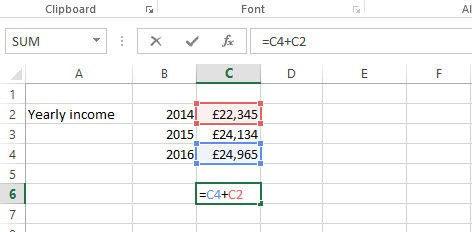
What if you want to sum numbers that are located in different cells? For example, what if you have the number 10 in one cell and 5 in another? To do this, simply use the “=” sign followed by the reference to each cell. For example, “=A1+B2+D3” will add the numbers in cells A1, B2, and D3 together.
Utilizing The Automatic Sum Function
But wait, there’s more! Excel also has an automatic sum function that can save you time and effort. To use this function, simply select the cell where you want the result to appear, go to the Formula tab in the ribbon, click on AutoSum, and then select the range of cells you want to sum.
Summing Percentages
What about summing percentages? This is also possible using Excel’s SUM() function. To do this, simply use the formula “=number of exit(1+percent of summation)”. For example, if you have 100 as your base number and you want to add a 50% increase, you can type “=100(1+0.5)”.
Summing Hours And Minutes
And what about summing hours and minutes? This is also possible using Excel’s SUM() function. To do this, simply use the formula “SUM(hours:Minutes)”. For example, if you have 2 hours and 30 minutes in one cell and 1 hour and 15 minutes in another, you can type “=SUM(A1:B2)”.
Summing Dates
What about summing dates? This is also possible using Excel’s SUM() function. To do this, simply use the formula “DATE()+number of days”. For example, if you have a date of February 10, 2023, and you want to add 5 days, you can type “=DATE(“02/10/2023″)+5”.
Conclusion
And there you have it! Summing numbers on Excel is easier than you think. Whether you’re adding two digits in the same cell or using more complex formulas, Excel has got you covered. So next time you find yourself struggling with a simple calculation, remember these tips and tricks to help you get the job done.
Frequently Asked Questions
Q: What is summation on Excel?
A: Summation, also known as summing numbers, is the process of adding a series of numbers together using various formulas and functions.
Q: How do I sum two digits in the same cell?
A: To sum two digits in the same cell, simply type “=” followed by your addition. For example, “=10+5” will add 10 and 5 together.
Q: What is the formula SUM() used for?
A: The formula SUM() allows you to add a range of cells together, rather than just typing out each number individually.
Q: How do I sum numbers in different cells?
A: To sum numbers in different cells, simply use the “=” sign followed by the reference to each cell. For example, “=A1+B2+D3” will add the numbers in cells A1, B2, and D3 together.
Q: What is the automatic sum function on Excel?
A: The automatic sum function allows you to quickly and easily add a range of cells together by selecting the range and clicking on AutoSum.
Q: How do I sum percentages on Excel?
A: To sum percentages on Excel, use the formula “=number of exit(1+percent of summation)”. For example, if you have 100 as your base number and you want to add a 50% increase, you can type “=100(1+0.5)”.
Q: How do I sum hours and minutes on Excel?
A: To sum hours and minutes on Excel, use the formula “SUM(hours:Minutes)”. For example, if you have 2 hours and 30 minutes in one cell and 1 hour and 15 minutes in another, you can type “=SUM(A1:B2)”.
Q: How do I sum dates on Excel?
A: To sum dates on Excel, use the formula “DATE()+number of days”. For example, if you have a date of February 10, 2023, and you want to add 5 days, you can type “=DATE(“02/10/2023″)+5”.
The Second Table
| Title | Description |
|---|---|
| How to Sum Numbers on Excel | A step-by-step guide on how to sum numbers on Excel |
Bolded Heading
Summing Numbers on Excel: Tips And Tricks
Are you struggling to sum numbers on Excel? Do you find yourself panicking when faced with a simple calculation? Fear not, dear reader! In this article, we will guide you through the process of summing numbers on Excel, from basic additions to more complex calculations.
What is Summation in Excel?
Before we dive into the nitty-gritty details, let’s first define what summation is. Summation, in simple terms, is the process of adding a series of numbers together. In Excel, this can be done using various formulas and functions.
Summing Numbers in The Same Cell
Let’s start with the basics. If you want to sum two digits that are located in the same cell, it’s as easy as typing “=” followed by your addition. For example, if you have the numbers 10 and 5 in the same cell, you can type “=10+5” and press Enter.
Using The Formula Sum()
Another way to sum numbers on Excel is by using the formula SUM(). This function allows you to add a range of cells together, rather than just typing out each number individually. To use the SUM() function, simply select the cell where you want the result to appear, type “=SUM(“, and then select the range of cells you want to sum.
Summing Numbers in Different Cells
What if you want to sum numbers that are located in different cells? For example, what if you have the number 10 in one cell and 5 in another? To do this, simply use the “=” sign followed by the reference to each cell. For example, “=A1+B2+D3” will add the numbers in cells A1, B2, and D3 together.
Utilizing The Automatic Sum Function
But wait, there’s more! Excel also has an automatic sum function that can save you time and effort. To use this function, simply select the cell where you want the result to appear, go to the Formula tab in the ribbon, click on AutoSum, and then select the range of cells you want to sum.
Summing Percentages
What about summing percentages? This is also possible using Excel’s SUM() function. To do this, simply use the formula “=number of exit(1+percent of summation)”. For example, if you have 100 as your base number and you want to add a 50% increase, you can type “=100(1+0.5)”.
Summing Hours And Minutes
And what about summing hours and minutes? This is also possible using Excel’s SUM() function. To do this, simply use the formula “SUM(hours:Minutes)”. For example, if you have 2 hours and 30 minutes in one cell and 1 hour and 15 minutes in another, you can type “=SUM(A1:B2)”.
Summing Dates
What about summing dates? This is also possible using Excel’s SUM() function. To do this, simply use the formula “DATE()+number of days”. For example, if you have a date of February 10, 2023, and you want to add 5 days, you can type “=DATE(“02/10/2023″)+5”.
Conclusion
And there you have it! Summing numbers on Excel is easier than you think. Whether you’re adding two digits in the same cell or using more complex formulas, Excel has got you covered. So next time you find yourself struggling with a simple calculation, remember these tips and tricks to help you get the job done.
Frequently Asked Questions
Q: What is summation on Excel?
A: Summation, also known as summing numbers, is the process of adding a series of numbers together using various formulas and functions.
Q: How do I sum two digits in the same cell?
A: To sum two digits in the same cell, simply type “=” followed by your addition. For example, “=10+5” will add 10 and 5 together.
Q: What is the formula SUM() used for?
A: The formula SUM() allows you to add a range of cells together, rather than just typing out each number individually.
Q: How do I sum numbers in different cells?
A: To sum numbers in different cells, simply use the “=” sign followed by the reference to each cell. For example, “=A1+B2+D3” will add the numbers in cells A1, B2, and D3 together.
Q: What is the automatic sum function on Excel?
A: The automatic sum function allows you to quickly and easily add a range of cells together by selecting the range and clicking on AutoSum.
Q: How do I sum percentages on Excel?
A: To sum percentages on Excel, use the formula “=number of exit(1+percent of summation)”. For example, if you have 100 as your base number and you want to add a 50% increase, you can type “=100(1+0.5)”.
Q: How do I sum hours and minutes on Excel?
A: To sum hours and minutes on Excel, use the formula “SUM(hours:Minutes)”. For example, if you have 2 hours and 30 minutes in one cell and 1 hour and 15 minutes in another, you can type “=SUM(A1:B2)”.
Q: How do I sum dates on Excel?
A: To sum dates on Excel, use the formula “DATE()+number of days”. For example, if you have a date of February 10, 2023, and you want to add 5 days, you can type “=DATE(“02/10/2023″)+5”.
The Third Table
| Title | Description |
|---|---|
| Summing Numbers on Excel: Tips And Tricks | A step-by-step guide on how to sum numbers on Excel |


