
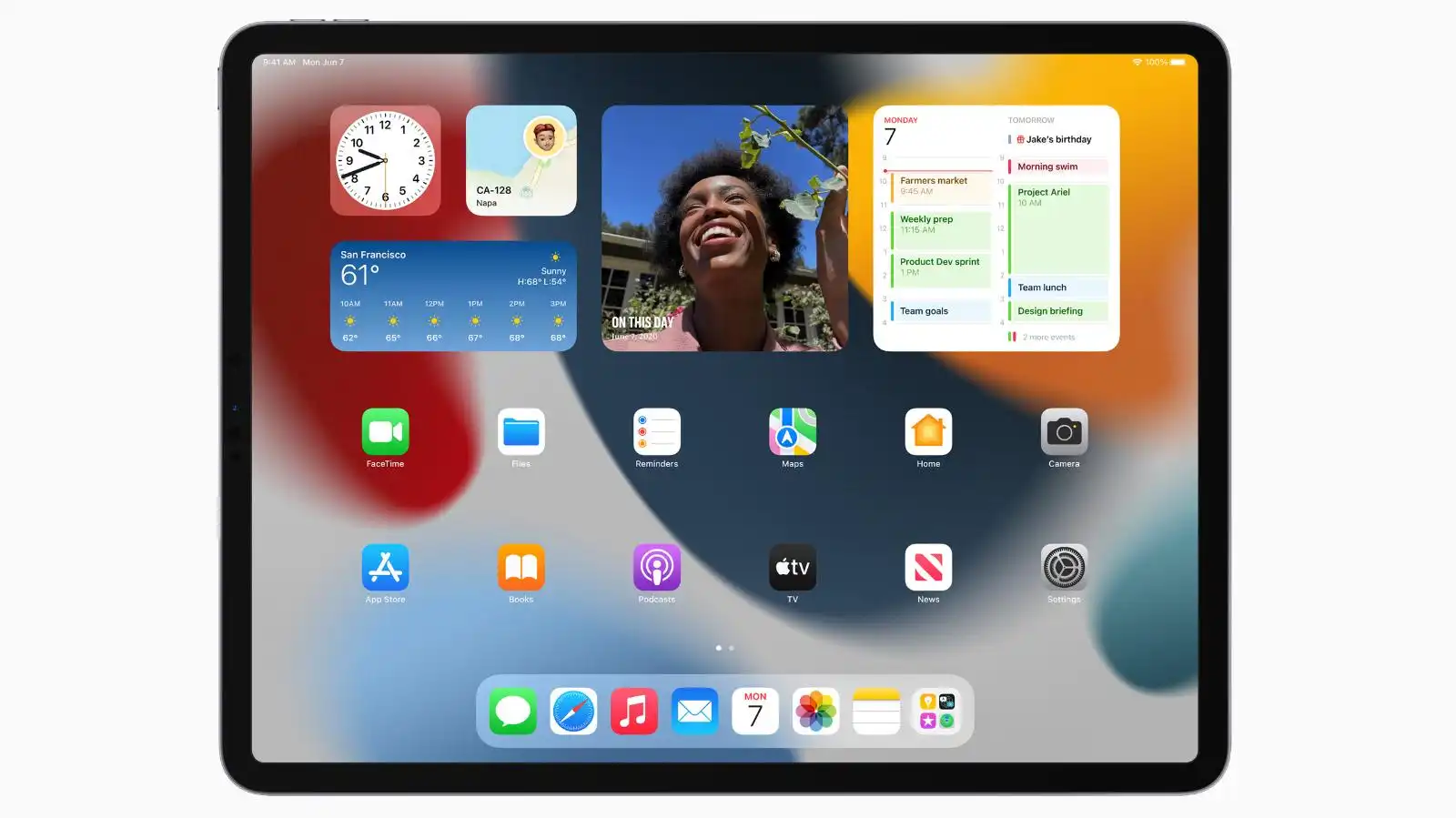
The Ultimate Guide to Adding Widgets on Ipad: Tips And Tricks
Introduction
Are you tired of not being able to access essential information on your iPad’s home screen? Do you wish there was a way to add widgets that could provide you with the latest news, weather updates, or even control over your devices? Look no further! With iPadOS 15, you can now add various types of widgets to your home screen, making it easier than ever to access important information at a glance.
What Are Widgets on Ipad?
Widgets on iPad are small, interactive apps that provide specific information or functionality. They can be added to the home screen and customized to suit your needs. With iPadOS 15, widgets have become an integral part of the user experience, allowing you to access essential information without having to open a separate app.
How to Add Widgets on Ipad
Adding widgets on iPad is a straightforward process. Here’s how to do it:
Step 1: Access The Home Screen
Open your iPad and navigate to the home screen.
Step 2: Hold Down on an Empty Area
Hold down on an empty area of the home screen until you see the “Add” (+) button appear.
Step 3: Select a Widget
Select a widget from the list that appears. You can choose from various types of widgets, including:
- Batteries: Displays the state of charge of your devices.
- Calendar: Shows upcoming events and appointments.
- Photo: Displays a collection of photos.
- Meteo: Provides weather updates.
- News: Offers news headlines and articles.
- Grades: Displays grades for specific courses.
- Clock: Shows the current time.
Step 4: Customize Your Widget
Once you’ve selected a widget, you can customize it to suit your needs. For example, you can choose the size of the widget, its position on the screen, and even add additional features like rotation or suggestions.
Types of Widgets Available
There are several types of widgets available for iPadOS 15. These include:
- Integrated Widgets: These are widgets that come pre-installed with your iPad.
- Third-party Widgets: These are widgets developed by third-party app developers and can be added to the home screen.
Tips And Tricks
Here are some additional tips and tricks for using widgets on iPad:
Tip 1: Add Multiple Widgets
You can add multiple widgets to the home screen, making it easier to access essential information at a glance.
Tip 2: Customize Your Home Screen
Use the “Add” (+) button to add additional widgets or apps to your home screen. You can also customize the layout of your home screen by rearranging widgets and apps as needed.
Tip 3: Use Rotation And Suggestions
Many widgets offer rotation and suggestions features, allowing you to access more information without having to open a separate app.
Adding Widgets From Other Apps
Some apps, like Flipboard, offer widgets that can be added to the home screen. To add a widget from another app:
Step 1: Open The App
Open the app from which you want to add a widget.
Step 2: Go to The Settings Menu
Go to the settings menu within the app.
Step 3: Select The Widget Option
Select the widget option from the settings menu.
Step 4: Add The Widget to Your Home Screen
Add the widget to your home screen by following the on-screen instructions.
Adding The News Widget
The news widget is a popular choice among iPad users. To add the news widget:
- Hold down on an empty area of the home screen.
- Select the “News” widget from the list that appears.
- Choose the size and position of the widget as desired.
Conclusion
Adding widgets to your iPad’s home screen has never been easier! With iPadOS 15, you can now access essential information at a glance without having to open a separate app. Whether you want to stay up-to-date with the latest news, weather updates, or device controls, there’s a widget available for you.
Frequently Asked Questions
Q: How do I Add Widgets to my Ipad?
A: To add widgets to your iPad, hold down on an empty area of the home screen and select the “Add” (+) button. Choose from various types of widgets, including Batteries, Calendar, Photo, Meteo, News, Grades, Clock, and more.
Q: Can I Customize my Widgets?
A: Yes! You can customize your widgets to suit your needs. For example, you can choose the size, position, rotation, and suggestions features for each widget.
Q: What Types of Widgets Are Available?
A: There are several types of widgets available for iPadOS 15, including integrated widgets, third-party widgets, and app-specific widgets like Flipboard.
Q: How do I Add a Widget From Another App?
A: To add a widget from another app, open the app, go to the settings menu, select the widget option, and follow the on-screen instructions to add the widget to your home screen.
Q: Can I Use Multiple Widgets at Once?
A: Yes! You can add multiple widgets to your home screen, making it easier to access essential information at a glance.


