
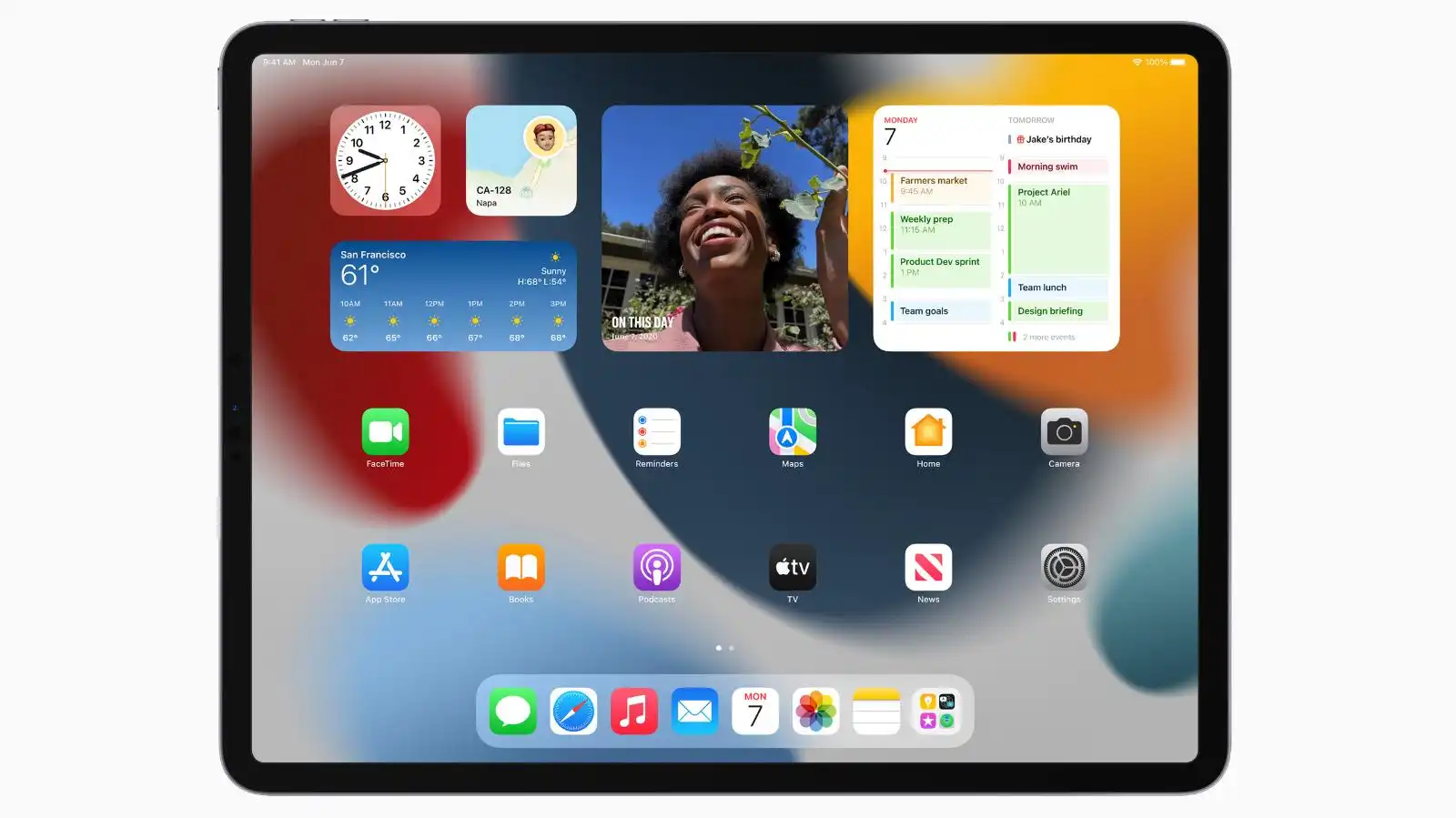
Adding Widgets to Your Mobile Device: A Step-by-step Guide
Are you tired of cluttered home screens on your mobile device? Do you wish you could easily access the information and functions you need without having to navigate through multiple apps? Look no further than widgets! In this article, we will explore what widgets are, how they can be used, and most importantly, how to add them to your Android or iOS device.
What Are Widgets?
Widgets are small applications that provide quick access to information or functions on your mobile device. They can be thought of as mini-apps that live on your home screen, providing a snapshot of the data or function they represent. Widgets can range from simple displays of information such as the weather or news headlines to more complex features like calendar reminders or social media updates.
Benefits of Using Widgets
Using widgets on your mobile device offers several benefits. Firstly, they provide quick and easy access to important information or functions without having to open multiple apps. This can be especially useful for busy individuals who need to stay informed about the latest news or weather forecasts. Secondly, widgets can help declutter your home screen by providing a condensed version of essential data, making it easier to navigate through your device.
Adding Widgets to Your Android Device
To add widgets to your Android device, follow these steps:
- Take Your Device: Begin by taking your Android device and unlocking it.
- Access The Home Screen: Ensure you are on the home screen where you want to add the widget.
- Long Press an Empty Space: Long press an empty space on the home screen until the widget menu appears.
- Choose a Widget: Browse through the available widgets and select one that suits your needs.
- Customize Your Widget (Optional): Some widgets may offer customization options. Use these to personalize your widget to your liking.
Adding Widgets to Your Ios Device
To add widgets to your iOS device, follow these steps:
- Access The Home Screen: Begin by accessing the home screen where you want to add the widget.
- Long Press an Empty Space: Long press an empty space on the home screen until the widget menu appears.
- Choose a Widget: Browse through the available widgets and select one that suits your needs.
- Customize Your Widget (Optional): Some widgets may offer customization options. Use these to personalize your widget to your liking.
Adding Widgets to Your PC
Widgets can also be added to your PC, particularly on Windows devices. The process varies depending on the operating system and device you use.
- For Windows devices:
- Access the Start menu and click on the “Personalize” option.
- From there, select the “Taskbar” settings and look for the widget options.
- Browse through the available widgets and choose one that suits your needs.
- Customize your widget (optional) to personalize it to your liking.
Tips For Choosing The Right Widget
Choosing the right widget for your device can be overwhelming, especially with so many options available. Here are some tips to help you make a decision:
- Consider Your Needs: Think about what information or function you need quick access to.
- Look at Design And Aesthetics: Select a widget that fits in with the design of your home screen and device.
- Read Reviews And Feedback: Check out reviews from other users to see how well a particular widget works.
Frequently Asked Questions
- Q: What Are Widgets, And How do They Work?
A: Widgets are small applications that provide quick access to information or functions on your mobile device. - Q: Can I Add Widgets to my Pc?
A: Yes, you can add widgets to your PC, especially on Windows devices.
Conclusion
Adding widgets to your mobile device is a simple and effective way to declutter your home screen while providing quick access to essential information or functions. Whether you’re using an Android or iOS device, follow the steps outlined in this article to add widgets that suit your needs.


