
How to Align Elements in Powerpoint: A Step-by-step Guide
Are you tired of feeling like a beginner when it comes to aligning elements in PowerPoint? Look no further! This article will guide you through the process, providing you with all the necessary steps and tips to become a master of alignment.
What You Need to Know Before We Begin
Before we dive into the world of alignment, make sure you have:
- A version of PowerPoint (desktop or online) installed on your computer or smartphone.
- A basic understanding of how to use PowerPoint.
- The desire to learn and improve your presentation skills!
Aligning Texts in Powerpoint
To align texts in PowerPoint, follow these simple steps:
- Open Your Presentation: Launch PowerPoint and open an existing document or create a new one by clicking on the “New” button.
- Select The Text Box: Click on the text box you want to align.
- Access The Home Tab: Go to the “Home” tab in the toolbar.
- Click on The Paragraph Icon: Click on the paragraph icon (it looks like a paragraph sign).
- Choose Your Alignment Option: Select your desired alignment option from the drop-down menu: Left, center, right, or justify.
Aligning Images And Other Elements
To align images and other elements in PowerPoint:
- Select The Image or Element: Click on the image or element you want to align.
- Access The Format Tab: Go to the “Format” tab in the toolbar.
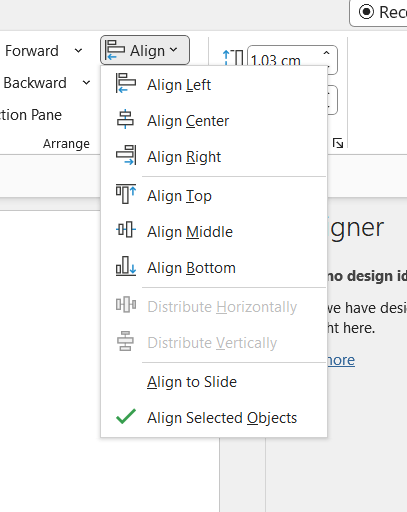
- Click on The Align Objects Button: Click on the “Align objects” button (it looks like a blue arrow).
- Choose Your Alignment Option: Select your desired alignment option from the drop-down menu: Left, center, right, or specify different options for horizontal and vertical alignment.
Tips For Advanced Users
For advanced users who want to align multiple elements at once:
- Activate The Selection Pane: Press Ctrl + A (Windows) or Command + Shift + A (Mac) to activate the selection pane.
- Select Multiple Elements: Select all the elements you want to align by holding down the Shift key while selecting each element.
- Click on The Align Objects Button: Click on the “Align objects” button and choose your desired alignment option.
Powerpoint Online: A Guide For Smartphone Users
If you’re using PowerPoint online on a smartphone, follow these steps:
- Open Your Presentation: Open your presentation by clicking on the file.
- Select The Element You Want to Align: Click on the element you want to align.
- Tap And Hold on The Element: Tap and hold on the element until the alignment guides appear.
- Move The Element Into Position: Move the element into position using the dynamic lines that appear.
Powerpoint Tablet App: A Guide For Tablet Users
If you’re using the PowerPoint tablet app:
- Open Your Presentation: Open your presentation by tapping on the file.
- Select The Element You Want to Align: Tap on the element you want to align.
- Tap And Hold on The Element: Tap and hold on the element until the alignment guides appear.
- Move The Element Into Position: Move the element into position using the dynamic lines that appear.
Conclusion
Now that you’ve learned how to align elements in PowerPoint, take your presentation skills to the next level! Remember to practice regularly to become a master of alignment. Share this article with friends and colleagues who might benefit from learning more about PowerPoint.
Frequently Asked Questions (FAQs)
- Q: How do I Align Multiple Images at Once?
A: Select all the images you want to align, then click on the “Align objects” button. - Q: What if I Accidentally Delete an Element While Trying to Align It?
A: Don’t worry! You can easily recover deleted elements by going to the “Recover” section in the menu. - Q: Can I Use Powerpoint Online on my Smartphone?
A: Yes, you can use PowerPoint online on your smartphone. Just open the app and follow the instructions provided above. - Q: How do I Save my Presentation When Using Powerpoint Online?
A: To save your presentation, click on the “Save” button located in the top-right corner of the screen.
Hope this helps!


