
How to Align Cartridges of Your Printer: A Step-by-step Guide
Are you tired of dealing with printouts that are dull, blurry, or have weird streaks? Do you want to know how to align the cartridges of your printer? Look no further! In this article, we will guide you through a step-by-step process on how to align cartridges for various types of printers, including Epson, HP, and Canon.
Why Align Cartridges?
Aligning cartridges is an essential maintenance task that ensures your printer produces high-quality prints. When the cartridges are misaligned, it can lead to poor printouts, faded colors, or even damage the printer’s head. By following our guide, you’ll be able to align your cartridges and enjoy crisp, vibrant prints.
Preliminary Operations
Before we dive into the main steps, there are a few preliminary operations you need to complete:
- Connect Your Printer: Connect your printer to your computer using the appropriate cable or Wi-Fi.
- Install Software: Install the printer software that came with the package or download it from the manufacturer’s website.
Aligning Cartridges For Windows
If you’re using a Windows PC, follow these steps:
- Open Printer Maintenance Program: Click on the Start menu and search for “Printer Maintenance” or open the Panel of Control.
- Select Printer Alignment Option: Choose the option to align cartridges or test lines from the menu.
- Follow On-screen Instructions: Follow the on-screen instructions to print the alignment page and scan it using your printer’s scanner (if supported).
- Manually Align Cartridges: If you’re not using a multifunctional printer, manually specify the misaligned areas by selecting squares, rectangles, or stripes without bands.
Aligning Cartridges For Macos
If you’re using a Mac, follow these steps:
- Open Printers & Scanners Menu: Click on the Apple logo and select “System Preferences” > “Printers & Scanners”.
- Select Printer Alignment Option: Choose the option to align cartridges or test lines from the menu.
- Follow On-screen Instructions: Follow the on-screen instructions to print the alignment page and scan it using your printer’s scanner (if supported).
- Manually Align Cartridges: If you’re not using a multifunctional printer, manually specify the misaligned areas by selecting squares, rectangles, or stripes without bands.
Aligning Cartridges For Epson Printers
If you’re using an Epson printer, follow these steps:
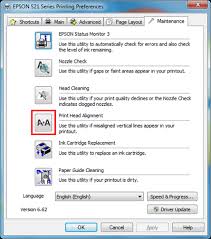
- Open Printer Maintenance Program: Click on the Epson logo and select “Maintenance” > “Alignment”.
- Follow On-screen Instructions: Follow the on-screen instructions to print the alignment page and scan it using your printer’s scanner (if supported).
- Manually Align Cartridges: If you’re not using a multifunctional printer, manually specify the misaligned areas by selecting squares, rectangles, or stripes without bands.
Aligning Cartridges For HP Printers
If you’re using an HP printer, follow these steps:
- Open Printer Maintenance Program: Click on the HP logo and select “Maintenance” > “Alignment”.
- Follow On-screen Instructions: Follow the on-screen instructions to print the alignment page and scan it using your printer’s scanner (if supported).
- Manually Align Cartridges: If you’re not using a multifunctional printer, manually specify the misaligned areas by selecting squares, rectangles, or stripes without bands.
What to Do in Case of Doubts or Problems?
If you’ve followed our instructions and still encounter issues with your printer, don’t hesitate to consult the manufacturer’s website for further guidance. You can also check the FAQs section on the manufacturer’s website for possible solutions to common problems.
Conclusion
Aligning cartridges is a simple yet essential maintenance task that ensures your printer produces high-quality prints. By following our step-by-step guide, you’ll be able to align cartridges for various types of printers, including Epson, HP, and Canon. Remember to always consult the manufacturer’s website for specific instructions on how to align cartridges for your particular printer model.
Faqs
- What is Cartridge Alignment?
Cartridge alignment refers to the process of adjusting the printer’s head to ensure accurate printing. - Why do I Need to Align Cartridges?
Aligning cartridges ensures high-quality prints, prevents damage to the printer’s head, and resolves printout issues such as dull or faded colors. - How Often Should I Align Cartridges?
It’s recommended to align cartridges every 6-12 months, depending on usage and printer model. - Can I Align Cartridges Manually?
Yes, you can manually align cartridges by selecting squares, rectangles, or stripes without bands using the printer’s menu options. - What if my Printer Doesn’t Have a Display?
If your printer doesn’t have a display, follow the on-screen instructions provided by the manufacturer to align cartridges. - Can I Use Third-party Software to Align Cartridges?
We do not recommend using third-party software to align cartridges, as it may cause compatibility issues or damage the printer’s head.
Hope this helps!


