
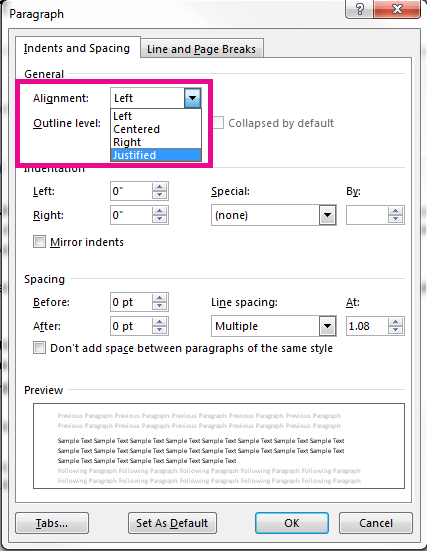
Are you struggling to align text with Microsoft Word? Do you find yourself frustrated by the complexities of formatting your documents? Look no further! In this article, we will provide a comprehensive guide on how to align text with Microsoft Word, covering both desktop and online versions.
What is Alignment in Microsoft Word?
Alignment refers to the process of adjusting the position of text within a document. It involves setting margins, indents, and line spacing to create a visually appealing layout. In this article, we will explore various alignment options available in Microsoft Word, including left, right, center, and justified alignments.
Desktop Version: How to Align Text With Microsoft Word
To align text with the desktop version of Microsoft Word, follow these steps:
- Open your document and select the portion of text you want to align.
- Go to the “Home” tab in the ribbon and click on the “Paragraph” group.
- Click on the alignment icon that matches your desired alignment (left, right, center, or justified).
- Alternatively, you can use keyboard shortcuts:
- Left alignment: Ctrl + L (Windows) or Command + L (Mac)
- Right alignment: Ctrl + R (Windows) or Command + R (Mac)
- Center alignment: Ctrl + E (Windows) or Command + E (Mac)
- Justified alignment: Ctrl + J (Windows) or Command + J (Mac)
Online Version: How to Align Text With Microsoft Word Online
If you don’t have the desktop version of Microsoft Word installed on your computer, you can use the online version. To align text with Microsoft Word online:
- Log in to your Microsoft account and access the web-based version of Microsoft Word.
- Create a new document or open an existing one.
- Select the portion of text you want to align.
- Go to the “Home” tab in the toolbar and click on the “Paragraph” group.
- Click on the alignment icon that matches your desired alignment (left, right, center, or justified).
How to Align Text With Microsoft Word on Smartphone And Tablet
If you need to work on a document while on-the-go, you can use the mobile app of Microsoft Word. To align text with Microsoft Word on smartphone and tablet:
- Download and install the Microsoft Word app from the App Store (iOS) or Google Play Store (Android).
- Log in to your Microsoft account and access the app.
- Create a new document or open an existing one.
- Select the portion of text you want to align.
- Tap on the three dots (…) At the top-right corner of the screen and select “Home.”
- Tap on the alignment icon that matches your desired alignment (left, right, center, or justified).
Tips And Variations
Here are some additional tips and variations for aligning text with Microsoft Word:
- Left Alignment: Left alignment is ideal for most types of documents, including reports, essays, and business letters.
- Right Alignment: Right alignment is commonly used for titles, headings, and short paragraphs.
- Center Alignment: Center alignment is suitable for titles, headings, and short paragraphs that require balance on both sides.
- Justified Alignment: Justified alignment is ideal for long documents, such as reports, essays, and business letters.
Conclusion
Aligning text with Microsoft Word is a straightforward process that can be completed using the desktop or online version. By following the steps outlined in this article, you will be able to create visually appealing documents with precise alignment. Whether you’re working on a smartphone, tablet, or desktop computer, aligning text with Microsoft Word is now easier than ever!
Frequently Asked Questions (FAQs)
- Q: What is Alignment in Microsoft Word?
A: Alignment refers to the process of adjusting the position of text within a document. - Q: How do I Align Text With Microsoft Word Desktop Version?
A: To align text with the desktop version of Microsoft Word, select the portion of text you want to align and go to the “Home” tab in the ribbon and click on the alignment icon that matches your desired alignment. - Q: Can I Use Keyboard Shortcuts to Align Text With Microsoft Word?
A: Yes, you can use keyboard shortcuts:- Left alignment: Ctrl + L (Windows) or Command + L (Mac)
- Right alignment: Ctrl + R (Windows) or Command + R (Mac)
- Center alignment: Ctrl + E (Windows) or Command + E (Mac)
- Justified alignment: Ctrl + J (Windows) or Command + J (Mac)
- Q: How do I Align Text With Microsoft Word Online Version?
A: To align text with the online version of Microsoft Word, select the portion of text you want to align and go to the “Home” tab in the toolbar and click on the alignment icon that matches your desired alignment. - Q: Can I Use Microsoft Word App on Smartphone And Tablet?
A: Yes, you can use the mobile app of Microsoft Word to align text on smartphone and tablet.


