
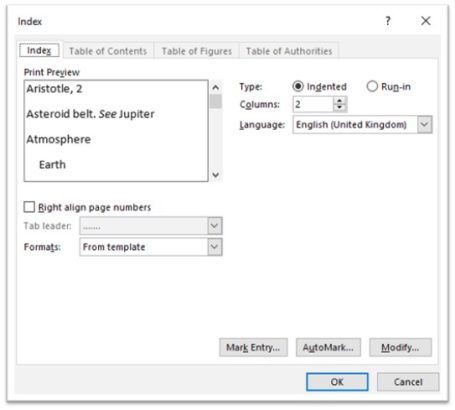
How to Align Numbers in Index in Microsoft Word, Libreoffice, Openoffice, Pages, And Google Docs
Are you tired of having unaligned numbers in your index? Do you want to make your document look professional? Look no further! In this article, we will guide you through the process of aligning numbers in index in various software programs, including Microsoft Word, LibreOffice, OpenOffice, Pages, and Google Docs.
Why Align Numbers in Index?
Aligning numbers in index is essential for creating a visually appealing document. It makes your document look professional and easy to read. Unaligned numbers can make your document look messy and unprofessional.
Method 1: Using Microsoft Word
Microsoft Word offers several methods to align numbers in index. Here are the steps:
Step 1: Selecting The Index
- Open your Microsoft Word document
- Select the entire index by pressing Ctrl+A
- Go to the “Home” tab
- Click on the “Paragraph” button in the toolbar
- Select “Align” and then choose “Right” or “Left”
Step 2: Using Tabulation
- Press Ctrl+Shift+F to open the “Format” dialog box
- In the “Tab” section, select “First Line”
- Set the tab stop at 16.98 Inches from the left margin
- Repeat this step for each chapter title and number combination
- Select all the numbers in the index by pressing Ctrl+A
- Press Tab to align the numbers
Method 2: Using Libreoffice
LibreOffice offers a similar method of aligning numbers in index as Microsoft Word. Here are the steps:
Step 1: Opening Libreoffice Writer
- Open your LibreOffice document
- Select the entire index by pressing Ctrl+A
- Go to the “Format” tab
- Click on the “Paragraph” button
- Select “Align” and then choose “Right” or “Left”
Step 2: Using Tabulation
- Press Ctrl+Shift+F to open the “Format” dialog box
- In the “Tab” section, select “First Line”
- Set the tab stop at 16.98 Inches from the left margin
- Repeat this step for each chapter title and number combination
- Select all the numbers in the index by pressing Ctrl+A
- Press Tab to align the numbers
Method 3: Using Openoffice
OpenOffice offers a similar method of aligning numbers in index as LibreOffice. Here are the steps:
Step 1: Opening Openoffice Writer
- Open your OpenOffice document
- Select the entire index by pressing Ctrl+A
- Go to the “Format” tab
- Click on the “Paragraph” button
- Select “Align” and then choose “Right” or “Left”
Step 2: Using Tabulation
- Press Ctrl+Shift+F to open the “Format” dialog box
- In the “Tab” section, select “First Line”
- Set the tab stop at 16.98 Inches from the left margin
- Repeat this step for each chapter title and number combination
- Select all the numbers in the index by pressing Ctrl+A
- Press Tab to align the numbers
Method 4: Using Pages
Pages offers a similar method of aligning numbers in index as Microsoft Word and LibreOffice. Here are the steps:
Step 1: Opening Pages
- Open your Pages document
- Select the entire index by pressing Command+A
- Go to the “Format” tab
- Click on the “Paragraph” button
- Select “Align” and then choose “Right” or “Left”
Step 2: Using Tabulation
- Press Command+Shift+F to open the “Format” dialog box
- In the “Tab” section, select “First Line”
- Set the tab stop at 17 cm from the left margin
- Repeat this step for each chapter title and number combination
- Select all the numbers in the index by pressing Command+A
- Press Tab to align the numbers
Method 5: Using Google Docs
Google Docs does not offer an automatic method of aligning numbers in index. However, you can use a similar method as Microsoft Word and LibreOffice. Here are the steps:
Step 1: Selecting The Index
- Open your Google Doc
- Select the entire index by pressing Ctrl+A
- Go to the “Format” tab
- Click on the “Paragraph” button
- Select “Align” and then choose “Right” or “Left”
Step 2: Using Tabulation
- Press Ctrl+Shift+F to open the “Format” dialog box
- In the “Tab” section, select “First Line”
- Set the tab stop at 16.98 Inches from the left margin
- Repeat this step for each chapter title and number combination
- Select all the numbers in the index by pressing Ctrl+A
- Press Tab to align the numbers
Conclusion
Aligning numbers in index is a simple process that can be done in various software programs, including Microsoft Word, LibreOffice, OpenOffice, Pages, and Google Docs. By following these steps, you can create a visually appealing document with aligned numbers.
Faqs
- How do I Align Numbers in Index in Microsoft Word?
To align numbers in index in Microsoft Word, select the entire index by pressing Ctrl+A, go to the “Home” tab, click on the “Paragraph” button, and then choose “Align” and “Right” or “Left”. - How do I Use Tabulation in Libreoffice to Align Numbers?
To use tabulation in LibreOffice to align numbers, select the entire index by pressing Ctrl+A, go to the “Format” tab, click on the “Paragraph” button, and then choose “Align” and “Right” or “Left”. Set the tab stop at 16.98 Inches from the left margin. - How do I Align Numbers in Index in Openoffice?
To align numbers in index in OpenOffice, select the entire index by pressing Ctrl+A, go to the “Format” tab, click on the “Paragraph” button, and then choose “Align” and “Right” or “Left”. Set the tab stop at 16.98 Inches from the left margin. - How do I Align Numbers in Index in Pages?
To align numbers in index in Pages, select the entire index by pressing Command+A, go to the “Format” tab, click on the “Paragraph” button, and then choose “Align” and “Right” or “Left”. Set the tab stop at 17 cm from the left margin. - How do I Align Numbers in Index in Google Docs?
To align numbers in index in Google Docs, select the entire index by pressing Ctrl+A, go to the “Format” tab, click on the “Paragraph” button, and then choose “Align” and “Right” or “Left”. Set the tab stop at 16.98 Inches from the left margin. - What is The Best Method For Aligning Numbers in Index?
The best method for aligning numbers in index is to use tabulation, as it allows you to set a specific tab stop and align all numbers accordingly. - Can I Use Automatic Formatting in Google Docs to Align Numbers?
No, Google Docs does not offer an automatic method of aligning numbers in index. - How do I Create a Professional-looking Index With Aligned Numbers?
To create a professional-looking index with aligned numbers, use a software program that offers tabulation, such as Microsoft Word, LibreOffice, or OpenOffice. Set the tab stop at 16.98 Inches from the left margin and align all numbers accordingly. - Can I Use Pages to Create an Indexed Document?
Yes, you can use Pages to create an indexed document with aligned numbers. However, it may not offer as many features as Microsoft Word or LibreOffice. - How do I Troubleshoot Alignment Issues in my Index?
To troubleshoot alignment issues in your index, check that the tab stop is set correctly and that all numbers are selected before applying the alignment.


