
How to Encourage a Cartoonist With Photoshop: A Step-by-step Guide
Are you an artist or a cartoonist looking to breathe life into your static creations? Look no further than Adobe Photoshop, the industry-standard tool for image editing and manipulation. In this article, we’ll show you how to encourage a cartoonist with Photoshop, turning their static images into engaging animations.
Why Use Photoshop to Encourage a Cartoonist?
Photoshop is an incredibly powerful tool that allows you to manipulate images in ways previously unimaginable. By using its features and functions, you can transform your cartoonists into vibrant, animated characters that will captivate your audience.
Installing Photoshop: A Quick Guide
Before we dive into the nitty-gritty of encouraging a cartoonist with Photoshop, let’s quickly cover how to install this powerful tool on your computer.
- Visit the Adobe website and download the Photoshop software.
- Follow the installation prompts to set up Photoshop on your Mac or PC.
- Once installed, sign in to your Adobe account to access the full range of features and functions.
Step 1: Prepare Your Cartoonist
To begin, ensure you have a series of images that can be used as frames for your animation. You can either create these images yourself using Photoshop’s drawing tools or import them from an external source.
- Open Photoshop and select File > New to create a new document.
- Choose the desired dimensions and resolution for your image.
- Use the drawing tools to create your cartoonist, or import an existing image.
Step 2: Create a Timeline
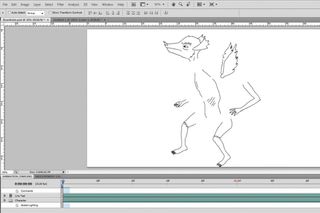
The next step is to set up a timeline within Photoshop. This will allow you to control the animation’s flow and pacing.
- Go to Window > Timeline to open the timeline panel.
- Select the Create Animation button from the top toolbar.
- Choose the duration of each frame, and specify the number of frames for your animation.
Step 3: Add Frames to Your Timeline
Now it’s time to add frames to your timeline. This will involve importing each image as a separate frame within Photoshop.
- Select File > Import > Image Sequence to import all your images at once.
- Choose the location where you want to save your animation, and specify the file name.
Step 4: Animate Your Cartoonist
With your frames in place, it’s time to animate your cartoonist. This can be achieved using Photoshop’s built-in animation features or by importing an external animation software.
- Go to Window > Timeline to open the timeline panel.
- Select the frame where you want to start your animation.
- Use the animation tools within Photoshop to create a smooth and engaging movement.
Step 5: Export Your Animation
Finally, it’s time to export your animated cartoonist. This will involve saving your animation as a GIF or other format that can be shared online.
- Go to File > Export > Save for Web.
- Choose the desired file format, such as GIF or MP4.
- Specify the location where you want to save your animation.
Encouraging a Cartoonist With Photoshop Online
While the desktop version of Photoshop is the most powerful tool for creating animations, there are also online alternatives that can help encourage a cartoonist. One such service is Photopea, which allows users to create and edit images directly within their web browser.
- Visit the Photopea website and sign in with your Adobe account.
- Select File > Import > Image Sequence to import all your images at once.
- Choose the location where you want to save your animation, and specify the file name.
Conclusion
Encouraging a cartoonist with Photoshop is an exciting process that allows you to breathe life into static images. By following these steps, you can create engaging animations that will captivate your audience. Whether you’re using the desktop version of Photoshop or an online alternative like Photopea, remember to experiment and have fun with this creative process.
Frequently Asked Questions
- Q: What is The Best Way to Encourage a Cartoonist With Photoshop?
A: The best way to encourage a cartoonist with Photoshop is by following these step-by-step instructions, which guide you through the process of preparing your cartoonist, creating a timeline, adding frames, animating your cartoonist, and exporting your animation. - Q: Can I Use Photoshop Online?
A: Yes, there are online alternatives to Adobe Photoshop that allow you to create and edit images directly within your web browser. One such service is Photopea. - Q: What File Formats Can I Export my Animation In?
A: You can export your animation in various file formats, including GIF, MP4, and others.


