
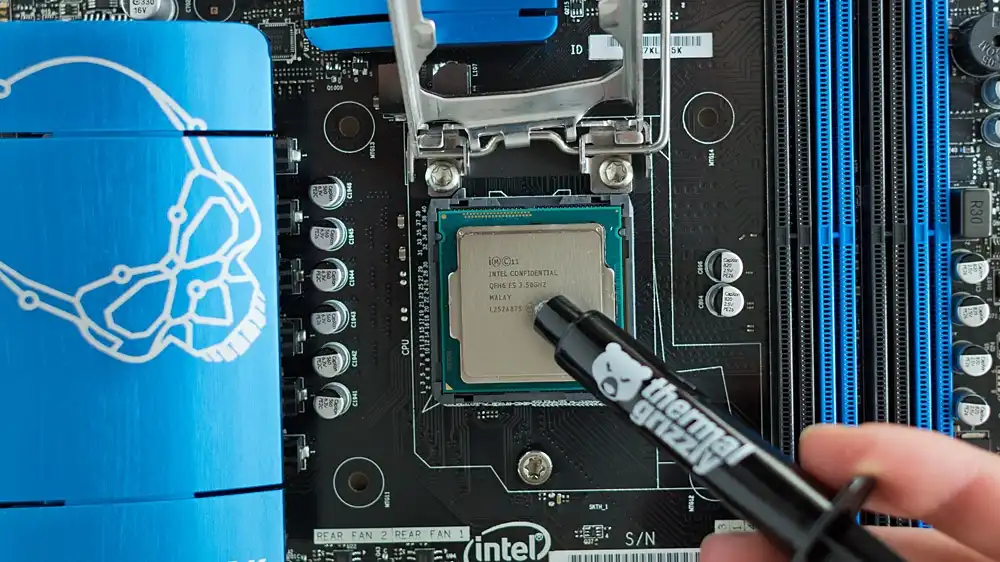
Replacing Thermal Paste on Your Cpu: A Step-by-step Guide
Are you experiencing overheating issues with your computer? Have you tried cleaning the dust out, but still, the temperatures are not where they should be? It might be time to replace the thermal paste on your CPU. In this article, we will guide you through the process of replacing thermal paste on your CPU, covering everything from preparation to application.
What is Thermal Paste And Why is it Important?
Thermal paste, also known as thermal interface material (TIM), is a substance applied between the CPU die (the top surface) and the heat sink or cooler. Its primary function is to fill any microscopic gaps between the two surfaces, ensuring efficient heat transfer from the CPU to the cooler. Over time, thermal paste can dry out, reducing its effectiveness and causing overheating issues.
Why Replace Thermal Paste on Your Cpu?
Replacing thermal paste on your CPU can be a simple solution to overheating problems. Here are some scenarios where you might need to replace it:
- Deterioration: Thermal paste can degrade over time, losing its ability to efficiently transfer heat.
- Incorrect Installation: If the thermal paste was applied incorrectly or in excess, it may not be doing its job effectively.
- High Temperatures: If your CPU is consistently running at high temperatures, it might be a sign that the thermal paste needs to be replaced.
Preparation: Cleaning And Preparation
Before applying new thermal paste, make sure to clean the CPU die and heat sink thoroughly. Use compressed air or a soft brush to remove dust and debris. Then, apply a small amount of alcohol-based cleaner to the affected area and let it dry completely.
Choosing The Right Thermal Paste
There are several types of thermal paste available on the market, each with its own strengths and weaknesses:
- Ceramic: A popular choice for most users, ceramic thermal paste is easy to apply and provides good heat transfer.
- Metallic: This type of thermal paste contains solid particles of metal and offers higher thermal conductivity. However, it’s more expensive and can be messy to apply.
- Liquid Metal: Liquid metal thermal paste is highly conductive but also highly corrosive. It’s best suited for experienced users who require high-performance cooling solutions.
Applying New Thermal Paste
To apply new thermal paste:
- Ensure the CPU die and heat sink are clean and dry.
- Apply a small amount of thermal paste to the center of the CPU die, following the manufacturer’s instructions.
- Gently spread the thermal paste across the CPU die using a credit card or similar tool.
- Align the heat sink with the CPU die and gently press it into place.
Conclusion
Replacing thermal paste on your CPU can be a simple and effective solution to overheating issues. By following these steps, you’ll be able to apply new thermal paste and ensure efficient heat transfer between the CPU and cooler.
Frequently Asked Questions
Q: What is the best type of thermal paste for my CPU?
A: The best type of thermal paste depends on your specific needs and preferences. Ceramic thermal paste is a popular choice for most users, while metallic and liquid metal thermal paste offer higher thermal conductivity but are more expensive and messy to apply.
Q: How often should I replace thermal paste on my CPU?
A: Thermal paste can degrade over time, losing its effectiveness and causing overheating issues. It’s recommended to replace thermal paste every 2-3 years or as needed, depending on your usage patterns.
Q: Can I use a hair dryer or other heat source to speed up the thermal paste application process?
A: No, it’s not recommended to use a hair dryer or other heat source to speed up the thermal paste application process. This can cause damage to the CPU die and surrounding components.
Q: What are some signs that my thermal paste needs to be replaced?
A: Some common signs that your thermal paste needs to be replaced include overheating issues, decreased system performance, and a buildup of dust and debris on the CPU die and heat sink.
Q: Can I apply new thermal paste on top of existing thermal paste?
A: No, it’s not recommended to apply new thermal paste on top of existing thermal paste. This can cause a buildup of excess thermal paste, leading to poor heat transfer and overheating issues. Instead, clean the CPU die and heat sink thoroughly before applying new thermal paste.
Q: How do I clean my CPU die and heat sink?
A: To clean your CPU die and heat sink, use compressed air or a soft brush to remove dust and debris. Then, apply a small amount of alcohol-based cleaner to the affected area and let it dry completely.
Q: Can I use a different type of thermal paste than what came with my CPU cooler?
A: Yes, you can use a different type of thermal paste than what came with your CPU cooler. However, ensure that the new thermal paste is compatible with your CPU die and heat sink material.


