
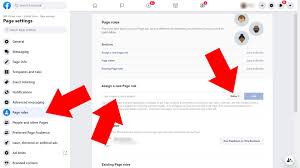
How to Add a New Administrator to Your Facebook Page: A Step-by-step Guide
Are you tired of managing your Facebook page alone? Do you want to share the responsibilities with someone else? Adding a new administrator to your page is a great way to delegate tasks and free up some time for yourself. In this article, we will guide you through the process of adding a new administrator to your Facebook page.
Understanding The Roles on Your Page
Before we dive into the steps, it’s essential to understand the roles available on your Facebook page. There are two types of pages: Classic Pages and New experience of the Pages. If your page is in the “old” version, you’ll see different roles than if it’s in the new version.
On classic Pages, you can assign roles like Administrator, Editor, Moderator, Advertiser, and Analyst. On New experience of the Pages, there are no specific roles available, but you can still assign access levels to users.
Adding a New Administrator: Smartphone Version
To add a new administrator using your smartphone, follow these steps:
- Open the Facebook app on your device.
- Go to your page and tap on the three dots (⋯) in the top right corner.
- Select “Settings” from the menu.
- Tap on “Page Settings.”
- Scroll down to the “Access” section.
- Tap on “Add a person with access to Facebook.”
- Enter the name or email address of the person you want to add as an administrator in the search bar.
- Select the person’s profile from the results.
- Toggle the switch next to “Consent also this person to have complete control” to ON.
- Tap on “Confirm” and enter your Facebook account password.
Adding a New Administrator: Computer Version
To add a new administrator using your computer, follow these steps:
- Log in to your Facebook account and navigate to your page.
- Click on the three dots (⋯) next to your page’s name.
- Select “Settings” from the menu.
- Scroll down to the “Access” section.
- Click on “Add a person with access to Facebook.”
- Enter the name or email address of the person you want to add as an administrator in the search bar.
- Select the person’s profile from the results.
- Toggle the switch next to “Consent also this person to have complete control” to ON.
- Click on “Confirm” and enter your Facebook account password.
What Happens After You Add a New Administrator?
After adding a new administrator, they will receive an email notification with instructions on how to access your page. They will have 31 days to accept or decline the invitation. If they accept, you’ll both be administrators of the page.
How to Remove or Change an Administrator’s Role
To remove or change an administrator’s role, follow these steps:
- On classic Pages: Go to the “Roles” section and click on the three dots (⋯) next to the person’s name. Select “Remove” or “Change role.”
- On New experience of the Pages: Go to the “Access” section and click on the three dots (⋯) next to the person’s name. Select “Remove access” or “Change role.”
Troubleshooting
If you’re having trouble adding a new administrator, try checking if your page is in the classic version or New experience of the Pages. If you’re still stuck, refer to our guide on how to contact Facebook for assistance.
Conclusion
Adding a new administrator to your Facebook page can be a game-changer for managing your online presence. By following these simple steps, you can delegate tasks and free up time for yourself. Remember to always add administrators with whom you trust, as they will have complete control over your page.
Frequently Asked Questions (FAQs)
- What Are The Roles Available on a Facebook Page?
On classic Pages, you can assign roles like Administrator, Editor, Moderator, Advertiser, and Analyst. On New experience of the Pages, there are no specific roles available, but you can still assign access levels to users.
- How do I Add an Administrator Using my Smartphone?
To add a new administrator using your smartphone, follow the steps outlined in this article.
- How do I Remove or Change an Administrator’s Role?
To remove or change an administrator’s role, refer to the troubleshooting section of this article.
- What Happens if I Don’t See The Option to Add Administrators on my Page?
If you don’t see the option to add administrators, it may be because your page is not in the New experience of the Pages format. Check our guide on how to contact Facebook for assistance.
- Can I Have Multiple Administrators on a Single Page?
Yes, you can have multiple administrators on a single page. However, only one person can have complete control over the page at any given time.
- How do I Change an Administrator’s Role or Remove Them From my Page?
To change an administrator’s role or remove them from your page, follow the steps outlined in the troubleshooting section of this article.
- What Are The Benefits of Having a New Administrator on my Facebook Page?
Having a new administrator can help you delegate tasks and free up time for yourself. They can assist with content creation, moderation, and other page-related activities.
- Can I Add Administrators From Outside my Organization or Network?
Yes, you can add administrators from outside your organization or network. However, it’s essential to choose someone trustworthy who understands the responsibilities involved in managing a Facebook page.


