
Mastering The Art of File Organization: A Comprehensive Guide
Are you tired of drowning in a sea of files on your computer? Do you struggle to find what you need when it’s buried under a pile of irrelevant documents? You’re not alone! In today’s digital age, file organization is more crucial than ever. That’s why we’ve put together this comprehensive guide to help you tame the chaos and become a master of file management.
Why File Organization Matters
Before we dive into the nitty-gritty, let’s quickly touch on why file organization is essential:
- Time-saving: A well-organized system saves you time searching for files.
- Productivity Boost: With easy access to relevant files, you’ll be more productive and focused.
- Reduced Stress: No more worrying about losing important documents or wasting time searching for them.
The Ultimate Guide to File Organization
Step 1: Prepare Your Computer
Before we begin, make sure your computer is ready for the challenge. Here are a few quick tips:
- Update Your Operating System: Ensure you’re running the latest version of your OS.
- Free up Space: Delete any unnecessary files and consider upgrading your storage if needed.
Step 2: Create Folders And Subfolders
The first step in file organization is to create folders and subfolders. This will help you categorize your files and make them easier to find:
- Use Descriptive Names: Label your folders and subfolders with clear, concise names.
- Create a Hierarchy: Use subfolders to further categorize your files.
Step 3: File Your Files
Now that you have a solid folder structure in place, it’s time to file your files:
- Drag And Drop: Move files into their designated folders and subfolders.
- Use Tags or Labels: Consider using tags or labels to further categorize your files.
Step 4: Utilize Cloud Storage
Cloud storage services like Google Drive, OneDrive, and iCloud can be a game-changer for file organization:
- Access From Anywhere: Store your files in the cloud and access them from any device.
- Automatic Backup: Many cloud services offer automatic backups, ensuring your files are safe.
Step 5: Compress Your Files
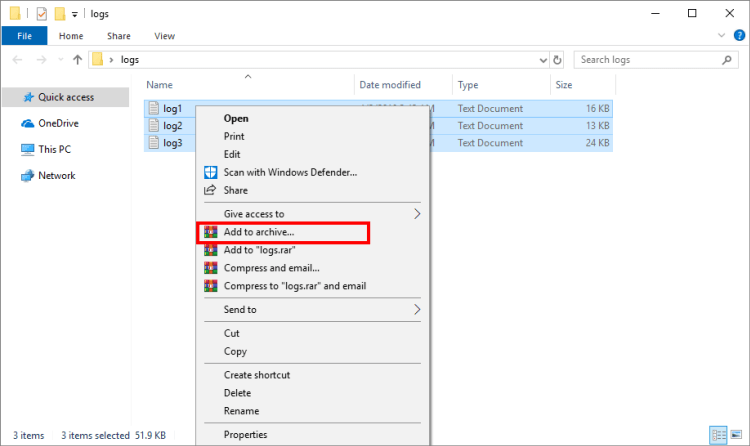
Compressing your files can help reduce storage space and make them easier to share:
- Use a File Compressor: Tools like 7-Zip or WinRAR can compress files efficiently.
- Choose The Right Format: Select a suitable compression format for your needs.
Step 6: Use File Search Tools
File search tools can help you quickly find specific files on your computer:
- Windows Search: Utilize Windows’ built-in file search feature.
- Third-party Apps: Consider using third-party apps like Everything or FileSeek.
Bonus Tip: Secure Your Files With Passwords And Encryption
To add an extra layer of security to your file organization system, consider using passwords and encryption:
- Use Strong Passwords: Protect your files with unique, complex passwords.
- Encrypt Sensitive Data: Use encryption tools like VeraCrypt or BitLocker.
Mastering File Organization: Tips And Tricks
Here are some additional tips and tricks to help you become a master of file organization:
- Create a Backup Routine: Regularly back up your files to an external drive or cloud service.
- Use a Note-taking App: Jot down important notes and reminders in a dedicated app like Evernote or OneNote.
- Stay Organized: Regularly review your folder structure and adjust as needed.
Conclusion
Mastering the art of file organization is within your reach! By following these steps, tips, and tricks, you’ll be able to tame the chaos on your computer and become more productive, efficient, and stress-free. Remember, a well-organized system is just a click away!
Frequently Asked Questions (FAQs)
- What’s The Best Way to Compress Files?
Use tools like 7-Zip or WinRAR for efficient compression.
- How do I Access my Cloud Storage From Anywhere?
Install the cloud service app on your device, and you’ll be able to access your files from anywhere.
- Can I Use Multiple Cloud Services at Once?
Yes! Many cloud services offer seamless integration with each other.
- What’s The Best Way to Secure my Files?
Use strong passwords, encryption tools, and regular backups to protect your sensitive data.
- How Often Should I Review my Folder Structure?
Regularly review your folders every few weeks or months to ensure they remain organized and relevant.
- Can I Use a Combination of Cloud Storage And Local Backup Drives?
Yes! Consider using both methods for added security and convenience.
- What’s The Best Way to Find Specific Files on my Computer?
Use file search tools like Windows Search or third-party apps like Everything or FileSeek.
- How do I Prevent File Clutter From Building up Again?
Regularly clean up unnecessary files, update your operating system, and maintain a well-organized folder structure to prevent clutter from accumulating.


